
At its core, a screenshot editing tool is simply software that lets you draw on, add text to, and otherwise mark up an image you've captured from your screen. But that definition barely scratches the surface. These tools are really about transforming a static picture into a powerful communication device.
Why Modern Screenshots Are More Than Just Pictures
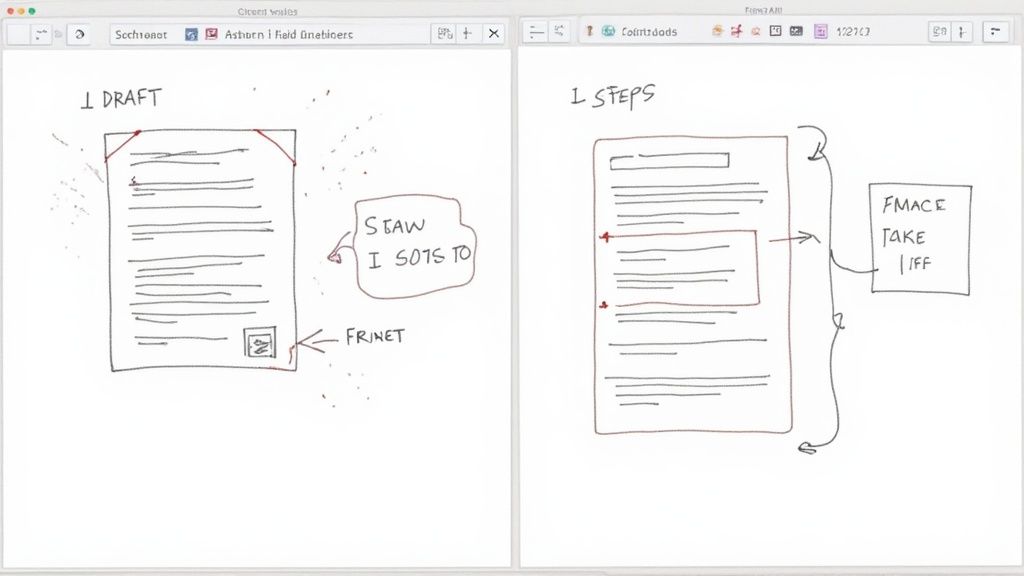
Think about it: a plain screenshot is like a first draft. The basic information is there, but it’s raw and unfocused. Without any context, a simple screen grab often creates more questions than answers, leading to confusion and follow-up emails.
This is where a good screenshot editing tool completely changes the game. It turns that rough sketch into a clear, easy-to-follow blueprint. By adding a few simple markings, you can direct someone's attention, explain a process, or highlight an issue, making sure everyone is on the same page.
Transforming Communication Workflows
For anyone working with a team—especially a remote one—clear communication is everything. Instead of typing out a long, confusing email to describe a software bug or give feedback on a design, an annotated screenshot gets the point across in seconds. It’s a visual-first approach that’s become essential.
- Remote Teams: You can instantly show a colleague what you’re talking about, cutting down on the endless back-and-forth that kills productivity.
- Support Agents: Imagine resolving customer tickets faster by sending a screenshot with numbered steps instead of a wall of text. It's a game-changer.
- Designers and Developers: You can give pixel-perfect feedback with arrows pointing to specific elements or comments dropped right onto a mockup.
A well-annotated image can prevent a misunderstanding that would otherwise take a 15-minute call to sort out. It’s not just about saving time; it’s about making every interaction more precise and efficient.
In the end, knowing how to quickly edit a screenshot isn't just a "nice-to-have" skill anymore. It’s a basic part of digital literacy. It allows you to turn a simple image into a dynamic piece of communication that speeds up projects, prevents mistakes, and ensures your message lands perfectly the first time. In today's fast-moving work environment, that’s not just helpful—it’s absolutely essential.
What Makes a Screenshot Editor Truly Great?
Let's be honest, a basic screen grab is just the starting point. To make a screenshot truly useful, you need the right tools to add clarity and impact. The best editors take that simple image and turn it into a powerful communication tool, saving you from writing paragraphs of explanation.
The need for these tools isn't just a hunch; it's a massive, growing market. The global screen capture software space, which is home to every top-tier screenshot editing tool, hit a value of $2.5 billion in 2024. Projections show it more than doubling to $5.1 billion by 2033, largely thanks to the rise of remote work and our constant need to collaborate visually. You can dig into more data on this market growth to see just how big this trend is.
So, what are these essential features? It all comes down to a few core capabilities that separate a simple utility from a productivity powerhouse.
The Power of Annotation and Markup
At its heart, screenshot editing is about one thing: showing, not just telling. Annotation tools are your digital red pen, letting you direct attention exactly where it needs to go.
-
Arrows and Shapes: These are your best friends for pointing things out. An arrow can highlight a specific button, while a rectangle can isolate an entire section of the screen. Think of a designer circling a logo and asking for a revision—it's instant and unambiguous.
-
Text Tool: Why send a separate email explaining an image? The text tool lets you add notes, questions, or instructions directly onto the screenshot itself. It keeps the context and the visual together.
-
Numbered Steps: This is a game-changer for creating quick tutorials or bug reports. Instead of writing out a long list of actions, a developer can just number the steps on a series of screenshots to show exactly how to replicate an issue.
Keeping Information Safe with Redaction Tools
Sharing screenshots in a professional setting often means dealing with sensitive data. A solid editor gives you the power to protect that information without ruining the screenshot's purpose.
The blur and pixelation tools aren't just nice-to-haves; they're essential for anyone handling private information. They let you instantly obscure names, email addresses, or account numbers, keeping you compliant and protecting people's privacy.
Imagine a support agent sending a customer a guide. They can blur out all other customer names from the interface, keeping the focus on the instructions while maintaining confidentiality. These redaction features are what make a screenshot editing tool a truly professional asset, ensuring your visuals are as secure as they are clear.
How Top Teams Use Screenshots to Communicate Better
On any project, whether it’s a quick bug fix or a massive feature launch, clear communication is what separates success from failure. We've all been there—trying to describe a visual problem with a wall of text. It’s slow, confusing, and often leads to more questions than answers. The best teams know this, which is why they bake a screenshot editing tool right into their daily workflow to turn confusion into clarity.
Think about a common scenario: a QA tester spots a bug. Instead of writing a novel about it, they can snap a screenshot, draw a big red box around the broken element, and add numbered steps showing exactly how to trigger the problem. That visual report is instantly understood by the developer, dramatically cutting down on debugging time.
This simple cycle of capturing, annotating, and sharing creates an incredibly effective communication loop.
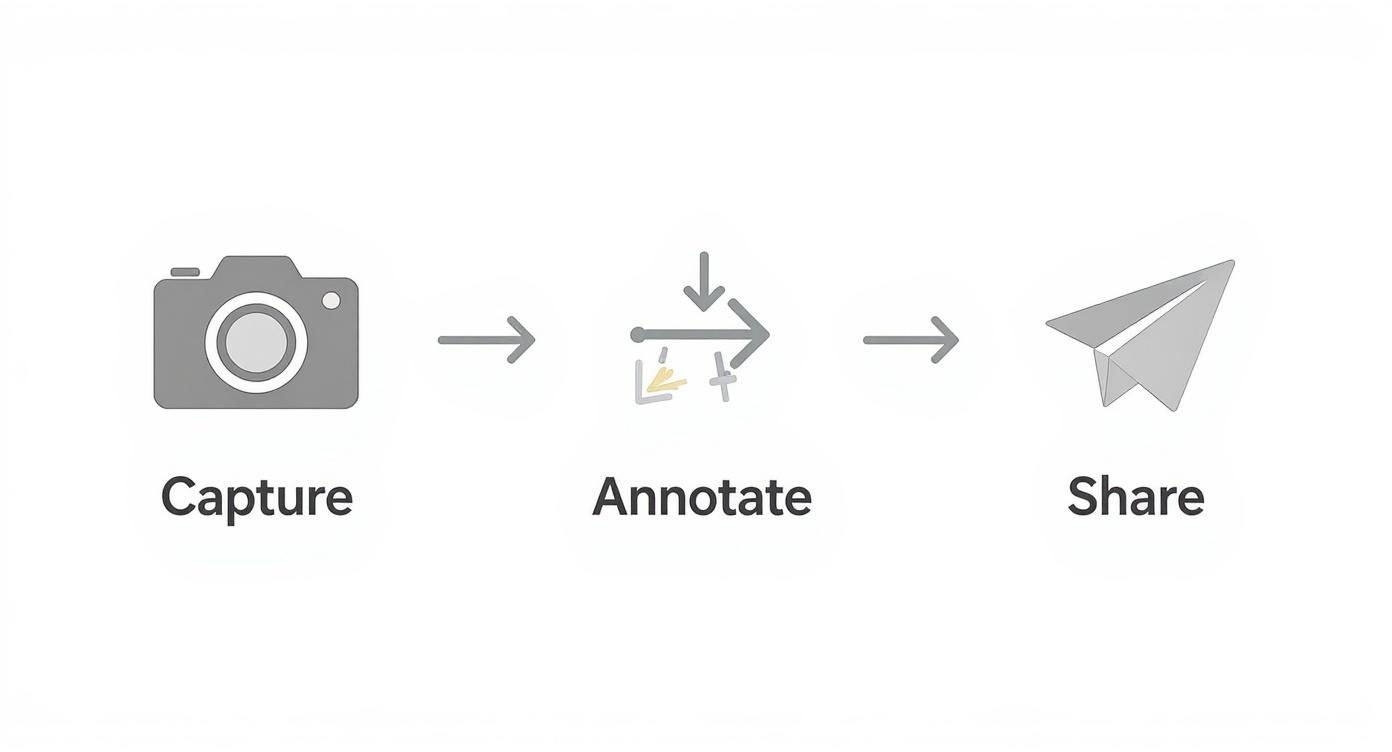
This workflow shows how a basic screen grab becomes a clear, actionable piece of information. The real magic is in how much back-and-forth chatter it eliminates.
From Design Feedback to Project Updates
This "show, don't tell" approach goes way beyond bug reports. Picture a designer giving feedback on a new webpage. Instead of a vague comment like "nudge that button to the left," they can draw an arrow pointing to the exact spot it needs to go. This takes all the guesswork out of the equation and helps get the design right on the first try.
In the same way, a project manager can send a status update using a screenshot of a progress chart, highlighting key wins and potential delays. The whole team gets the critical info at a glance, keeping everyone on the same page.
The goal is to remove ambiguity. An annotated screenshot leaves no room for interpretation, ensuring that what you see is exactly what you mean. This simple act drastically reduces errors and accelerates timelines.
The need for these tools exploded when teams went remote after the pandemic. Cloud-based screen capture tools saw a huge jump in adoption because they’re affordable, support real-time collaboration, and make sharing a breeze. This has cemented their place as a must-have for modern teamwork. If you're curious, you can explore more about this software trend.
How AI Is Making Screenshot Editing Smarter
The next evolution of the screenshot editing tool has arrived, and it's powered by artificial intelligence. This isn't just some buzzword—AI is genuinely automating the most tedious parts of the editing process, helping you create professional-looking visuals with a fraction of the effort.
Let's say you need to share a screenshot containing sensitive customer data. The old way involved painstakingly blurring out every single name, email, and phone number by hand. Now, AI-driven tools can handle it instantly. This is the power of smart-blur technology, which automatically finds and hides personal information for you.
This one feature alone saves a massive amount of time, but it also minimizes the risk of accidentally missing something important. Your visuals end up clear, professional, and secure.
Automated Clarity and Content Creation
Redacting information is just the beginning. Think of AI as a smart assistant baked right into your editing software, ready to tackle other complex jobs.
- Text Recognition (OCR): Ever seen text in an image and wished you could just copy and paste it? AI-powered Optical Character Recognition (OCR) makes that a reality by turning pixels into editable text.
- Automatic Guide Generation: Some of the most advanced tools can analyze a sequence of screenshots and automatically assemble them into a step-by-step guide, adding annotations and numbers along the way.
These AI features aren't just about going faster. They're about improving how you communicate. They take complicated edits and monotonous tasks off your plate, putting pro-level results within anyone's reach.
As AI has become more common, people's expectations have grown. We now look for tools that can manage high-resolution images, handle complex edits, and make precise adjustments with ease. You can learn more about AI’s impact on the photo editing market to see just how big this trend is. For a tool like GrabShot.io, these are the core features that make screenshot editing truly smart.
How to Choose the Right Screenshot Editing Tool
Picking the perfect screenshot editing tool isn't about finding the one with the longest feature list. It's about finding the one that just clicks with your daily workflow. The best tool for a solo blogger is going to be completely different from what a big software development team needs.
Your choice really comes down to a few core things: what you do every day, who you do it with, and the tech you already use.
Start by asking yourself: am I working alone or as part of a team? If you're a one-person show, you'll probably value speed and simplicity above all else. But if you're on a team, you'll need features like shared asset libraries and instant sharing links to keep everyone on the same page.
Then, take a look at your current software setup. Do you spend your days in project management tools like Jira or communication apps like Slack? If the answer is yes, then a tool with solid integrations is an absolute must-have. A good integration can shrink a tedious, multi-step process into a single click, saving you a surprising amount of time each day.
Evaluating Your Core Needs
The world of screenshot editors is vast, with everything from free, no-frills tools to seriously powerful professional platforms. Your budget and the features you can't live without will be your main guides. For a quick, simple markup now and then, your computer's built-in tool might be all you need. But it's just not built for professional-level work.
Think about the kinds of tasks you’re tackling. Do you regularly handle sensitive information? If so, a reliable redaction feature—like the AI-powered smart-blur in GrabShot.io—isn't just a nice-to-have; it's essential. Are you constantly creating tutorials or filing bug reports? In that case, tools like numbered steps and detailed annotation options are critical for getting your point across clearly.
Your goal is to find software that removes friction from your workflow, not add to it. The right tool feels like a natural extension of your process, helping you communicate visually without a steep learning curve.
To make things a bit clearer, let's break down the main categories of tools out there. Each type has its own strengths and is designed for a different kind of user. Understanding these differences is the key to finding the one that will actually make you more productive.
Comparing Screenshot Editing Tool Types
Here’s a quick look at the main categories of screenshot editors to help you see where different tools fit in.
| Tool Type | Key Features | Best For | Cost |
|---|---|---|---|
| Built-in OS Utilities | Basic capture, simple shapes, text. | Quick, infrequent personal use. | Free |
| Browser Extensions | Webpage capture, basic annotations. | Marketers and web designers. | Free / Freemium |
| Desktop Software | Advanced editing, workflow automation. | Power users needing offline access. | One-time Fee / Subscription |
| Cloud-Based Platforms | AI features, team collaboration, integrations. | Remote teams and professional creators. | Subscription |
As you can see, the right choice depends entirely on your context. A free OS utility is great in a pinch, but for any kind of professional or team-based work, a dedicated cloud-based platform or desktop app is almost always the better investment.
Got Questions About Screenshot Editing? We've Got Answers.
Even with the best tools at your fingertips, you might wonder how to fit them into your daily grind. Nailing down the details helps you work smarter and get your point across without a hitch. Let's tackle some of the most common questions that pop up.
Screenshot Tool vs. Image Editor: What’s the Difference?
A lot of people get tripped up on this one. Is a screenshot editor just a watered-down version of a big-gun image editor like Photoshop? Not at all. They're built for completely different jobs. Think of it like a specialized torque wrench versus an entire mechanic's tool chest.
Photoshop is for creative heavy lifting—intricate photo retouching, creating digital art from scratch, and complex graphic design. A screenshot tool is built for one thing and one thing only: fast, clear communication. It’s all about getting arrows, text, and highlights onto an image to explain something visually, right now.
Are the Free Tools Good Enough?
This is the big one: can a free tool really cut it? For a one-off screenshot every now and then, sure. But if you rely on screenshots to do your job, free tools often have hidden costs in the form of friction and frustration.
They usually come with a few catches:
- Watermarks slapped on your images, which doesn't exactly scream "professional."
- Limited integrations, meaning you can't easily send your marked-up images to apps like Slack or Jira.
- Bare-bones features that leave you wishing for things like smart redaction or saved branding templates.
If visual communication is a core part of your role, investing in a proper tool isn't an expense—it's an upgrade to your own efficiency.
The whole point of a great screenshot tool is to make communication seamless, not to add another annoying step to your process. A professional tool removes friction; a basic one often creates it.
How Do I Make My Screenshots Actually Clear?
So you've got the tool, but how do you make sure people get what you're trying to show them? The secret is simplicity and consistency.
Always use annotation colors that pop against the background. Don't go overboard with markups—less is almost always more. If you're showing a sequence, use numbered steps to walk your audience through it. The goal is instant understanding, not a visual puzzle they have to solve.
Ready to create crystal-clear, professional screenshots in seconds? GrabShot.io packs everything you need—from AI-powered redaction to beautiful, ready-made presets—to help you communicate with absolute clarity. Try GrabShot.io for free and see the difference.