

Knowing how to take a proper website snapshot is more than just hitting Print Screen. It's a fundamental skill for anyone who works online, whether you're documenting a bug, sharing design feedback, or just saving something for later. You've got a few options, from the simple tools built right into your browser and OS to more advanced services that deliver polished, professional-quality captures.
Why Bother Capturing a Website Snapshot?

Before we get into the "how," it’s worth touching on the "why." Understanding the value behind a simple screenshot turns a basic task into a powerful tool for documentation, analysis, and communication.
Think about it. A web designer trying to describe a tiny visual glitch to a developer can spend ages writing an email, or they can just send a quick, precise snapshot of the problem. It's instant clarity. The same goes for a marketer who spots a competitor's flash sale on their homepage—that screenshot is the only proof they'll have once the sale is over.
Real-World Applications
This isn't just a hypothetical. I see this play out every day across different fields:
- Developers and QA Testers: They live and breathe screenshots. They use them for bug reports, to document progress for project milestones, and even for visual regression testing to make sure a new update didn't break the layout.
- Marketers: Capturing competitor landing pages, saving examples of clever ad campaigns, or documenting social media trends for a future report is all part of the job.
- Designers: How else do you share visual feedback with a remote team? Snapshots are also perfect for building a portfolio by capturing your live work exactly as it appeared.
- Content Creators: A well-placed website image can make a blog post, tutorial, or presentation so much more engaging and easy to follow.
A well-timed snapshot provides undeniable proof. It can settle a client dispute over a requested revision or preserve a webpage's design before a major overhaul.
Ultimately, getting good at capturing websites gives you a reliable way to freeze a moment in time online. It creates a solid record you can use for collaboration, planning, or just proving you were right.
Instant Snapshots Using Your Browser and OS
Sometimes, you just need a quick screenshot, and you need it now. The good news is, you don't have to go hunting for new software. The most effective tools for a fast capture are already baked right into your browser and operating system, perfect for grabbing a quick visual to share with a colleague or for your own records.
Most people don't realize that modern browsers like Google Chrome and Mozilla Firefox have a secret weapon for full-page screenshots hidden in their developer tools. This is a total game-changer when you need to capture everything on a long, scrolling page, not just the part you can see.
Capturing What You See with Your Browser
Let's say you're in Chrome. Just pop open the Developer Tools with Ctrl+Shift+I (on Windows) or Cmd+Option+I (on macOS). From there, bring up the Command Menu using Ctrl+Shift+P or Cmd+Shift+P.
This brings up a little search bar. Just type "screenshot," and you'll see a few options, including one to capture the full size of the page. It's that simple.
Here’s what that Command Menu looks like inside Chrome's DevTools. You can see it gives you a few different ways to grab an image.

As you can see, you can capture a specific element (a "node"), just the visible viewport, or the entire scrolling page.
Fast Captures with Operating System Shortcuts
But what if you don't need the whole page? Maybe you just want to snag a testimonial, a cool chart, or a specific part of a site's header. This is where your operating system's built-in shortcuts really shine.
- On Windows: The magic combo is
Windows Key + Shift + S. This launches the Snip & Sketch tool, letting you draw a box around exactly what you want to copy. - On macOS: My go-to is
Cmd + Shift + 4. Your cursor turns into a crosshair, so you can click and drag to select a specific area. The screenshot saves right to your desktop. Easy.
To help you decide which built-in tool is right for the moment, here’s a quick breakdown.
Comparing Quick Snapshot Methods
| Method | Best For | Pros | Cons |
|---|---|---|---|
| Browser DevTools | Capturing long, scrolling pages in their entirety. | Pixel-perfect, captures the full page, no stitching needed. | A few more clicks to access; can feel intimidating at first. |
| Windows Snip & Sketch | Grabbing a specific section of your screen quickly. | Super fast, intuitive, copies directly to clipboard. | Only captures what's visible on screen. |
| macOS Screenshot | Selecting a precise area of the visible page. | Simple and quick, saves file directly to the desktop. | Limited to what you can see; no full-page option. |
Ultimately, both browser and OS tools are fantastic for immediate needs. They get the job done without any extra fuss.
The demand for simple, integrated tools like these is absolutely massive. It's what has fueled the explosive growth of website builders and similar software, many of which now include their own screenshot features.
The market for these web creation tools was valued at an incredible $2.2 billion in 2025, which just goes to show how critical these easy-to-use functions are for everyone from marketers to designers. You can explore more data on this trend to see how it's shaping the web.
Getting the Full Picture: Full-Page and Mobile Screenshots
A quick snap of your screen often just doesn't cut it. It only captures what you can see, leaving out everything 'below the fold.' It also completely misses how a site actually looks and feels on a smartphone, which is where most people are browsing these days.
Thankfully, browser developer tools offer a way to get around these limitations. They're a game-changer for capturing the entire length of a webpage and seeing exactly how it renders on different mobile devices. If you're a designer, developer, or marketer, this is a skill you absolutely need in your toolbox.
Seeing Through a Mobile Lens
Modern browsers like Chrome have a handy device mode built right in. Just open up Developer Tools, look for the little icon that looks like a phone and tablet, and give it a click. This lets you mimic all sorts of viewports, from the latest iPhone to a Google Pixel, giving you a genuine preview of the mobile experience.
Once you’ve got the mobile view you need, you can pop open the developer tools command menu (Ctrl+Shift+P on Windows or Cmd+Shift+P on Mac) to grab a screenshot. For a complete step-by-step, take a look at our guide on how to screenshot on Chrome. This is the best way to be sure your captures are an honest reflection of what mobile users see.
Capturing an accurate mobile snapshot isn't just a neat trick anymore. It's essential for checking design consistency, testing responsive layouts, and building marketing materials that connect with an audience that lives on their phones.
The numbers really drive this point home. We're talking about 5.76 billion unique mobile users across the globe—that's a massive 70% of the world's population. And according to Meltwater's 2025 report on the global digital population, a whopping 61% of mobile users are more likely to get in touch with a local business if their site is mobile-friendly. That’s a direct line from good mobile design to business growth.
This reality makes it crucial to know how to snapshot a website in its mobile form. It’s the only way to catch layout bugs or clunky user experiences before they cost you visitors.
Automating Snapshots for Developers and Marketers
When you need to grab screenshots over and over again, doing it by hand just doesn't scale. For anyone who needs consistent website captures for tracking, testing, or reporting—I'm looking at you, developers and marketers—automation is the only way to go. This is where we move beyond clicks and get into programmatic captures.
This is the realm of headless browsers, with tools like Puppeteer for Node.js leading the charge. A headless browser is basically a web browser without the visual part; you control it entirely with code. With just a small script, you can tell it to visit a URL, patiently wait for all the JavaScript-heavy content to render, and then save a pixel-perfect screenshot.
Why Automation Is a Game Changer
Think about the possibilities here. Marketers can set up a script to automatically archive competitor homepages every single morning. No more manual work. Developers can bake this right into their CI/CD pipeline for visual regression testing, catching UI bugs before they ever go live. It’s also a massive time-saver for creating technical guides, as you can automatically snap pictures of UI elements you need to explain. Speaking of which, if you're deep in that world, you might want to check out the best tools for technical documentation to streamline your process even further.
A perfect example of an automated task is capturing how a website looks on a phone, as you can see below.
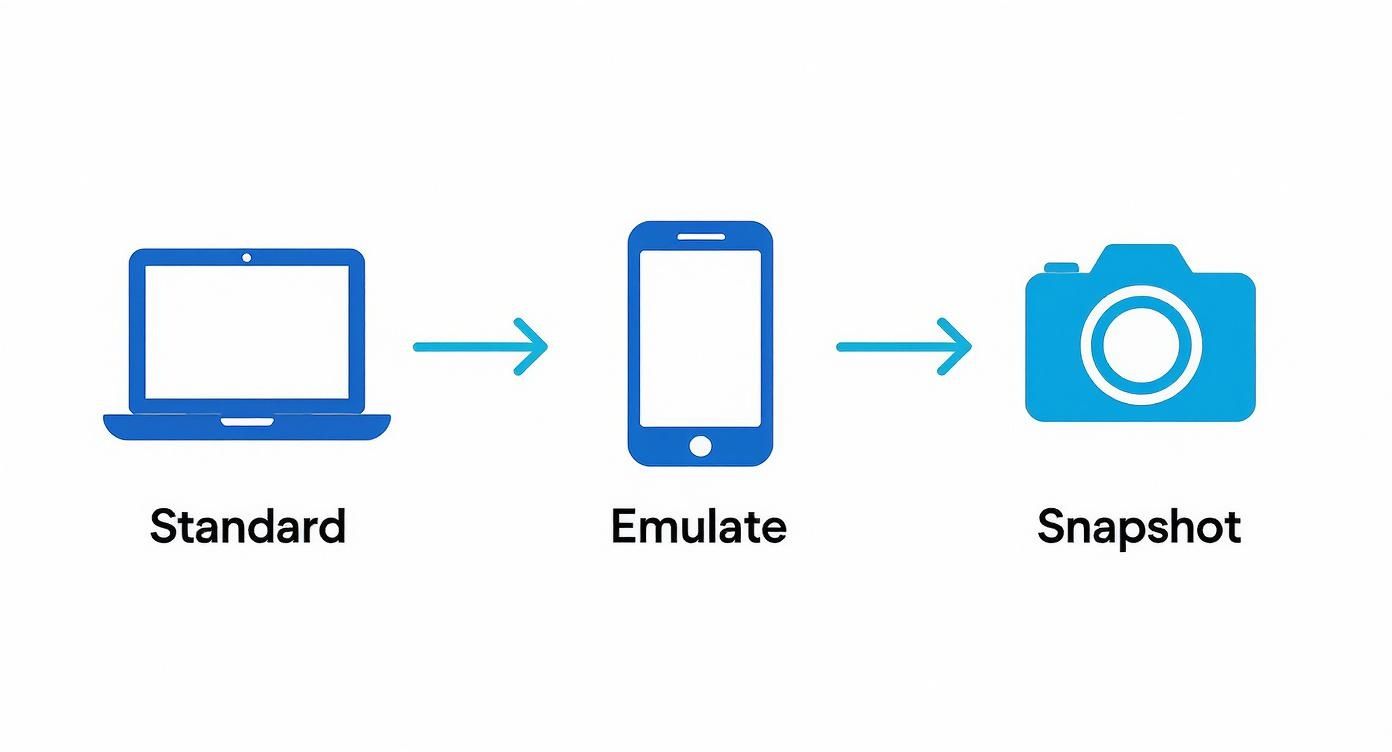
This kind of scripted flow makes sure every mobile snapshot is taken with the exact same device settings, giving you truly consistent results for testing or analysis. The applications for this go way beyond just development, though.
Taking website snapshots is also a cornerstone of modern digital marketing and local SEO. It's a powerful way to monitor the ever-changing landscape of online business listings and search results.
This is a bigger deal than you might think. Every month, a staggering 97 billion local searches happen online, and a lot of those lead to someone walking into a physical store. Marketers rely on automated snapshots to track what competitors are doing with their landing pages and to make sure their own business listings are showing up correctly. It's all about capturing that local traffic. If you're curious about the numbers, you can discover more insights about digital marketing statistics on SEO.com. A simple script can genuinely save you hundreds of hours of mind-numbing work.
For Professional Results, Bring in a Third-Party Tool
While the built-in methods are fine for a quick grab, they just don't cut it when you need consistency, special features, or a truly polished look. This is exactly where dedicated screenshot tools shine. They offer a much more powerful and reliable way to capture a website, especially when you're doing it over and over again.
These services were designed from the ground up to handle the messy reality of modern websites. They're fantastic at rendering complex, JavaScript-heavy pages with perfect accuracy, which is something manual methods often get wrong. That means you can say goodbye to broken layouts or missing interactive content in your final image.
For anyone running a business or agency, the real game-changer is the ability to automate everything through an API. Imagine integrating website captures directly into your internal systems, automatically generating snapshots for compliance records, marketing reports, or competitive analysis without lifting a finger.
Why a Dedicated Service Is Worth It
Going beyond a simple screen grab, these tools are more like a complete visual documentation platform. You get a whole suite of features built for professional use. It's similar to the jump in quality you see with other specialized software, like in our breakdown of screen capture tools like Greenshot, where the right tool makes all the difference.
You'll find that the key advantages often include:
- Cloud Storage: All your snapshots are saved, neatly organized, and ready to access from anywhere. No more digging through local folders.
- Advanced Rendering Options: You can finally handle annoying cookie banners, log into password-protected sites, or even capture content as it appears in a specific country.
- High-Resolution Output: Get crisp, clear images that look sharp in presentations, client reports, or even print.
When your brand's reputation or the accuracy of a project is on the line, a dedicated service is the only way to guarantee every snapshot is pixel-perfect and consistent. It just removes all the guesswork.
At the end of the day, using a specialized tool saves a massive amount of time and frustration. It frees you from messing with custom scripts and delivers professional results you can count on, every single time.
Got Questions About Website Snapshots?
Even with the best tools at your fingertips, you'll probably run into a few tricky situations when trying to grab the perfect website image. Getting a clean, accurate capture isn't always as straightforward as it seems.
Let's tackle some of the most common questions and clear up the details that separate a sloppy screenshot from a truly professional one.
How Do I Screenshot Pages with Dynamic Content or Animations?
This is a classic problem. You go to snap a picture, but the slick animation you wanted to highlight is frozen mid-action, or a crucial pop-up hasn't appeared yet. Trying to time a manual screenshot perfectly is often a losing battle.
The real secret here is to use a tool that lets you set a capture delay. Many browser extensions and API services have this feature. By adding a simple 2 or 3-second delay, you give the site a moment to breathe—enough time for all the scripts, pop-ups, and animations to finish loading. This way, you capture the page exactly as a visitor would see it.
What Is the Best Image Format for Website Snapshots?
The "best" format really depends on how you plan to use the image. There's no single right answer, but there are definitely better choices for specific jobs.
- PNG: This is my go-to for almost everything. It uses lossless compression, which keeps text and user interface elements incredibly sharp. It’s perfect for technical documentation, bug reports, or any time you need crystal-clear detail.
- JPEG: If file size is your main concern—say, for a blog post loaded with images—JPEG is the way to go. Its "lossy" compression makes files much smaller, which helps your pages load faster. You'll lose a tiny bit of sharpness, but it's often a worthwhile trade-off.
- PDF: When you need to archive a full page or prepare something for printing, PDF is unbeatable. It captures the entire scrollable page in one document and keeps everything in a vector format, so it looks flawless on any screen or paper size.
My personal rule of thumb is simple: PNG for clarity, JPEG for speed, and PDF for archiving. Choosing the right one from the start saves a lot of hassle later on.
Knowing how to take a screenshot is one thing, but getting a useful one is what really matters. A little know-how about these common issues ensures every capture you take is fit for its purpose.
Ready to create stunning, shareable snapshots in seconds? GrabShot.io removes the hassle, offering AI-powered beautification, automatic redaction, and professional templates. Stop settling for plain screenshots and start creating visuals that impress. Try GrabShot.io for free today!