
Grabbing a quick screenshot of a webpage is easy enough, but what you see is often not what you get. Standard screenshots only capture the visible part of your screen, which can leave out the most important details you actually need to save. That’s why learning how to take a full-page screenshot is such a valuable skill for anyone who needs to keep complete records or communicate clearly.
Why a Simple Screenshot Just Doesn't Cut It
Have you ever tried to save a long online receipt or an interesting article, only to end up with a jumbled mess of cropped images you have to piece back together? The classic Print Screen button is the culprit. It only snaps what’s on your monitor at that moment, which is usually just a tiny slice of the whole page. This can be a real headache in a lot of situations.
Think about it from a practical standpoint:
- Designers & Developers: If you're a designer reporting a visual bug on a long landing page, a single, cropped image won’t give the developer the full context they need to fix it.
- Learning & Research: Trying to save an in-depth tutorial for offline reading? You need the entire article, not just the intro.
- Record-Keeping: Archiving a detailed invoice from an online purchase for your financial records requires capturing everything, from the header to the footer.
A standard viewport screenshot often captures less than 25% of a modern webpage's total content. The gap between what you see and what you need is where dedicated full-page capture methods become absolutely essential.
The need for better screenshot tools has really grown as the web has become more complex. Back when the first website launched in 1991, pages were just simple text. But as browsers like Mosaic popped up in 1993, the internet transformed into the dynamic, media-rich place we know today, making old-school screen capture methods feel pretty outdated. You can read more about the fascinating evolution of web design on bowwe.com.
This image really drives the point home, showing just how much you miss with a standard screenshot.
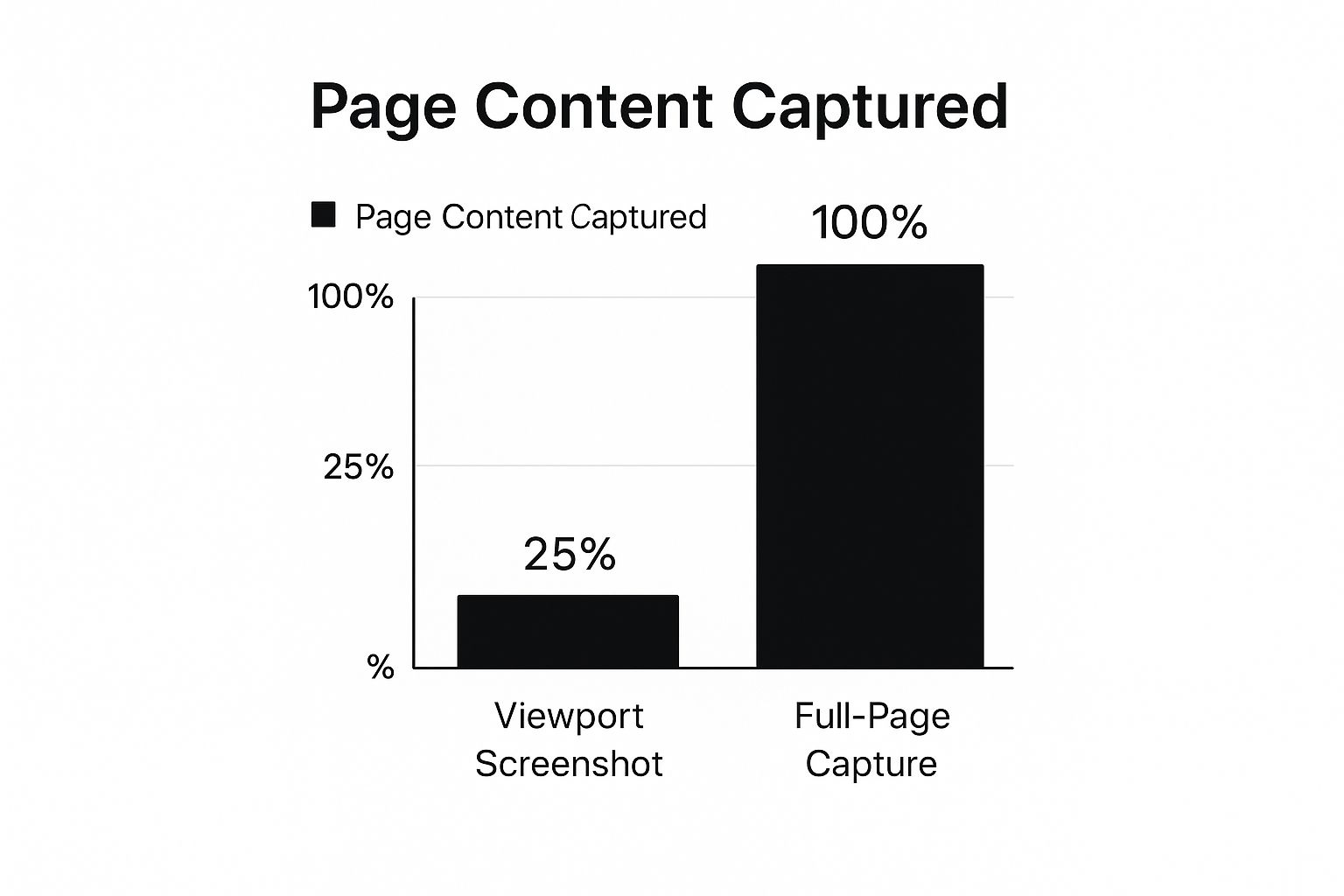
As you can see, a proper full-page capture tool grabs 100% of the content, ensuring there’s no room for guesswork or missing information. In this guide, I'll walk you through the modern tools and techniques that make capturing a complete, polished snapshot of any webpage a breeze.
Using Your Browser's Hidden Snapshot Tools
Sometimes, the best tool for a job is one you already have. Before you go searching for a new app or extension, it's worth exploring the powerful snapshot features hidden right inside your web browser. They're fast, free, and more than capable for most of your daily needs.
Most people don't even know these features exist, tucked away in developer menus or simple right-click options. This is perfect for when you're on a work computer with software restrictions or just need a quick, no-fuss capture.
Capturing Full Pages in Google Chrome
Google Chrome offers a robust method through its Developer Tools. It might sound a bit technical, but it’s surprisingly straightforward once you know where to find it. Given that by 2019, Chrome held over 63% of the browser market share, its developer tools became one of the most accessible snapshot utilities out there. You can read more about browser history and usage in these insights on the evolution of the internet.
Here’s how to access it on the page you want to capture:
- First, open Developer Tools by pressing
Ctrl+Shift+I(Windows/Linux) orCmd+Option+I(Mac). - Next, pop open the Command Menu with
Ctrl+Shift+P(Windows/Linux) orCmd+Shift+P(Mac). - Just start typing "screenshot" and you’ll see several options appear.
- Choose Capture full size screenshot to save the entire scrollable page as a crisp PNG file.
This process gives you a pixel-perfect snapshot of the entire page, from top to bottom. It's a lifesaver for capturing long landing pages or documenting web designs.
As you can see below, the command menu in Chrome's Developer Tools makes finding the screenshot options easy once you know it's there.
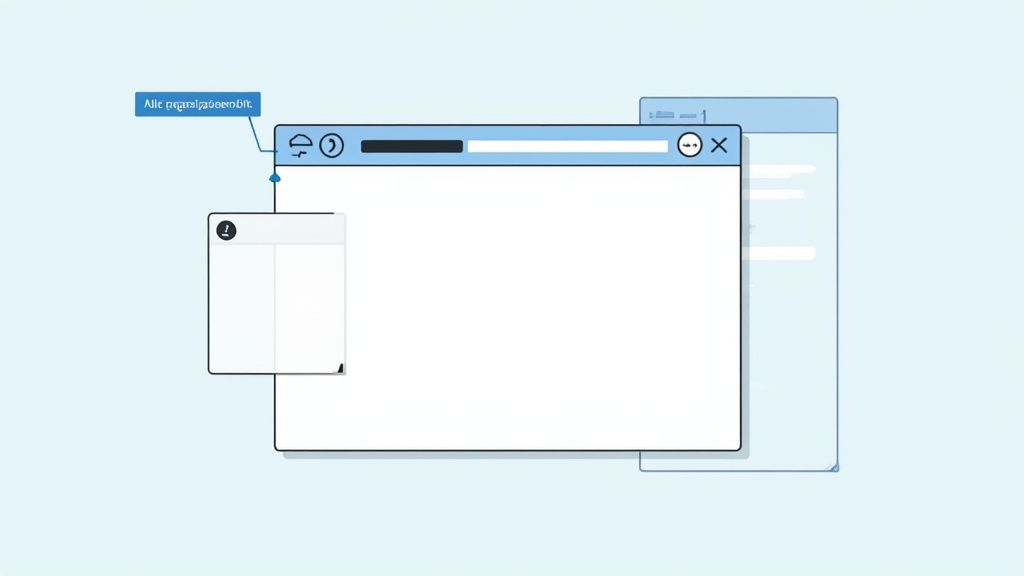
The real takeaway is how simple it is to access a powerful, command-line-style interface directly in your browser without any extra installs.
Browser Snapshot Tool Feature Comparison
Not all browser tools are created equal. This table gives you a quick side-by-side look at what Chrome, Firefox, and Edge offer right out of the box.
| Feature | Google Chrome | Mozilla Firefox | Microsoft Edge |
|---|---|---|---|
| Full Page Capture | Yes (via DevTools) | Yes (direct UI) | Yes (direct UI) |
| Visible Area Capture | Yes (via DevTools) | Yes (direct UI) | Yes (direct UI) |
| Area Selection | Yes (via DevTools) | Yes (direct UI) | Yes (direct UI) |
| Annotations | No | No | Yes (pen/highlighter) |
| Ease of Access | Technical | Very Easy | Easy |
As you can see, Firefox and Edge offer a more direct, user-friendly experience for everyday captures, while Edge pulls ahead with its handy annotation tools. Chrome's method, while powerful, is definitely geared more toward developers.
Simple Snapshots in Firefox and Edge
Other major browsers make this process even more direct. Mozilla Firefox has a fantastic, user-friendly tool built right in. All you have to do is right-click anywhere on a webpage and select Take Screenshot. From there, you get a simple menu to save the visible area or the full page.
Pro Tip: I find Firefox's tool is the absolute best for quickly saving long articles or tutorials for offline reading. It's easily one of the most intuitive native options for grabbing a full snapshot of a webpage.
Not to be outdone, Microsoft Edge has a very similar feature called Web capture. You can access it with the shortcut Ctrl+Shift+S or find it in the main settings menu. Edge actually takes it a step further by letting you make free-form selections and even mark up your captures with a built-in drawing tool before you save or copy them.
Capturing Instant Snapshots with OS Shortcuts
Sometimes, the best way to snapshot a web page is the one that requires zero setup. For those moments when speed is everything, your computer's built-in shortcuts are your most reliable tool. They're the fastest way to grab exactly what you see without fumbling through menus or opening new applications.
These OS-level commands are perfect for nabbing a fleeting moment, like an error message that flashes on-screen and then vanishes. I use them all the time for grabbing a quick visual to drop into a Slack chat. Think of them as your instant-capture toolkit, always there when you need them.
Essential Windows Snapshot Shortcuts
If you're on a Windows machine, you have a few powerful options baked right into the OS. Each one works a little differently, which gives you the flexibility to handle pretty much any situation you run into. Knowing which one to use is the key to working smarter, not harder.
Here are the main commands you'll want to memorize:
- PrtSc (Print Screen): The classic. This key copies your entire screen—or all of them, if you have multiple monitors—to the clipboard. From there, you just paste it into an app like Paint or Word to save it. It’s a bit old-school, but it gets the job done for full-desktop views.
- Alt + PrtSc: This one is far more targeted. It captures only the active window (your browser, in this case) and copies it to the clipboard. This is a lifesaver when you want to avoid sharing the clutter of your desktop or other open programs.
- Win + Shift + S: This is the modern workhorse. It immediately brings up the Snip & Sketch tool, which lets you draw a rectangle, a freeform shape, or just grab the full screen. The image gets copied to your clipboard, and a notification pops up, letting you click to annotate and save right away.
Honestly, Win + Shift + S is my go-to for daily tasks. It gives me the most control to grab a specific chunk of a webpage without having to crop it later.
Quick Captures on macOS
Mac users aren't left out, of course. Apple provides a fantastic suite of built-in tools that make capturing a web page incredibly simple. The shortcuts are intuitive, and they immediately save the image as a file right on your desktop, which is a nice touch.
These are the core macOS shortcuts you'll use:
- Command + Shift + 3: This is the "get everything" command. It instantly captures your entire screen and saves it as a PNG file directly to your desktop. No fuss.
- Command + Shift + 4: This one turns your cursor into a crosshair, so you can click and drag to select the exact area you want to capture. Perfect for precision.
- Command + Shift + 5: Think of this as mission control for screenshots. It opens up a small panel with advanced options, letting you capture a selected window, the entire screen, or even record a video of what you're doing.
Upgrading Your Captures with Browser Extensions
The built-in screenshot tools are fantastic for quick grabs, but they have their limits. When you need more power and flexibility, browser extensions are the way to go. They step in right where the native options leave off, adding a whole new layer of convenience and capability to your workflow.
Think of an extension as a specialized add-on for your browser. Tools like GoFullPage or Nimbus are built specifically for one thing: making web page captures more powerful. Ever tried to screenshot a long, scrolling webpage where new content loads as you go? It's a nightmare with standard tools. An extension, however, is designed to handle exactly that, stitching the entire page together into one seamless image.
A quick trip to the Chrome Web Store (or your browser's equivalent) reveals a ton of highly-rated tools. The real magic is finding one that solves your specific pain points, and with so much variety, there's an extension for just about every need.
Why an Extension Might Be Your Best Bet
The biggest reason to use an extension is the sheer amount of time and hassle it saves. You’re not just getting a static picture; you're getting a full toolkit for editing, annotating, and sharing, all without ever leaving your browser.
Just look at what you get with a good extension:
- Advanced Scrolling Captures: They’re smart enough to handle tricky pages with "sticky" headers or lazy-loading images, giving you a perfect full-page snapshot every time.
- Built-in Annotation Tools: Need to point something out? You can immediately add arrows, text, highlights, or even blur out sensitive info. This is a lifesaver for creating training docs or reporting bugs.
- Cloud Integration: Many extensions will save your screenshots directly to Google Drive or Dropbox. Some even generate a shareable link in a single click.
- Format Flexibility: Instantly save your capture as a PNG, JPG, or even a multi-page PDF, depending on what the situation calls for.
For anyone who creates tutorials or user documentation, extensions are a game-changer. The ability to capture a long process, mark up the important steps, and share a polished image in less than a minute is just incredibly efficient.
A Quick Word on Privacy and Performance
It's smart to be a little cautious, though. Browser extensions need permissions to work, which sometimes includes the ability to read data on the sites you visit. My advice? Stick to extensions from well-known developers with lots of positive reviews and a clear privacy policy.
Also, keep in mind that loading up your browser with too many extensions can slow it down. I follow a simple rule: if I'm not using an extension regularly, I disable or remove it. Being selective lets you get all the benefits of these powerful tools without dragging down your browser's performance or compromising your security.
Automating Professional Snapshots with GrabShot.io
https://www.youtube.com/embed/N31E0Kn9ghA
Browser tools and extensions are fantastic for grabbing the occasional screenshot. But when you need reliability and scale—when every capture has to be perfect—they start to show their cracks. For professional work, you really need a dedicated service that can handle the modern web's complexity without flinching. This is exactly where API-driven platforms like GrabShot.io come in.
These services are engineered to overcome the very issues that trip up simpler tools. We've all seen it: pages with slick JavaScript animations, content that loads as you scroll, or pop-ups that need to be dismissed. Trying to capture these manually often results in broken or incomplete images.
An automated service, on the other hand, is built to render the page just like a real browser would, waiting for everything to load properly. The result is a pixel-perfect snapshot, every single time.
When to Use an Automated Snapshot Service
The real magic of an API-driven tool isn't just taking one screenshot; it's about weaving this capability into your daily operations. You stop thinking about taking a single picture and start building systems that capture web data for you, reliably and repeatedly.
Here are a few scenarios where this approach is a game-changer:
- Competitive Analysis: Imagine your marketing team getting an automatic snapshot of your top competitors' homepages every Monday morning. You'd have a visual timeline of their promotions, design tweaks, and messaging changes without lifting a finger.
- Compliance and Archiving: For companies in regulated industries like finance, keeping a verifiable archive of public-facing web pages is a legal necessity. An API makes this process bulletproof and easy to document.
- Uptime and Visual Monitoring: Developers can integrate snapshots into their monitoring stacks. If a critical page's layout suddenly breaks, the system can instantly grab a screenshot of the bug and fire off an alert to the right team.
The big idea behind a tool like GrabShot.io is shifting from one-off manual tasks to a scalable, automated process. You're no longer just learning how to take a snapshot of a web page—you're building a machine to do it for you, flawlessly and at any scale.
The GrabShot.io homepage shows just how developer-friendly this approach is, focusing on a simple API to generate high-quality snapshots programmatically.
It's clear the platform is designed for businesses that need to plug web captures directly into their applications. By taking on the headache of rendering complex, modern websites, it delivers consistent, high-fidelity images that manual methods just can't match. For any serious, repeatable snapshot needs, this is the way to go.
Common Questions About Capturing Web Pages
Even with the best tools at your disposal, taking a snapshot of a web page can sometimes throw you a curveball. Let’s walk through a few of the most common hangups I see and figure out how to get the perfect capture every time.
How Do I Screenshot Pages Behind a Login?
This is a big one. You need to grab a shot of a private dashboard or content that's behind a paywall, but how? The key is to use a tool that works inside your logged-in browser session.
Think about it this way: if you can see it, your browser can see it.
- Browser-native tools, like the ones tucked away in Chrome’s Developer menu, are perfect for this. They're already part of your authenticated environment.
- Browser extensions are another great option because they also piggyback on your current session. This makes them ideal for snapping shots of members-only areas or private reports.
External tools that just take a URL won't work here because they can't log in for you. Stick with the tools already in your browser for these locked-down pages.
What’s the Best File Format: PNG or JPEG?
You've got your screenshot, but what format should you save it as? The answer really boils down to what's on the page.
For pages heavy on text, user interface elements, or graphics with sharp lines, PNG is almost always the right call. It uses lossless compression, which keeps everything crisp and readable. If the page is dominated by a large photograph, JPEG will result in a much smaller file, but just know that it can make any text on the page look a little fuzzy.
Why Do My Screenshots Look Broken or Incomplete?
Have you ever taken a full-page screenshot only to find that half the images are missing and the layout is a mess? You've likely run into a page that uses "lazy loading."
This is a common web development trick where content—especially images—only loads as you scroll down the page. Basic screenshot tools can't handle this. They try to capture the whole page at once without ever "scrolling," so they miss all the content that hasn't loaded in yet.
To get around this, you'll need a smarter tool. A good browser extension or a dedicated service like GrabShot.io is designed to deal with these modern, dynamic pages. They intelligently "scroll" through the page to trigger all the content, giving you a complete and accurate snapshot every single time.
Ready to create perfectly polished and complete web page snapshots in seconds? Try GrabShot.io for free and see how easy it is to capture, beautify, and share your screen with professional flair. Start creating at grabshot.io.