

Taking a screenshot in Linux is often as simple as hitting one key. On most desktops, tapping the PrtScn (Print Screen) key instantly captures your entire screen. Depending on your setup, it will either save the image straight to your pictures folder or pop up a tool asking you what to do next. It's a lifesaver when you need a quick visual record of what's on your screen.
The Power and Flexibility of Linux Screenshots
If you're a Linux user, knowing how to grab a quick screenshot is a core skill. It's essential for everyone, from developers documenting a bug to support staff creating a helpful tutorial. Where other operating systems might give you one or two basic options, Linux offers a whole toolbox of methods designed for different workflows. This flexibility is one of the best things about the Linux ecosystem—it's built to adapt to you.
This isn't just a niche skill anymore. Linux is gaining serious ground on the desktop, hitting a global market share of around 4% in early 2024. As more people make the switch, the demand for reliable and efficient screen-capturing tools has grown right alongside it. Thankfully, the open-source community has delivered, with built-in utilities and third-party apps that are more powerful than ever. You can read more about the impressive growth of Linux and what it means for the future.
Getting Started with Built-In Tools
The good news is that almost every Linux distribution comes with a screenshot tool right out of the box. No extra installation needed. These utilities are baked directly into the desktop environment, which makes them fast, reliable, and easy to find.
- GNOME Screenshot: The go-to tool for popular distributions like Ubuntu and Fedora. It's known for being clean, simple, and straight to the point.
- KDE Spectacle: If you're using a KDE Plasma desktop (like Kubuntu), you'll have Spectacle. It's packed with features, like setting a timer before a capture or grabbing just a specific window.
- XFCE Screenshooter: True to the XFCE philosophy, this is a lightweight and no-fuss utility that gets the job done without slowing you down.
For example, on a modern Ubuntu system, just tapping the Print Screen key brings up this slick overlay.
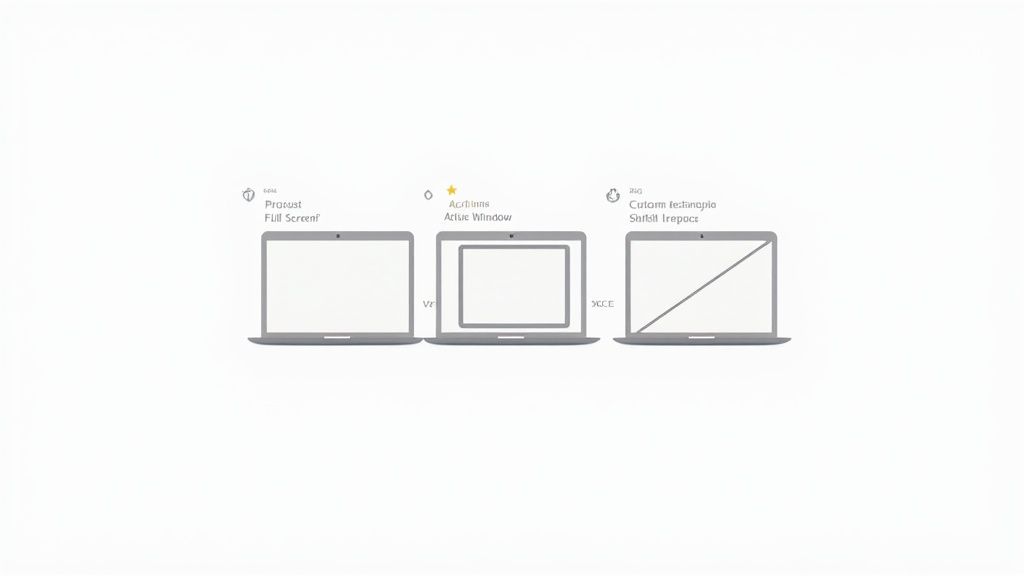
Right away, you can choose to capture a specific region, a single window, or your entire screen. It’s a perfect example of how intuitive and user-friendly these modern Linux tools have become.
Default Screenshot Shortcuts in Popular Linux Desktop Environments
To make things even easier, here's a quick cheat sheet for the default keyboard shortcuts you'll find in the most common desktop environments.
| Action | GNOME (Ubuntu, Fedora) | KDE Plasma (Kubuntu) | XFCE (Xubuntu) |
|---|---|---|---|
| Full Screen | PrtScn |
PrtScn |
PrtScn |
| Current Window | Alt + PrtScn |
Alt + PrtScn |
Alt + PrtScn |
| Select Area | Shift + PrtScn |
Meta + Shift + PrtScn |
Shift + PrtScn |
| Copy to Clipboard | Ctrl + PrtScn (Full) / Ctrl + Alt + PrtScn (Window) |
Use Spectacle GUI | Not default, requires config |
While these are the defaults, remember that one of the best things about Linux is its customizability. You can almost always remap these keys in your system's keyboard settings to create a workflow that’s perfect for you.
Mastering Your Desktop’s Native Screenshot Tools
Keyboard shortcuts are great for quick, on-the-fly captures, but you’re missing out if you never open the actual screenshot app on your desktop. These pre-installed graphical tools offer a level of control that a simple key press just can't match. They’re built to work flawlessly with your desktop environment, giving you a smooth experience right out of the box.
Think of it like this: the hotkey is the "auto" mode on your camera, while the graphical tool is your "manual" mode. Both get the job done, but one gives you the power to really compose the perfect shot. Let’s take a look at what the default tools in GNOME, KDE Plasma, and XFCE can do when you dig a little deeper.
KDE Spectacle: The Power User’s Choice
If you're using KDE Plasma, you're in luck. The default tool, Spectacle, is probably the most feature-packed native option out there. When you launch it from your application menu, you'll see a control panel that puts some serious power at your fingertips.
One of Spectacle's most useful features is its delay timer. Ever tried to screenshot a tooltip or a drop-down menu that only appears when you hover over it? It's a classic problem, and Spectacle solves it beautifully.
- Just set a capture delay of, say, 5 seconds.
- Hit the "Take a New Screenshot" button.
- Now you have a few seconds to get your cursor in position and trigger the exact on-screen element you need to capture.
This simple delay function is a lifesaver for documenting interactive UI elements. Spectacle also gives you toggles to include or exclude the mouse pointer and window decorations, ensuring you get clean, professional-looking captures every time.
For those tricky captures, like a right-click menu that vanishes when you try to do anything else, Spectacle's delay feature is invaluable. It turns a frustrating task into a simple, repeatable process—a huge time-saver for anyone creating technical documentation.
GNOME Screenshot: Simplicity and Integration
The screenshot tool built into GNOME (the default on systems like Ubuntu and Fedora) is all about a clean and straightforward workflow. Pressing the PrtScn key doesn't just snap a picture; it drops you into an interactive capture mode. The real magic happens right after the capture.
Once you’ve selected your area or window, a little thumbnail pops up. Click it, and you're in a simple editor where you can add arrows, text, and other quick markups without having to open another program. This tight integration means you can go from capture to annotation to clipboard in just a handful of clicks.
XFCE Screenshooter: Lightweight Efficiency
Staying true to the XFCE philosophy, xfce4-screenshooter is lean, fast, and surprisingly effective. It doesn't throw a million options at you, but it gives you everything you need for practical, day-to-day use. Launch it, and a simple dialog appears asking exactly what you want to do.
You can grab a region, the active window, or the entire screen. The standout feature here is the ability to choose what happens next, directly from this dialog:
- Save to a file: The standard option.
- Copy to clipboard: My go-to for pasting directly into Slack or a document.
- Open with an application: Send your shot straight to GIMP for more advanced editing.
- Host on Imgur: Instantly upload your image and get a shareable link.
This direct-to-destination workflow makes the XFCE Screenshooter incredibly efficient. It’s a perfect example of how you don’t need a bloated application to build a powerful screen-grabbing routine.
Tapping into the Power of the Command Line
While graphical tools are great for occasional use, the real magic of Linux happens in the terminal. For developers, sysadmins, or anyone who lives by the keyboard, command-line utilities offer a speed and flexibility that GUIs just can't touch. This is where you graduate from clicking a button to building powerful, automated screenshot workflows.
Two of my favorite tools for this are scrot (a clever shorthand for SCReen shOT) and maim (make image). Both are lightweight, incredibly versatile, and perfect for scripting. You can get them on most Debian-based systems, like Ubuntu, with a quick sudo apt install scrot maim.
First Steps with Scrot and Maim
In its simplest form, you just type scrot into your terminal and hit Enter. Boom. You get an instant snapshot of your entire desktop, saved as a timestamped PNG file right where you are. It’s the perfect tool for a quick, no-fuss capture when you’re already deep in the command line.
maim operates on a similar principle but has a few tricks up its sleeve, especially its ability to pipe output directly to other programs. This is a game-changer. For instance, you can snap a screenshot and send it straight to your clipboard without ever creating a file: maim | xclip -selection clipboard -t image/png. Think about how much time that saves when you need to quickly share a visual in a chat or document.
The real power, however, comes from using flags to tweak their behavior.
- Set a Delay: Need to capture a dropdown menu? A delay is your best friend.
scrot -d 5ormaim -d 5tells the tool to wait five seconds before snapping the picture. - Select a Specific Area: To grab just one window or a portion of the screen, use the select flag.
scrot -sormaim -sturns your cursor into a crosshair, letting you click and drag to define the exact area you want. - Adjust Image Quality: You can also manage the file size by adjusting the image compression. With
scrot, something likescrot -q 85sets the quality to 85%, giving you a good balance.
But let’s be honest, the killer feature here is scriptability. Imagine writing a small bash script that snaps a picture of a specific application window every 60 seconds to monitor its progress, automatically naming each file with a precise timestamp. You just can't do that with most GUI tools.
Crafting Simple Automation Scripts
Let's look at a real-world example. Say you're a developer keeping an eye on a server's performance graph and need to log its state every five minutes. A simple one-liner with scrot automates the entire process.
Here's an example of scrot generating a neatly named and timestamped file, all from the terminal.
The command in the image shows how you can create a custom filename that includes the date, time, and even the screen resolution, highlighting just how flexible these formatting options are.
Screenshot methods on Linux have really evolved to fit how different people work. In 2024, over 60% of Linux users said they rely on a combination of built-in and third-party tools. And while the global market for website screenshot software is expected to reach USD 4.5 billion by 2033, the raw power of free, scriptable tools like scrot and maim is why so many developers and power users stick to the command line. If you want to dive deeper, you can explore more about the variety of screenshot tools available and see how they fit into different professional workflows.
Taking Your Screenshots to the Next Level with Third-Party Apps
While the built-in screenshot tools are great for quick captures, sometimes you need more horsepower. When your goal is to annotate, edit, and share screenshots that look polished and professional, it’s time to call in some specialized third-party apps. These tools are packed with features that transform a basic screen grab into a powerful piece of visual communication.
The demand for this kind of software has exploded, especially on Linux. The global website screenshot software market is already valued at around USD 1.4 billion, and it's not slowing down. Market analysis from DataHorizzon Research projects a 12.5% compound annual growth rate through 2033, largely thanks to the rise of remote work and the need for crystal-clear visual documentation.
Let's dive into two of the most popular and powerful options in the Linux world.
Flameshot for Quick Annotations
There's a reason so many Linux pros swear by Flameshot: it masterfully combines capturing and annotating into one seamless action. Forget taking a shot, opening a separate editor, and then finally marking it up. Flameshot lets you do it all at once, right on the screen.
When you fire it up, your screen dims, inviting you to draw a selection. The moment you release your mouse, a palette of editing tools pops up right next to your captured area. It’s incredibly intuitive and perfect for those moments when you need to:
- Instantly add arrows to pinpoint a UI bug.
- Blur out sensitive data like an email address or API key.
- Highlight a critical line of text or code.
- Drop numbered steps directly onto the image to create a quick visual guide.
This is what that instant editing experience looks like in action:
See how the essential tools—arrows, text, blur, shapes—are right there? No digging through menus.
The real magic of Flameshot is its speed. For a developer filing a bug report or a support agent guiding a user, being able to capture, annotate, and copy an image to the clipboard in under ten seconds is a game-changer. It just removes all the friction.
Shutter for a Complete Editing Suite
If Flameshot is a razor-sharp scalpel, then Shutter is the entire surgical suite. Although it hasn't seen active development in a while, its feature set remains incredibly robust for anyone needing more than just quick markups. Shutter intentionally separates the capture and edit stages, giving you a dedicated, full-featured image editor to refine your shot.
It truly shines when you're working on more complex tasks. For instance, you could grab a screenshot and then use Shutter's editor to add a watermark, apply visual effects, or even use a plugin to automatically upload the finished image to a service like Imgur. Its session management is also a standout feature, keeping all your recent captures organized in one window—perfect for when you're juggling multiple images for a single guide or report.
Feature Comparison of Advanced Linux Screenshot Tools
So, how do these two powerhouses stack up against each other? The choice often comes down to speed versus depth. Flameshot is built for immediate, on-the-fly annotations, while Shutter offers a more comprehensive post-capture editing experience.
This table breaks down their core differences to help you decide which one fits your workflow best.
| Feature | Flameshot | Shutter |
|---|---|---|
| Primary Workflow | Capture & annotate in one step (in-line editor) | Capture first, then edit in a separate window |
| Annotation Tools | Arrows, text, blur, pixelate, shapes, counter | Similar tools plus effects, watermarks, and plugins |
| Editing Experience | Quick and immediate, focused on essentials | Full-featured editor with more advanced options |
| Session Management | No built-in session management | Keeps a history of recent captures in a session window |
| Scripting/CLI | Excellent command-line interface for scripting | Basic command-line options |
| Image Uploading | Built-in Imgur upload | Plugin-based system for various hosting services |
| Active Development | Actively maintained and updated | Development has slowed significantly |
| Best For | Fast, efficient markups for bug reports and guides | In-depth editing, managing multiple captures for a project |
Ultimately, both are fantastic tools. If you live and breathe efficiency and need to get annotated images out the door in seconds, Flameshot is your ally. If your projects require more detailed edits, effects, and management of multiple shots, Shutter is still a formidable choice. For a broader look at the landscape, don't forget to check out our complete guide on the best screenshot software for Linux.
Enhancing and Sharing Your Screenshots Online
Grabbing a screenshot in Linux is really just the starting point. For your own notes, a raw capture is fine. But when you’re creating visuals for a blog post, some technical docs, or a presentation for a client, that basic image needs a bit of polish to look professional. This is where online tools really shine, letting you turn a simple screen grab into a clean, finished asset without firing up Photoshop.
Think about it. Let's say you just captured some terminal output for a tutorial you're writing. Instead of just dropping that raw, blocky image into your post, you could use a web-based tool like GrabShot.io to give it a major upgrade. You just upload your screenshot, and in a few clicks, you can wrap it in a clean browser frame, add a subtle background gradient, and tweak the padding to give it some breathing room. It’s a quick process that transforms a purely functional image into something that looks sharp and ready to publish.
The whole workflow is pretty straightforward: capture, edit, and share.
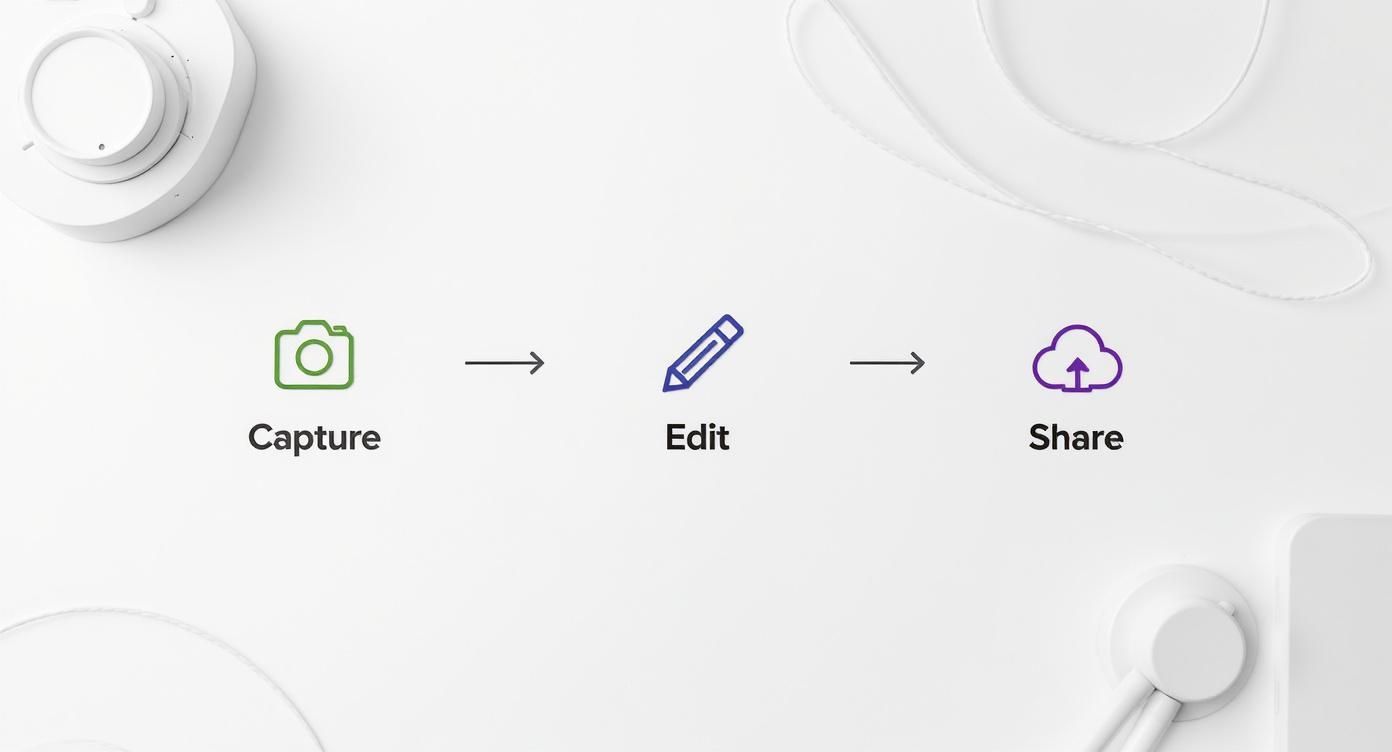
This really drives home the point that enhancing screenshots today is about more than just a quick crop. It's an entire, streamlined process for creating professional-looking visuals without the headache.
Making Your Captures Presentation-Ready
Polishing your screenshots isn't just about making them look good; it's also about making them clear and secure. One of the most important steps before sharing an image publicly is redaction. You have to hide sensitive info like API keys, personal email addresses, or usernames. A good online tool makes this dead simple.
Here are a few key things you can do to level up your captures:
- Annotations: Add arrows, text boxes, or numbered steps to point your viewer’s eye exactly where you want it to go.
- Device Frames: Pop your screenshot into a realistic browser or phone frame to give it some real-world context.
- Backgrounds & Effects: Use clean backgrounds, subtle gradients, or drop shadows to make the important content stand out.
Taking a few extra moments to enhance your capture makes a huge difference in how well it communicates its point. A well-presented screenshot is easier to understand, feels more credible, and just shows a higher level of care in your work.
An online screenshot editor gives you all of this right in your browser, saving you the trouble of downloading and learning another desktop app. The ability to quickly upload an image, make it look great, and redact sensitive bits before sharing makes the whole workflow incredibly efficient. It’s the perfect approach for anyone who needs to create high-quality visuals regularly without a steep learning curve. In the end, you get a professional, shareable image that gets your message across perfectly.
Common Questions About Linux Screenshots
Even after you've got the basics down, you'll eventually run into a weird situation that makes you pause. That's just the nature of Linux—different desktop environments and hardware can throw you a curveball. Let's dig into some of the most common questions I hear.
One of the first puzzles people encounter is simply finding where their screenshots went. On most modern distros like Ubuntu or Fedora running GNOME, your captures are neatly filed away in the Pictures/Screenshots folder in your home directory. It's designed to be predictable.
Things change if you're working in the terminal, though. If you use a command-line tool like scrot or maim, the image just drops into whatever directory you're currently in, unless you explicitly tell it to save somewhere else.
Handling Multiple Monitors
Trying to grab a shot on a multi-monitor setup can feel like a guessing game at first, but thankfully, most tools are built for this. The default screenshot apps in GNOME and KDE are smart about it—they let you choose exactly which monitor you want to capture as soon as you hit the hotkey.
For those of us living in the command line, maim is a lifesaver here. You can run a command like maim -i $(xdotool getactivewindow) to grab only the currently active window, no matter which display it's on. It’s way more reliable than fumbling with screen coordinates.
The real trick to taming multi-monitor screenshots is using a tool that gives you direct control. Whether it's a GUI letting you click the right screen or a CLI flag to target a specific window, you can skip the headache of capturing the wrong display.
Capturing the Login Screen or Lock Screen
So, what if you need a screenshot of the login screen before you're even logged in? This is a classic problem for anyone writing tutorials or system admin guides. Since your normal screenshot tools aren't running yet, you have to get a little creative.
The most solid method involves running a command-line tool with a delay from a different virtual console. It sounds more complex than it is.
- First, switch to a virtual console by pressing Ctrl+Alt+F3.
- Log in with your username and password.
- Now, run a command like this:
sleep 10 && chvt 1 && DISPLAY=:0 scrot login.png.
This command waits 10 seconds, giving you time to get ready. Then it switches you back to the graphical login screen (chvt 1) and immediately takes the shot.
Once you log in, you'll find a login.png file waiting for you in your home directory. It’s a bit of a hack, but it works perfectly. And when you need to add quick notes or highlights to captures like these, check out our guide on choosing a powerful screenshot annotation tool.
Ready to turn those raw Linux screenshots into something special? GrabShot.io helps you create polished, professional visuals in a few clicks. It's free to try, and you'll see just how easy it is to add beautiful frames, backgrounds, and annotations. Head over to https://grabshot.io to get started.