
Knowing how to screenshot on Chrome isn't just a neat party trick; it's a fundamental skill for anyone who needs to quickly save or share what's on their screen. Think about it. How often have you needed to capture an error message for the IT department, save a recipe before the page refreshes, or snag a crucial chart for a last-minute presentation? A quick screen grab is almost always the fastest way to do it.
Why Mastering Chrome Screenshots Matters
Ever tried describing a weird software bug in an email? It's painful. Or maybe you've been scrambling to save a flight confirmation just as you're about to close a dozen tabs. In those moments, a clean, simple screenshot is a lifesaver. It’s not just about taking a picture; it's about clear communication and pure efficiency.

This skill is more critical than ever, especially when you consider that Google Chrome is the browser of choice for over 3.8 billion people across the globe. With that kind of market dominance, it's where most of us are doing our work, our shopping, and our learning—making it the prime spot for capturing web content. For more on this, check out Backlinko's latest browser usage report.
Choosing the Right Tool for the Job
Not all screenshots are created equal, and different situations call for different approaches. Getting familiar with your options is the first real step to becoming a screenshot guru.
- Native Tools: Perfect for quick, simple captures when you don't want to install anything extra.
- Keyboard Shortcuts: The fastest way to grab a specific window or a selected area on your screen. Muscle memory is your friend here.
- Browser Extensions: These are your power tools, offering advanced features like full-page scrolling captures and built-in annotation.
- Polishing Tools: For when a basic screenshot won't cut it. Apps like GrabShot.io can help you transform a simple capture into something polished and professional.
Once you learn a few solid methods for taking screenshots in Chrome, you'll save a surprising amount of time and cut down on the frustration of trying to describe what you're seeing. This guide will walk you through exactly how to do it.
Capturing Screenshots Natively in Chrome
Before you reach for another third-party app, you should know that Chrome has a powerful screenshot tool hidden right under the hood. This feature is tucked away inside Chrome's Developer Tools (DevTools), giving you a surprisingly robust way to capture images without installing a single extension. I often use it when I need a perfect, high-resolution shot straight from the browser's rendering engine.
Getting to it is simple. On any webpage, just right-click and choose "Inspect." You can also use a keyboard shortcut: Ctrl+Shift+I on Windows or Linux, and Cmd+Option+I on a Mac. The panel that opens might look a bit technical, but you only need to focus on one small part. Over the years, Chrome's capture capabilities have gotten much better, letting you grab everything from what's visible on your screen to a full-length page. You can read more about the evolution of Chrome's capture tools if you're curious.
Using the Command Menu for Screenshots
Once DevTools is open, the quickest path to a screenshot is the Command Menu. Pop it open by pressing Ctrl+Shift+P (Windows/Linux) or Cmd+Shift+P (Mac). This brings up a handy search bar where you can tell Chrome exactly what you want to do.
Just start typing "screenshot," and you'll see a list of options appear. Each one is designed for a specific task, giving you total control over the final image.
Pro Tip: Learning to use the Command Menu is a game-changer. It feels much faster than clicking through menus and, once you get the hang of it, you can snap the perfect screenshot in seconds.
The DevTools interface, where you'll find the Command Menu, looks like this:
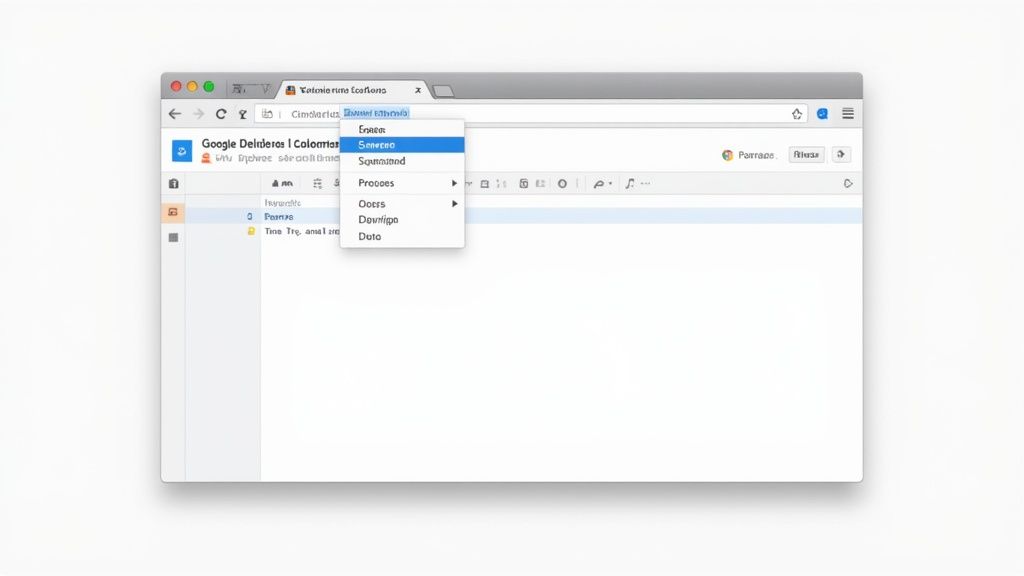
From this little panel, you have direct access to every screenshot command you'll need for clean, native captures.
Types of Native Screenshots
When you type "screenshot" into the Command Menu, you'll see a few different choices. Knowing what each one does will help you grab exactly what you need.
- Capture full size screenshot: This is my go-to. It captures the entire webpage from the very top to the very bottom, stitching it all together into one long image. It's perfect for saving articles, design mockups, or entire landing pages for later review.
- Capture screenshot: This option is more straightforward—it just grabs the visible portion of the webpage. Think of it as a classic "what you see is what you get" screen grab.
- Capture node screenshot: This one's a bit more advanced but incredibly useful. It lets you select a specific HTML element (or "node") on the page—like a single image, a button, or a specific paragraph—and capture just that piece.
Picking the right command from the start saves you a ton of time cropping and editing later. You get a pixel-perfect image, free of any clutter, straight from the source.
Using Keyboard Shortcuts for Instant Captures
When you need a screenshot right now, nothing beats the raw speed of your computer's built-in keyboard shortcuts. These commands are universal, work perfectly inside Chrome, and are easily the fastest way to grab what you see without breaking your stride. Why dig through menus when a quick key combo does the job instantly?
Think about it: you're on a video call and need to save a critical slide from a presentation. Firing off a shortcut to capture just the active window looks a lot sharper than sending a screenshot of your entire cluttered desktop. This way, you get a clean, focused image ready for reports or your team's Slack channel.
Windows Screenshot Shortcuts
If you're on a Windows machine, you've got a few go-to options right at your fingertips. Each one is designed for a slightly different job, so you can pick the right tool for the moment.
- PrtScn (Print Screen): The old classic. This key copies an image of your entire screen—or all of them, if you're using multiple monitors—straight to your clipboard. From there, you just paste it into Paint, Photoshop, or wherever it needs to go.
- Alt + PrtScn: This is my personal favorite for most tasks. It smartly copies only the active window (your Chrome browser, in this case), leaving out your taskbar and desktop clutter. Super clean.
- Windows Key + Shift + S: This is your precision tool. It brings up the Snipping Tool, turning your cursor into a crosshair so you can draw a custom rectangular area to capture. The selection then gets copied to your clipboard.
macOS Screenshot Shortcuts
For those on a Mac, the system has a similarly powerful set of shortcuts. The big difference is they save the image directly to your desktop by default, so it's always easy to find.
- Command + Shift + 3: This takes a picture of your entire screen and drops the file right onto your desktop. Simple and effective.
- Command + Shift + 4: My most-used Mac shortcut. It turns your cursor into a crosshair, letting you click and drag to capture a specific portion of the screen.
- Command + Shift + 4 + Spacebar: This is a neat trick. After hitting the first key combo, tap the spacebar. Your cursor becomes a camera icon. Now, just click on any window to capture just that window, complete with a professional-looking drop shadow.
Honestly, learning these shortcuts is like building muscle memory for productivity. Once you use them a few times, you'll be snapping perfect screenshots without even thinking about it, saving yourself a few seconds every single time.
Choosing the Best Chrome Screenshot Extension
When the built-in tools just don't cut it, it's time to turn to the Chrome Web Store. A good screenshot extension can completely transform your browser, turning it into a powerhouse for capturing, annotating, and even recording your screen. The options are endless, which can feel a bit overwhelming at first.
The key is figuring out what you actually need. Are you a designer who needs to capture pixel-perfect mockups and add detailed feedback? Or maybe you're a project manager constantly sending visual bug reports to your dev team. The "best" tool is the one that fits seamlessly into your daily grind. Think about your most common tasks—is it capturing full-page scrolls, recording a quick how-to video, or just adding a simple arrow to point something out?
Key Features to Look For
As you start comparing, you'll notice a few features that really make a difference. These are the ones that save you time and headaches.
- Annotation Tools: This is a big one. You want the ability to add text, arrows, and shapes right on the image. A good blur tool to hide sensitive info is also a must-have for many of us.
- Scrolling Capture: Absolutely essential for grabbing entire web pages, long articles, or those endless code blocks that just keep going.
- Video Recording: Some of the best extensions double as screen recorders. This is a game-changer for creating quick tutorials or showing a colleague exactly how to reproduce a bug.
- Cloud Integration: The ability to save your capture directly to Google Drive, Dropbox, or a dedicated sharing platform can cut out several tedious steps from your workflow.
Comparing Top Chrome Screenshot Extensions
To help you sift through the options, here's a breakdown of some of the most popular and reliable extensions out there. This table compares their standout features and what they're best suited for, so you can quickly find a match for your needs.
| Extension Name | Key Features | Best For | Security Note |
|---|---|---|---|
| GoFullPage | One-click full-page capture. Simple, no frills. | Quickly capturing an entire webpage without any editing. | Minimal permissions required, focused on a single task. |
| Awesome Screenshot & Screen Recorder | All-in-one tool with annotation, blurring, video recording, and cloud saves. | Users who need a versatile tool for both images and video tutorials. | Requests more permissions due to its extensive feature set. |
| Lightshot | Fast, lightweight capture of any selected area. Simple editor and instant sharing links. | Quick, simple screen grabs for fast sharing and basic annotation. | Long-standing reputation, but always verify permissions upon install. |
| Scribe | Automatically generates step-by-step guides by recording your workflow. | Creating how-to guides, tutorials, and standard operating procedures (SOPs). | Focused on workflow documentation; ensure no sensitive data is captured. |
Ultimately, the goal is to find an extension that makes your job easier. It should feel like a natural part of your process, not another clunky tool you have to wrestle with.
A great extension should reduce friction, not create it.
A Quick Word on Security
But convenience can't come at the cost of your security. While most popular extensions are perfectly safe, some have been caught exploiting browser permissions to collect user data. There was a notable case where a free VPN extension with a screenshot feature was accused of snapping unauthorized images of users' browsing activity.
It’s a serious reminder to always vet the tools you install. Before you click "Add to Chrome," take a minute to check the reviews, the permissions it's asking for, and the developer's reputation. A good rule of thumb is to stick with well-known extensions that have thousands of positive ratings and a clear privacy policy.
Level Up Your Screenshots for a Professional Edge
Sometimes, a quick press of PrtScn just doesn't cut it. You need something more polished, something that tells a bigger story than what fits on a single screen.
Think about it. Are you trying to capture an entire, long-form sales page for a portfolio? Or maybe you're documenting a bug in a web app, but the crucial element only appears after you scroll. A standard screenshot fails in these moments, leaving you with a fragmented, unprofessional-looking result. This is where you need to go beyond the basics.
From Raw Capture to Polished Asset
The real secret to a professional-looking screenshot isn't just the capture itself—it's what you do right after. This is where a raw image becomes a clear, compelling visual that's ready for a presentation, a support ticket, or a blog post.
You don't need to be a Photoshop wizard to get this right. The key is using a tool built for the job.
The difference between a good screenshot and a great one often comes down to presentation. A clean frame, a subtle shadow, and a simple background can instantly make your visual more impactful and easier for your audience to digest.
This is exactly what a tool like GrabShot.io is designed for. It lets you take that basic screenshot and quickly give it a professional makeover.
With just a few clicks, you can:
- Add a Browser Frame: Instantly wrap your capture in a realistic browser window, giving it immediate context.
- Swap in a Clean Background: Ditch your messy desktop and place your image on a simple, elegant canvas.
- Apply Shadows and Rounded Corners: Add a bit of depth and a modern touch with subtle drop shadows and soft corners.
These details might seem small, but they make a huge difference. They’re what separate a quick, functional grab from a polished visual that truly enhances your work. Learning how to screenshot in Chrome is step one; learning how to perfect that screenshot is what will make you stand out.
Got Questions About Chrome Screenshots? We've Got Answers
Still wondering about the best way to grab a screenshot in Chrome? It's a common topic, so let's clear up a few things. Here are some quick answers to the questions I hear most often.
How Can I Screenshot an Entire Webpage Without an Extension?
You don't actually need an extension for a full-page capture—Chrome has a powerful tool built right in. It's hidden inside the Developer Tools.
First, pop open the DevTools panel. The shortcut is Ctrl+Shift+I on Windows or Cmd+Option+I on a Mac. Then, open the Command Menu with Ctrl+Shift+P (or Cmd+Shift+P).
A little search bar will appear. Just start typing "screenshot" and you'll see an option for "Capture full size screenshot." Click that, and Chrome will handle the rest, saving the entire scrolling page as one neat PNG file in your downloads folder.
Where Do My Screenshots Actually Go?
This is a great question, and the answer depends on your computer and how you took the shot. It's not always obvious where they land.
- For Windows users: Hitting the
PrtScnkey just copies the image to your clipboard, ready to be pasted. But if you use theWindows Key + PrtScncombo, it automatically saves the file to yourPictures > Screenshotsfolder. - On a Mac: Things are a bit more straightforward. By default, any screenshot you take with a keyboard shortcut will appear right on your desktop. You can't miss it.
Are Chrome Screenshot Extensions Safe?
For the most part, yes, but it pays to be careful. While many extensions from reputable developers are perfectly safe, you're still giving them access to your browser. My advice? Always do a quick check before you install. Look at recent user reviews and the developer's history.
The biggest giveaway is the permissions list. When you install an extension, it tells you what it needs access to. If a simple screenshot tool is asking to read all your browsing data, that's a huge red flag. Stick with well-known tools to keep your data safe.
Ready to take your captures from basic to brilliant? GrabShot.io is a fantastic tool for adding professional browser frames, clean backgrounds, and other polished effects in just a few clicks. You can try GrabShot.io for free and see the difference it makes.