
If you're looking for a screenshot tool for Windows that's powerful, lightweight, and completely free, you need to check out Greenshot. It’s my go-to recommendation for anyone who finds the built-in Snipping Tool too basic but doesn't want the complexity or cost of other programs.
Greenshot excels at one thing: making your workflow faster. It's an open-source tool that's all about efficiency, letting you grab a specific region, a window, or your full screen in a snap. And once you've captured your image, its built-in editor is right there, ready for quick annotations.
Why Is It My Go-To Screenshot Tool?
In a sea of screen capture software, Greenshot just gets it right. It avoids the bloat and sluggishness I’ve seen in so many other apps, both free and paid. It’s built to be fast and stay out of your way, so you can communicate visually without skipping a beat.
This simple, effective approach is why it's so well-loved. On GetApp, for instance, it boasts an impressive user rating of 4.9 out of 5 stars. People appreciate that it’s a no-nonsense tool for Microsoft Windows, developed under the GNU General Public License, which means it’s genuinely free and open. For a closer look at its features and user feedback, this overview of Greenshot is a great resource.
Who Is Greenshot For?
Honestly, its flexibility makes it useful for almost anyone, but here are a few roles where I’ve seen it make a huge impact:
- IT and Support Teams: They can instantly document error codes or create visual, step-by-step troubleshooting guides. Explaining a complex fix to a non-technical user becomes so much easier with a few arrows and highlights.
- Bloggers and Content Creators: It's perfect for grabbing high-quality images for tutorials and how-to articles. Being able to quickly add text, steps, and highlights directly in the editor is a massive time-saver.
- Developers and QA Testers: They use it to create crystal-clear bug reports. Capturing the exact state of an application and then using the obfuscation tool to blur out sensitive user info is an everyday task made simple.
- Project Managers and Team Leads: Instead of writing a long, confusing email to give feedback on a design mockup, they can just grab a screenshot, circle the problem area, and add a quick note. Done.
Once you get into the habit of using Greenshot, you'll find you're replacing vague descriptions with precise, visual proof. A single, well-annotated image often gets the point across faster and more clearly than a whole paragraph of text ever could.
Getting Started with Greenshot: Installation and Initial Setup
First things first, let's get Greenshot installed on your system. It's a quick and painless process, but there's one crucial detail to remember: always download it directly from the source.
Head over to the official Greenshot website at getgreenshot.org. I can't stress this enough. Some shady characters out there create knockoff sites for popular open-source tools, and you don't want to deal with that headache. The official site is clean, safe, and gets you right to the download links.
You'll see a prominent download button for the latest stable Windows version. Mac users will also find a link directing them to the App Store.
Once you run the installer, you can pretty much click "Next" through the whole thing. The default settings are perfectly fine for the installation itself. The real power comes from tweaking a few settings after it's installed. This is the part that will save you a ton of time down the road.
Dialing in Your Settings for Maximum Efficiency
With Greenshot running, find its icon in your system tray (usually down by the clock), give it a right-click, and open up the Preferences. This is your command center. Taking a couple of minutes to configure it now will make the tool feel like it was built just for you.
Here are the three settings I always adjust right away:
- Output Tab: This is where you pick your default image format. My go-to is PNG because it keeps text and interface elements perfectly crisp, which is ideal for guides and documentation. If you're more concerned about keeping file sizes small, JPG is a solid choice.
- Destination Tab: Think about where you want your screenshots to land. Do yourself a favor and set a default save location. I have a dedicated "Screenshots" folder on my desktop to keep everything organized and prevent my main desktop from getting cluttered.
- Hotkeys Tab: Greenshot comes with sensible default keyboard shortcuts, but you can customize them here. If you find a shortcut conflicts with another program you use all the time, this is the place to change it to something that feels more natural.
Spending just a couple of minutes on these initial settings makes a world of difference. It transforms Greenshot from a handy utility into an indispensable part of your workflow, saving you clicks and frustration on every single capture.
Mastering Greenshot's Different Screen Capture Modes
Okay, with Greenshot installed, let's get into the good stuff—its capture modes. This is where the real power of the tool shines. Moving beyond just grabbing your entire screen will make a massive difference in how quickly you can get things done. Each mode is built for a different job, saving you tons of time on editing later.
The mode I find myself using 90% of the time is Capture region. It gives you total control to draw a box around exactly what you need. No more capturing the whole screen and then painstakingly cropping out your messy desktop. You get the perfect shot from the start.
Nailing the Perfect Selection
When you fire up Capture region, your cursor becomes a crosshair. As you click and drag, a small magnifying glass pops up, giving you a pixel-perfect view. This is a lifesaver when you need to grab a tiny icon, a single data point from a crowded spreadsheet, or just one specific comment in a long thread.
Next up is Capture window. This is your go-to when you need to document an entire application. Just hover your mouse over the program, and Greenshot automatically highlights its borders. One click, and you’ve got a clean, professional shot of the entire window—title bar and all—without any of the background clutter. It's perfect for creating training guides.
The real secret weapon for repetitive work is the Capture last region command. Seriously, this feature is a game-changer. If you’re documenting a process and need to show the same area of a window changing over several steps, this recaptures the exact same dimensions and location every time. It keeps your guide looking incredibly polished and consistent.
Of course, there's also the classic Capture full screen. It does what it says on the tin: grabs everything on your display. It’s useful in some situations, but I rarely use it. A more focused greenshot screen capture almost always communicates your point more clearly.
Choosing The Right Greenshot Capture Mode
Not sure which one to use? This quick table breaks down the best use for each mode, helping you make the right choice in seconds.
| Capture Mode | Best Used For | Pro Tip |
|---|---|---|
| Capture region | Grabbing a specific part of your screen, like a chart, paragraph, or error message. | Use the spacebar to switch between region and window mode on the fly. |
| Capture window | Capturing a single application or dialog box without any background distraction. | If a window has multiple panes, Greenshot often lets you select just one. |
| Capture last region | Taking multiple screenshots of the same area for step-by-step guides. | Assign this a dedicated hotkey to make your workflow even faster. |
| Capture full screen | Documenting your entire desktop, including multiple monitors or the taskbar. | This is best for showing context, but a region capture is usually clearer. |
Ultimately, choosing the right mode from the start makes your entire workflow faster and more precise. It's the difference between a quick, clean capture and several minutes spent in an image editor.
Annotating Your Captures for Maximum Clarity
A plain screenshot is good, but an annotated one is a thousand times better. This is where the real power of Greenshot comes into play. The moment you take a capture, you're not just left with a static image; you're given a powerful set of tools to add context, point things out, and turn that simple picture into a clear, actionable guide.
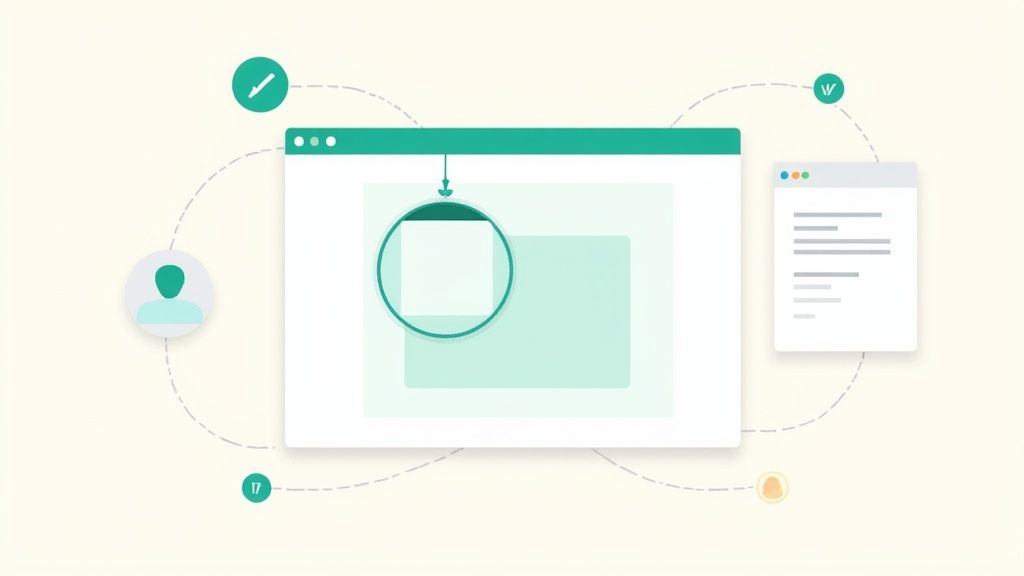
Think about it. Instead of typing out "then click the green button on the top right," you can just draw an arrow pointing right to it. Need to add a quick note? The text tool lets you pop in a comment exactly where it's needed. This kind of visual shortcut is a huge time-saver and eliminates any chance of confusion.
Essential Tools for Clear Communication
A few tools in the greenshot screen capture editor have become my daily drivers for creating clear visuals.
The highlighter is my go-to for emphasizing a specific line of code or a sentence in a paragraph. If I need to draw focus to a larger area, like a specific section of a web form, a simple rectangle or ellipse does the job perfectly.
One of the most indispensable features, especially for professional work, is the obfuscation tool. With a quick click-and-drag, you can pixelate or blur sensitive details like personal names, email addresses, or account numbers. This is an absolute must-have if you're creating public tutorials or sending bug reports that contain user data.
I also find myself using the step-counter constantly. It lets you place numbered circles on your screenshot to create a super simple, step-by-step visual workflow. Imagine showing a developer how to reproduce a bug:
- Capture the screen with the error message.
- Use the step-counter to label the exact buttons you clicked, in order.
- Add a small text box to explain what went wrong.
By layering these simple annotation tools, you can transform a screenshot from a flat image into a self-contained guide. It cuts down on follow-up questions and makes sure everyone instantly understands what they're looking at.
While Greenshot's annotation features are fantastic for their speed and simplicity, it's fair to see how it fits into the bigger picture. It often gets compared to heavier-hitting tools like Snagit, which packs in a wider array of features. On a platform like G2, Snagit scores a 9.1 for content creation, whereas Greenshot holds its own with a very respectable 8.7, a testament to its focus on doing the core things really well. If you're curious, you can find a detailed comparison that breaks down the differences.
Sending Your Screenshots Where They Need to Go
Taking a screenshot and marking it up is just the beginning. The real magic of Greenshot happens in the next step: getting that image where it needs to go. This is where the export destinations come in, and they're built to cut out the tedious steps that slow you down.
Think about it. Instead of saving a file, finding it in your folder, and then attaching it to an email, you can set up Greenshot to do it all in one fluid motion.
Let's say you spot a bug on the company website. Your old process might have been a half-dozen clicks and a couple of open windows. With Greenshot, you hit your hotkey, draw an arrow to the problem in the editor, and with one more click, send it straight into a new email in Outlook, ready for you to add a note to your developer. It transforms a clunky task into a quick, two-second action.
Setting Up Your One-Click Destinations
The real power move is customizing the context menu that pops up right after you take a screenshot or finish editing. This menu is your command center for instant sharing.
You can tailor this menu to your exact needs, but here are a few of the most popular built-in options:
- Copy to clipboard: This is my go-to for dropping an image directly into a chat like Slack or Microsoft Teams. It's fast and simple.
- Save as: The classic option. It gives you total control to name the file and choose exactly where you want to save it.
- Open in Microsoft Office: A huge time-saver. You can send your capture straight into a Word doc for a report, an Excel sheet, or that Outlook email we mentioned earlier.
- Upload to Imgur: Perfect for when you need to share a screenshot publicly and just want a simple link to send someone.
What makes Greenshot so indispensable is this deep integration into your workflow. Once you set up your favorite destinations, you’ve basically created a custom tool that works the way you work.
The team behind Greenshot is always making these features better, too. For example, version 1.3 brought some great updates like better HiDPI awareness, which shows they're listening to user feedback. If you're curious about what else they've been working on, you can always check out the official Greenshot version history.
Got Questions About Greenshot? We've Got Answers.
Even though Greenshot is incredibly easy to pick up, a few common questions always pop up for new users. Let's clear those up so you can start capturing screens like a pro from day one.
People often wonder about the cost, especially when they want to use it for work.
So, Is Greenshot Really Free For Business Use?
Yes, it absolutely is. Greenshot is completely free and open-source for everyone on Windows, whether you're using it at home or in the office. It's published under the GNU General Public License, so you can roll it out across your entire company for things like creating training guides or annotating support tickets without ever seeing a bill.
The only exception is the Mac version. There's a small one-time cost for it on the App Store, which directly helps fund the project's ongoing development.
How Do I Take a Scrolling Screenshot?
This is probably the most-asked question, and it highlights one of Greenshot's few limitations on Windows. Right now, Greenshot does not have a built-in scrolling window capture feature.
Your best bet is to take a few overlapping screenshots and manually piece them together in a separate image editor. For websites, it's usually much faster to use a browser extension designed for full-page captures.
The lack of a scrolling capture feature is intentional. It reflects Greenshot's core philosophy: keep the tool lightweight and fast by focusing on what it does best, without adding complex features that can slow it down.
Can I Change the Keyboard Shortcuts?
Of course! Customizing the hotkeys is one of the best things you can do to make Greenshot feel like a natural part of your workflow.
Just right-click the Greenshot icon in your system tray and head to Preferences > Hotkeys. From there, you can change any of the default key combinations to whatever feels most comfortable for you. This is a game-changer for avoiding conflicts with other programs and making your screen capture process feel truly instant.
Ready to create screenshots that look professionally designed in just a few clicks? GrabShot.io is a browser-based tool that turns your captures into polished visuals with AI-powered beautification, automatic redaction, and elegant styling. Try GrabShot.io for free and see the difference.