

In a world of constant digital communication, a simple screenshot is often the fastest way to show, not just tell. Whether you're a developer flagging a UI bug, a marketer sharing social media mockups, or a content creator building a tutorial, the right tool can transform a clunky workflow into a seamless one. The default Print Screen button is a start, but it barely scratches the surface of what is possible. A dedicated Google Chrome screenshot addon unlocks powerful features like scrolling captures, instant annotations, and effortless cloud-based sharing that native tools simply can't match.
This guide moves beyond generic lists to provide a deep dive into the top extensions for capturing and editing browser content. We will analyze the best tools for specific needs, from full-page captures for web archiving to detailed markups for technical feedback. We'll explore the real-world performance of tools like GoFullPage, Awesome Screenshot, FireShot, and others, examining their strengths, weaknesses, and ideal use cases. Each review includes direct links and screenshots to help you quickly identify the best Google Chrome screenshot addon to streamline your specific professional tasks, saving you valuable time and effort.
1. GoFullPage – Full Page Screen Capture
GoFullPage is a master of simplicity and reliability, earning its top spot through a singular focus: capturing flawless, full-page screenshots. As a leading google chrome screenshot addon, it excels at its core function without unnecessary clutter. With a single click, the extension intelligently scrolls through even the longest, most complex web pages, stitching together a pixel-perfect image that opens in a new tab, ready for immediate download.
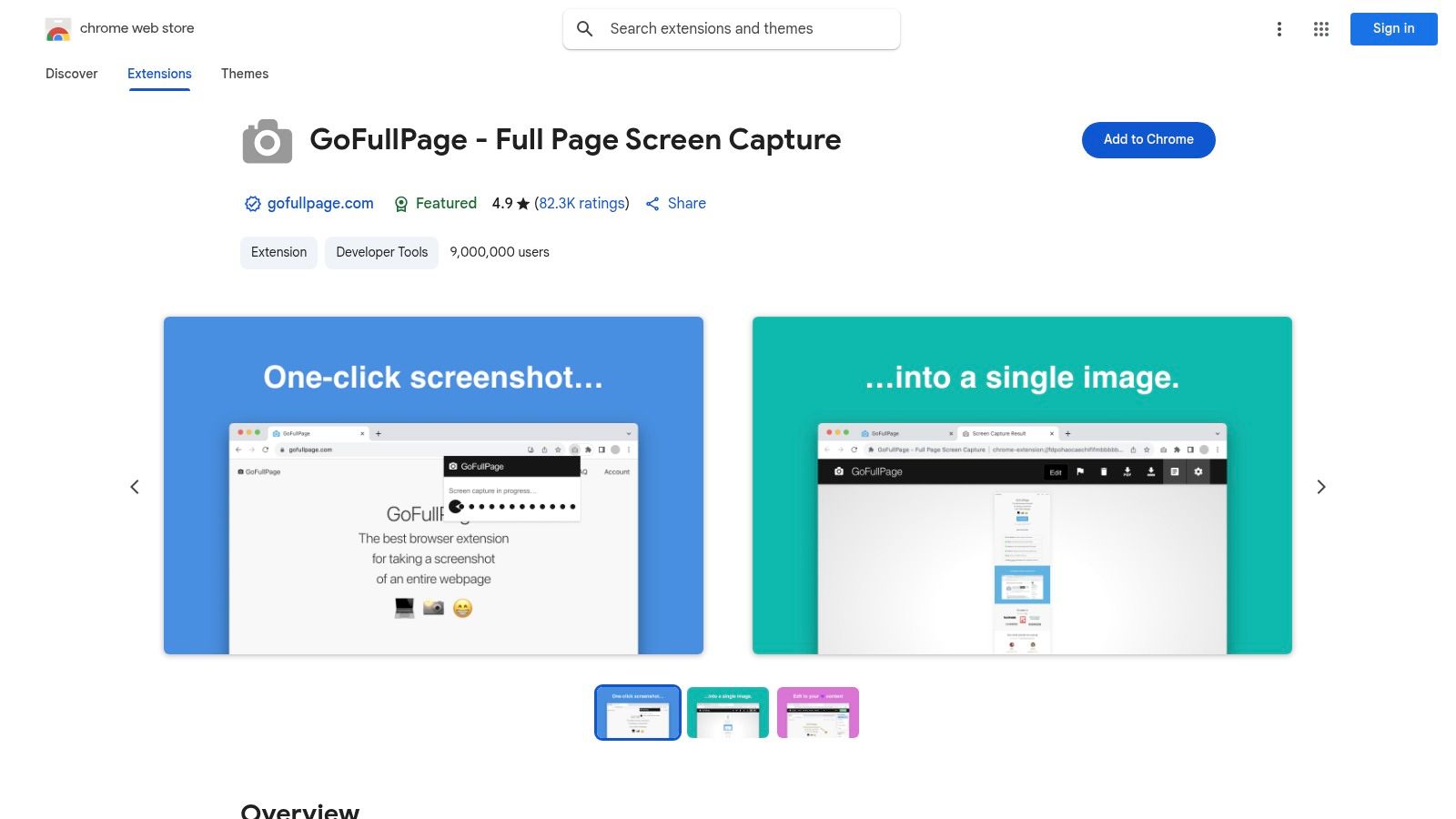
Its primary strength lies in its dependability and minimalist approach. The user interface is practically nonexistent, requiring only a click on the extension icon. This makes it ideal for software developers needing to document an entire user flow or content creators archiving long-form articles for reference.
Key Features and Usage
GoFullPage is free for its core capturing functionality. For users requiring advanced features like annotations, premium editing tools, priority support, and cropping, there is an optional premium subscription.
- One-Click Capture: Activates an automated scrolling and capturing process.
- Export Options: Easily download captures as PNG, JPG, or PDF files.
- Privacy-First: Operates with minimal permissions, requiring no access to your browsing data.
- No Sign-Up: The free version works immediately after installation without needing an account.
Practical Tip: For extremely long pages, allow the extension to complete its auto-scroll process without interacting with the tab to ensure the most accurate, glitch-free capture.
Website: GoFullPage Chrome Web Store
2. FireShot – Take Webpage Screenshots Entirely
FireShot is a comprehensive and mature google chrome screenshot addon that goes far beyond simple captures. It provides a full suite of tools for capturing, editing, and organizing screenshots directly within the browser, operating entirely offline for enhanced privacy and speed. Its robust feature set makes it a powerful choice for users who need more than just a basic screen grab, offering functionality akin to a light desktop application.
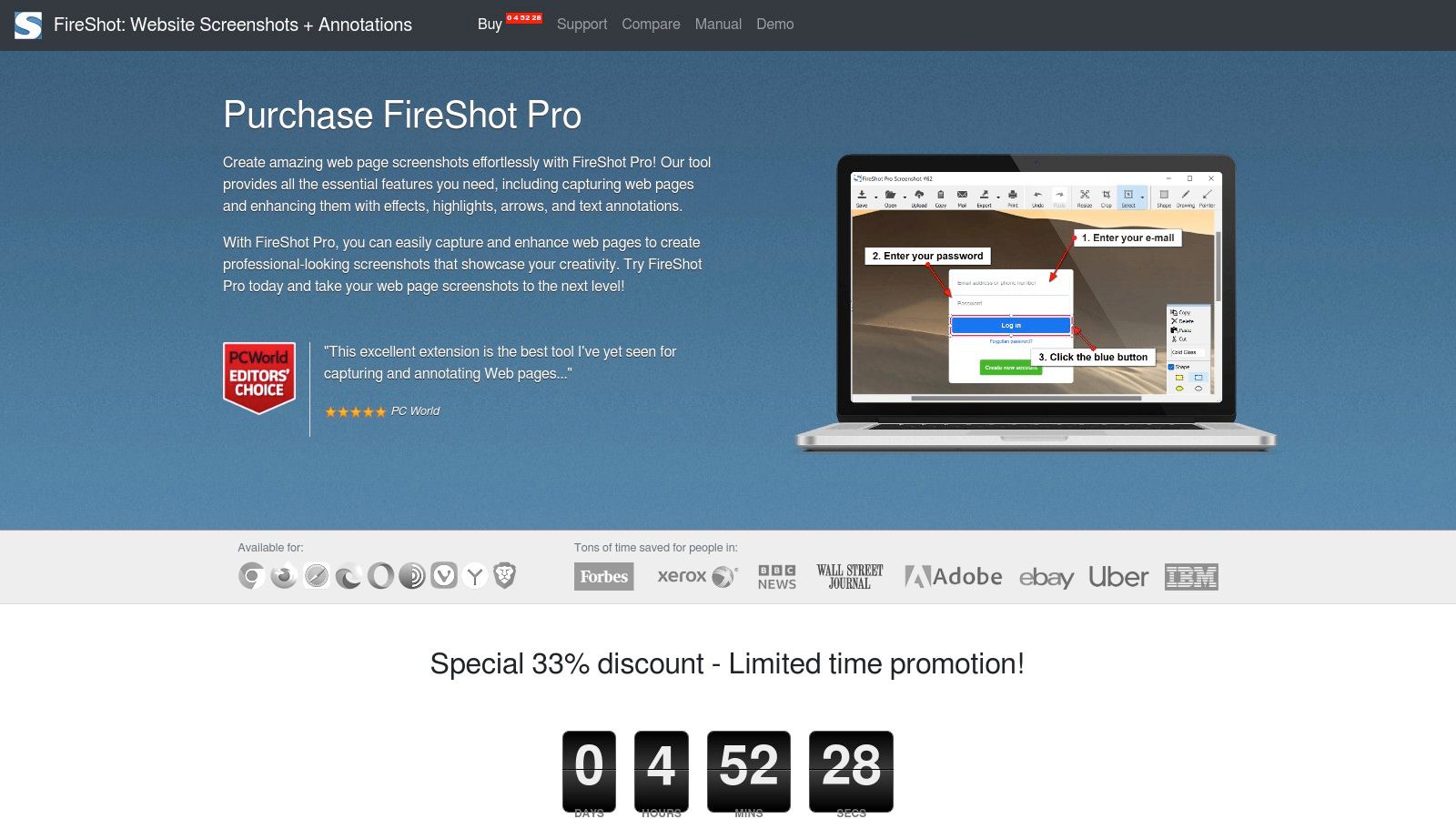
The primary advantage of FireShot is its powerful built-in editor. After capturing a full page, visible area, or selected region, users can immediately add annotations, blur sensitive information, insert text, and apply effects without leaving Chrome. This integrated workflow is perfect for technical writers creating documentation or QA engineers who need to highlight bugs clearly.
Key Features and Usage
The free version offers basic screenshot capabilities, while a one-time Pro license unlocks the editor, PDF export with links, and advanced capture options.
- Multiple Capture Modes: Choose from full page, visible part, or a specific selection.
- Powerful Built-in Editor: Annotate with arrows, text, shapes, and blur tools.
- Versatile Exporting: Save as PDF, PNG, JPG, or GIF, or send directly to email or OneNote.
- Offline Functionality: Works without an internet connection, processing all data locally on your machine.
Practical Tip: Use the "Capture all tabs" feature (Pro version) to quickly generate a multi-page PDF of related web pages, ideal for creating project reports or compiling research.
Website: FireShot Website
3. Awesome Screenshot & Recorder
Awesome Screenshot & Recorder stands out as a comprehensive, all-in-one solution that merges screen capture with video recording. This powerful google chrome screenshot addon caters to users who need more than just static images, offering a suite of tools for both capturing and communicating visual information. Its dual functionality makes it a favorite among educators, project managers, and support teams who frequently need to create tutorials, provide feedback, or document complex processes.
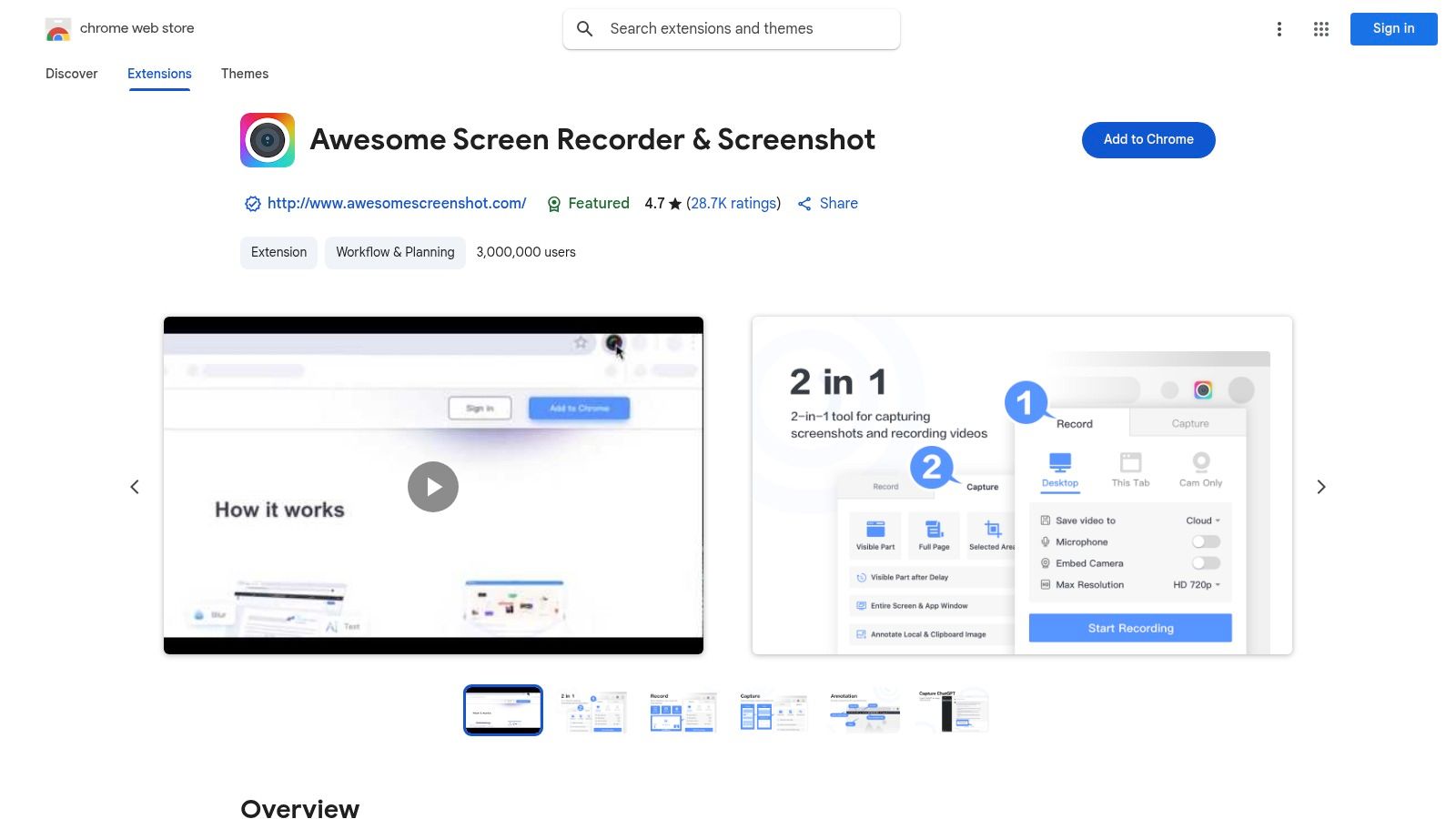
The extension’s key advantage is its versatility. Users can capture a specific region, the visible part of a page, or the entire scrolling page. Immediately after capture, a robust annotation toolkit becomes available, allowing for precise markups. The integration of cloud storage and instant sharing links streamlines collaborative workflows, eliminating the need for separate hosting services.
Key Features and Usage
While the core screenshot and basic recording features are free, advanced functionalities like unlimited cloud storage, premium editing tools, and call-to-action buttons for videos are part of its paid subscription plans.
- Combined Functionality: Captures screenshots (full-page, region) and records video of your tab or desktop.
- Rich Annotation Tools: Includes blur, text, shapes, highlights, and step-by-step markers.
- Cloud Integration: Save captures locally or upload to an online account for easy sharing via links.
- Frequent Updates: A large user base ensures the tool is consistently maintained and improved.
Practical Tip: Use the "capture after delay" feature to grab screenshots of interactive elements like dropdown menus or tooltips that only appear on hover.
Website: Awesome Screenshot & Recorder Chrome Web Store
4. Markup Hero – Scrolling Screenshot & Full Page Capture
Markup Hero shines as a powerful google chrome screenshot addon designed for users who need more than just a simple capture. It excels in both capturing extensive content and providing a rich suite of annotation tools, making it a go-to for collaborative projects, detailed feedback, and creating professional-looking markups. Its workflow is built around capturing, annotating, and sharing with ease, directly from your browser.
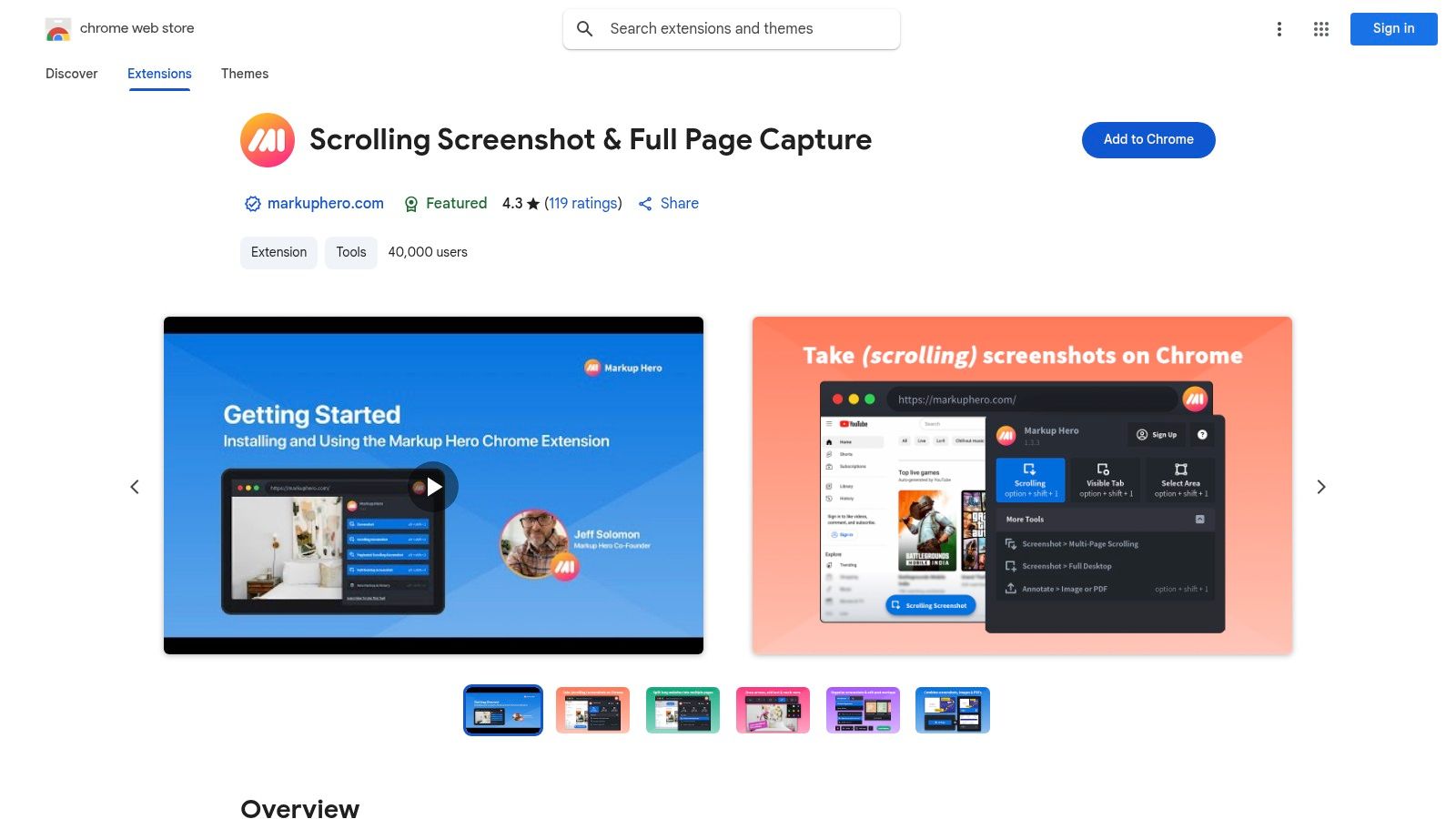
The platform's standout feature is its permanent, editable markups. Unlike many tools where annotations are final once saved, Markup Hero allows you to revisit and modify your markups later, which is invaluable for ongoing projects. This makes it ideal for QA engineers tracking bugs over time or marketing teams refining creative assets.
Key Features and Usage
While Markup Hero offers a free plan with core functionality, its full power is unlocked with a Pro subscription, which adds features like unlimited markups, custom branding, and integrations.
- Advanced Annotation: Access over 20 tools, including text, arrows, shapes, highlighters, and blur effects.
- Scrolling & Multi-Page Capture: Easily capture long web pages or stitch multiple pages into a single, cohesive document.
- Permanent, Editable Markups: Return to any screenshot via its unique link to edit annotations at any time.
- Team Collaboration: Use folders and history to organize captures, share links instantly, and collaborate on feedback.
Practical Tip: Create dedicated folders for different projects or clients within Markup Hero to keep your screenshots organized and easily accessible for your team, streamlining your feedback loop.
Website: Markup Hero Chrome Web Store
5. CocoShot – Screenshot – Screen Capture & Editor
CocoShot stands out as a lightweight and privacy-conscious google chrome screenshot addon that balances powerful capturing with a nimble footprint. It provides a comprehensive suite of options, including full-page auto-scroll, visible area, and selected region captures. Its core strength lies in combining these capture methods with an efficient, built-in editor without slowing down the browser.
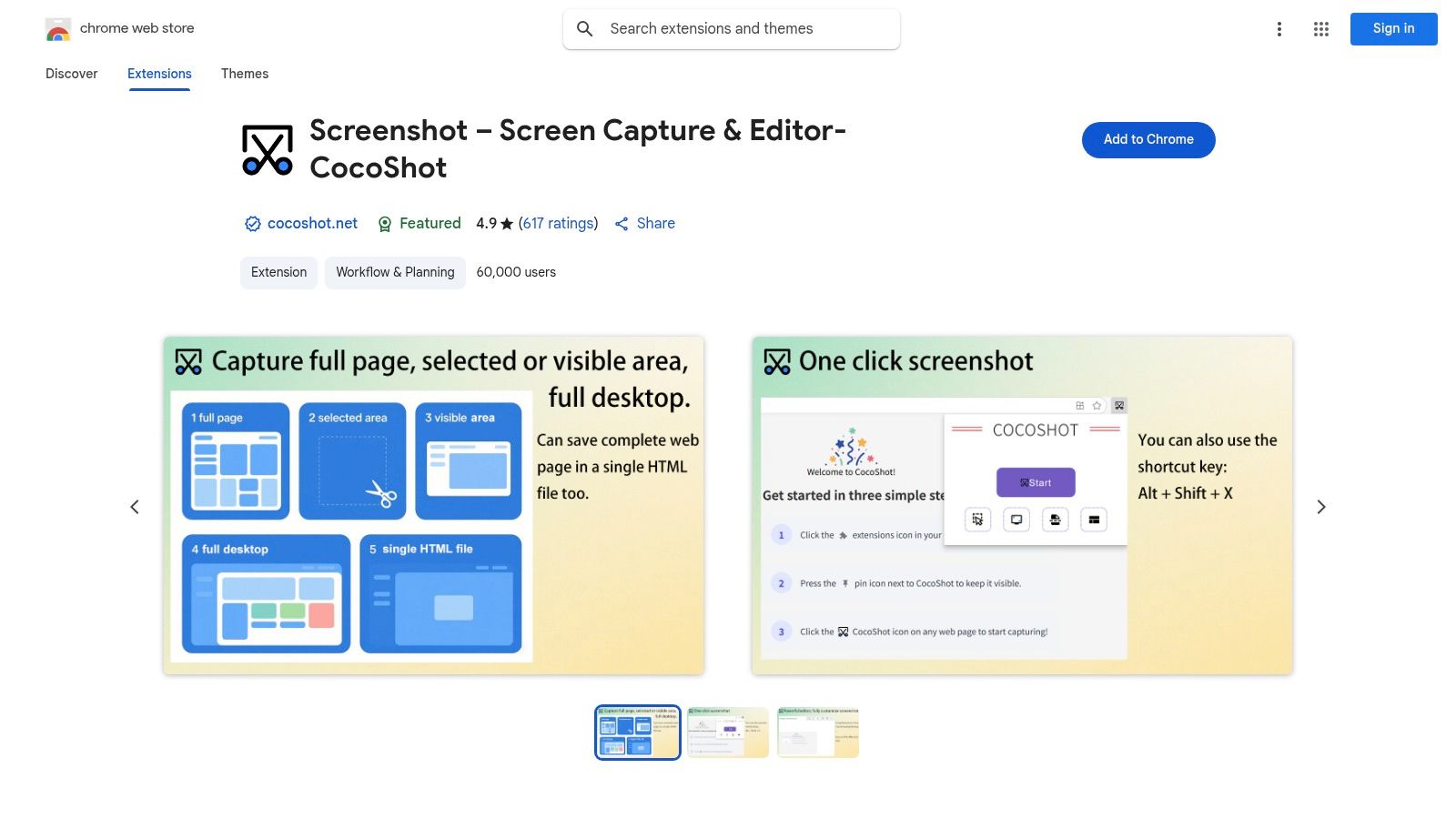
This addon is perfect for users who need to make quick annotations or edits immediately after capturing an image. The intuitive editor allows for cropping, resizing, drawing, and blurring sensitive information on the fly, streamlining the process from capture to final product. The focus on minimal permissions also makes it a trusted choice for privacy-aware users.
Key Features and Usage
CocoShot is completely free and operates with a strong emphasis on user privacy and efficiency. It avoids the need for cloud storage, focusing instead on providing powerful local tools for immediate editing and exporting.
- Versatile Capture Modes: Offers full-page, selected area, and visible part captures.
- Integrated Editor: Includes tools to crop, resize, draw, add text, apply filters, and blur sections.
- Multiple Export Options: Save screenshots as PNG, JPG, or PDF files with hyperlink support.
- Lightweight Performance: Designed to be fast and responsive with minimal impact on browser speed.
Practical Tip: Use keyboard shortcuts to speed up your workflow. You can configure custom shortcuts in Chrome's extension settings to instantly trigger different capture modes without clicking the icon.
Website: CocoShot Chrome Web Store
6. Explain and Send Screenshots
Explain and Send Screenshots prioritizes security and efficiency, making it an excellent google chrome screenshot addon for users who value privacy. The extension is designed with a minimalist approach, requesting very few permissions to operate. It provides a straightforward toolkit for capturing, annotating, and sharing visual information without unnecessary complexity, making it ideal for quick communication.
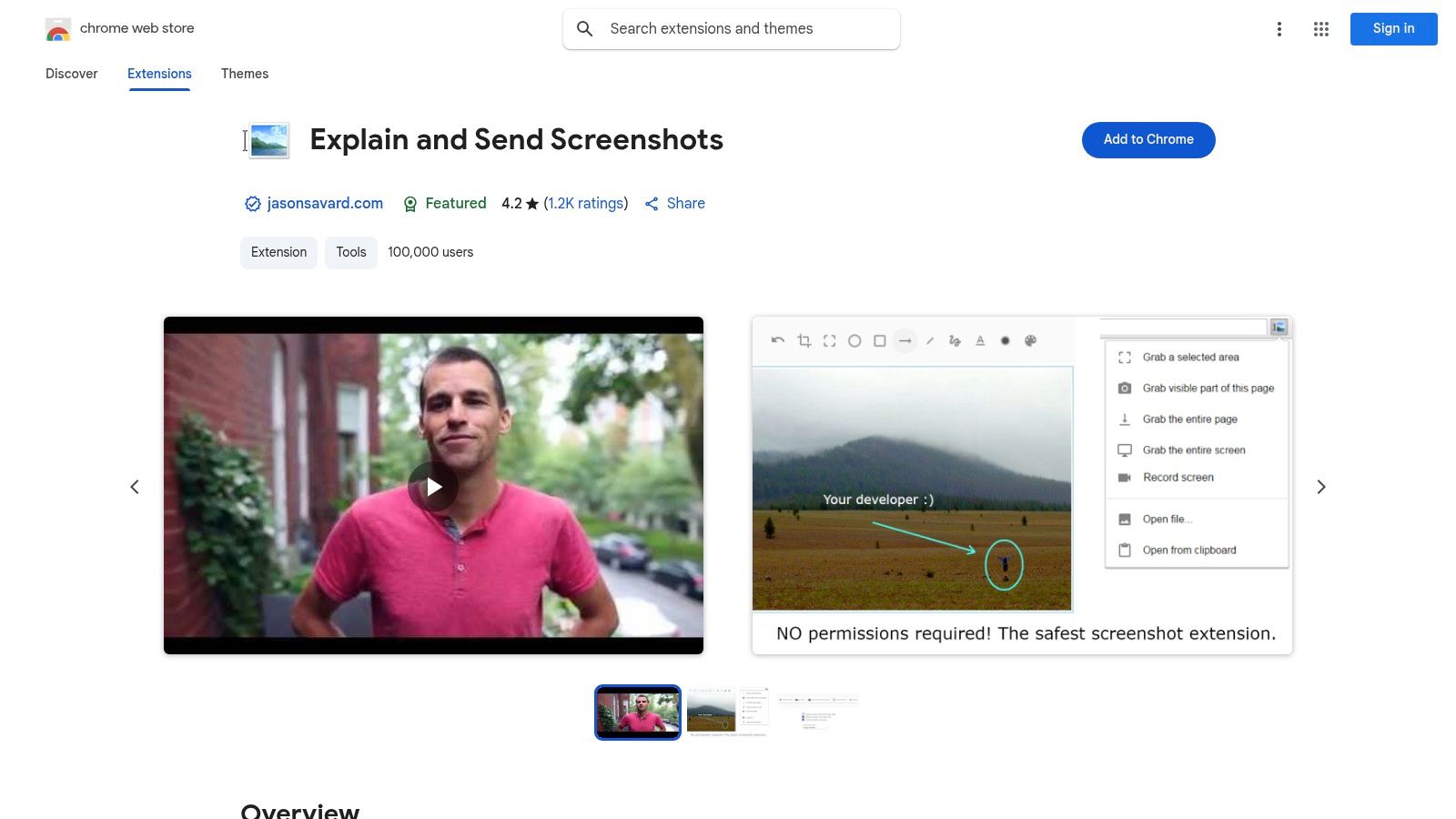
Its standout feature is the emphasis on minimal permissions, which enhances user security and trust. This focus, combined with direct Google Drive integration, makes it a reliable choice for professionals and individuals who need to share annotated images or brief screen recordings quickly within the Google ecosystem.
Key Features and Usage
The tool is completely free and actively maintained by the developer. Its core strength is providing essential capture and annotation features in a lightweight and secure package, distinguishing it from more feature-heavy but permission-intensive alternatives.
- Versatile Capture: Take screenshots of a selected area, visible part, or the entire page.
- Simple Annotations: Add text, arrows, blur sensitive information, and crop images directly in the browser.
- Google Drive Integration: Save your captures and short screen recordings directly to your Google Drive for easy access and sharing.
- Keyboard Shortcuts: Use configurable keyboard shortcuts to speed up your capture workflow significantly.
Practical Tip: Customize the keyboard shortcuts in the extension's settings to match your workflow. This can make capturing specific areas of your screen nearly instantaneous, which is perfect for fast-paced customer support or QA testing.
Website: Explain and Send Screenshots Chrome Web Store
7. Lightshot – Screenshot Tool
Lightshot is a veteran in the screen capture space, renowned for its speed and simplicity in capturing specific regions of a screen. Unlike full-page solutions, this google chrome screenshot addon is designed for quick, ad-hoc captures that require immediate, lightweight editing and sharing. Its core strength is the intuitive workflow: click the icon, drag to select an area, and instantly access a suite of annotation tools right on the screen.
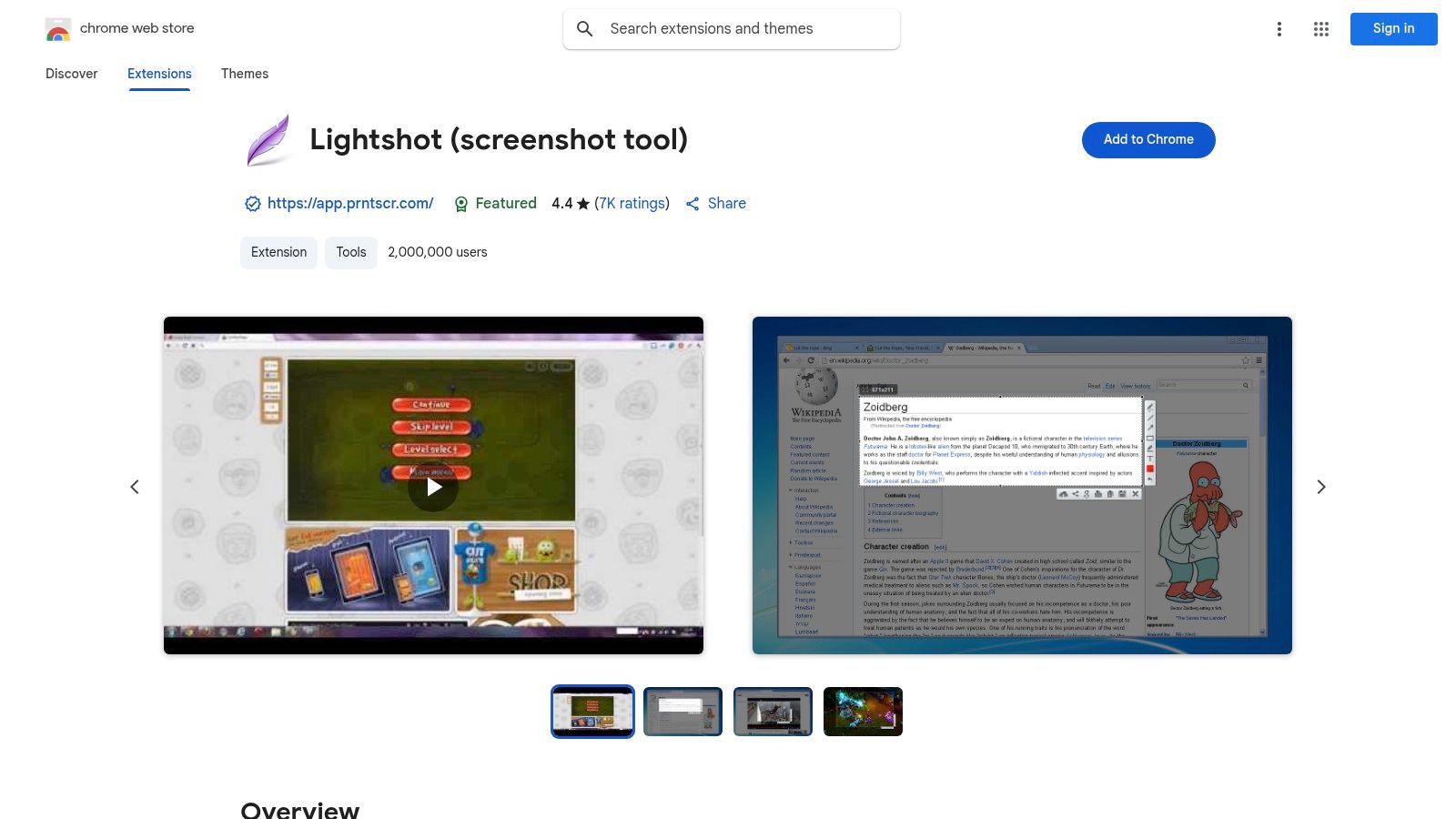
This tool is a favorite among users who need to rapidly communicate visual information, such as customer support agents highlighting a UI element or team members sharing a quick bug report. The ability to upload the capture and get a shareable link in seconds is its defining feature, though it also supports local saving.
Key Features and Usage
Lightshot is completely free to use. Its model focuses on providing an efficient capture-edit-share cycle without complex menus or settings, making it accessible for users of all skill levels.
- Fast Region Capture: Immediately enables a drag-and-select interface to capture any part of your screen.
- Inline Editing Tools: Provides instant access to pens, lines, shapes, text, and color pickers without leaving the capture interface.
- Multiple Sharing Options: Save the image locally, copy it to the clipboard, or upload it to Lightshot’s server to generate a shareable URL.
- Cross-Platform Availability: In addition to its Chrome extension, Lightshot offers desktop applications for Windows and Mac.
Practical Tip: Be mindful of the public link-sharing feature. The generated URLs can be guessable, so it is best practice to save sensitive captures locally rather than uploading them.
Website: Lightshot Chrome Web Store
8. Gyazo – Share new screenshots. Instantly.
Gyazo is designed for speed and sharing, making it a powerful google chrome screenshot addon for users who need to communicate visually and instantly. Instead of saving files locally, Gyazo automatically uploads every capture to the cloud and places a shareable link on your clipboard. This streamlined workflow is perfect for collaborative environments, such as a developer pointing out a bug or a support agent guiding a user.
Its primary distinction is its "capture-and-share" model, which bypasses the traditional steps of saving, locating, and uploading a file. By treating screenshots as transient, shareable media, it excels in fast-paced team communication where quick feedback is essential. The extension also captures metadata like the page title and URL, adding valuable context to every shared image.
Key Features and Usage
Gyazo's free version provides the core link-sharing functionality. A premium subscription unlocks features like password-protected sharing, annotation tools, and unlimited storage.
- Instant Cloud Upload: Captures are automatically uploaded, generating a unique, shareable link.
- Multiple Capture Modes: Includes options for selected area, specific elements, the visible page, and full-page captures.
- Cross-Platform Sync: Captured images and GIFs are accessible across its desktop and mobile applications.
- Rich Metadata: Each capture automatically saves the source URL and page title for better organization and reference.
Practical Tip: Use Gyazo’s "Element" capture mode to precisely select and share specific UI components like buttons or forms without needing to crop the image manually.
Website: Gyazo Chrome Web Store
9. Loom – Free Screenshot Tool
While widely known for its asynchronous video messaging, Loom offers a surprisingly robust screenshot tool within its ecosystem, making it a powerful google chrome screenshot addon for collaborative teams. It’s designed for speed and instant sharing, generating a cloud-based link the moment you capture an image. This workflow is perfect for teams already embedded in the Loom video environment, providing a unified platform for both screen recordings and static captures.
Loom excels at integrating screenshots directly into a team's communication flow. Captures are automatically saved to a personal or team library, making it easy to organize, find, and reuse visual assets without clogging up local storage. While it lacks scrolling capture functionality, its strength lies in creating an instant, shareable record for quick feedback or documentation.
Key Features and Usage
Loom’s screenshot functionality is included for free, with unlimited captures available to all users. Paid plans offer advanced features related to video recording and team management, but the core screenshot tools are accessible without a subscription.
- Instant Cloud Links: Automatically uploads captures and copies a shareable link to your clipboard.
- Team Libraries: Organizes screenshots in a centralized, cloud-based workspace for easy access.
- Basic Annotation: Includes tools to add text, arrows, and highlights for clear communication.
- Privacy Controls: Easily set who can view your shared screenshots.
Practical Tip: Use Loom's screenshot tool to quickly grab a bug report or UI issue and immediately paste the link into a project management tool like Jira or Asana, keeping all visual context within your existing workflow.
Website: Loom Screenshot Tool
10. Droplr – Screenshot & Screen Recorder
Droplr positions itself as a business-centric solution for fast and secure visual communication. This google chrome screenshot addon is part of a larger ecosystem designed for teams, focusing on instant cloud sharing and robust management features. It allows users to capture full pages, selected areas, or record their screen, then immediately generates a short link for sharing, streamlining collaboration and feedback cycles.
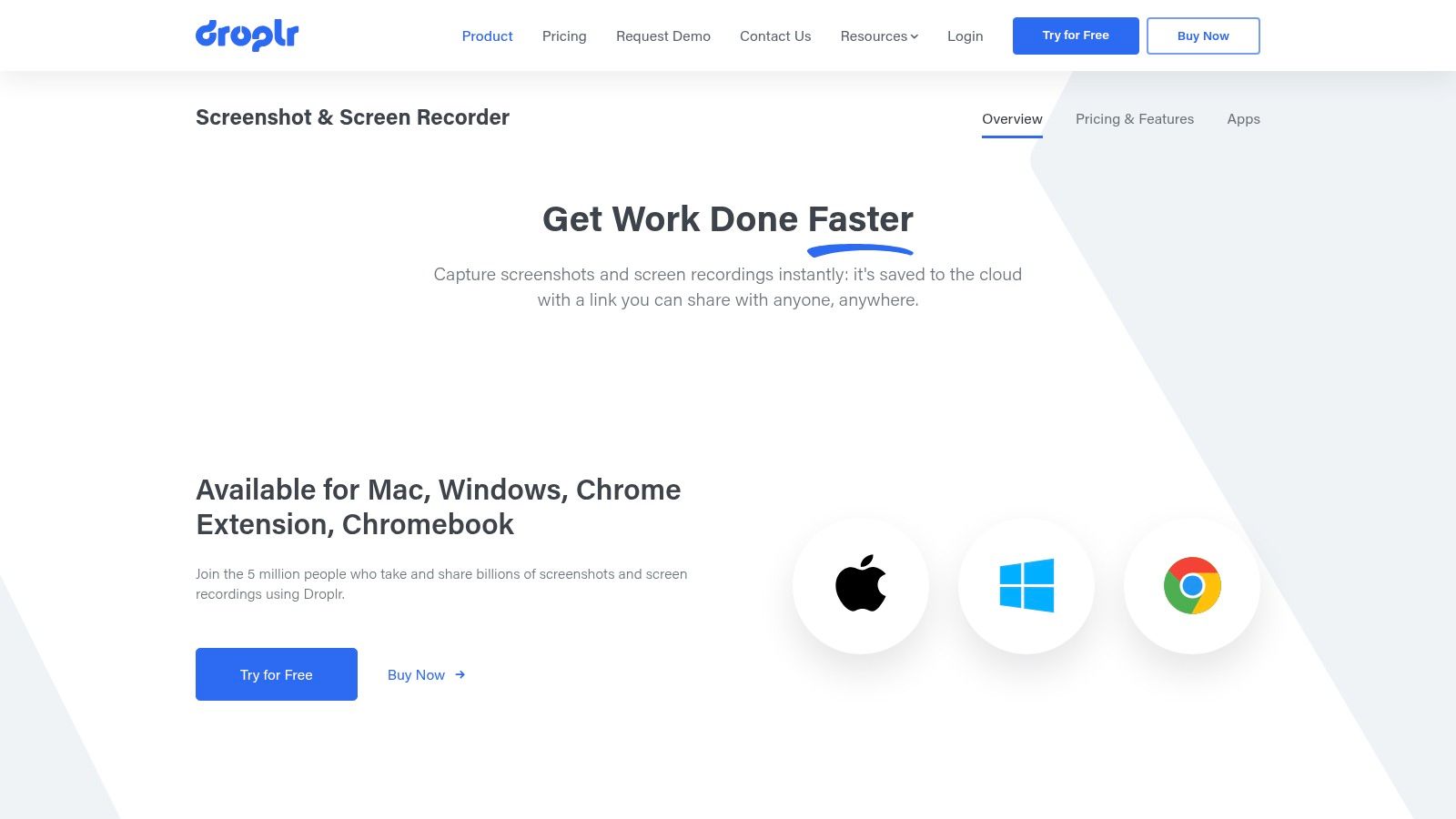
Its primary distinction is its enterprise-grade functionality. The platform is built for corporate environments where security, branding, and analytics are crucial. This makes it a powerful choice for support teams explaining a process or development teams documenting bugs with detailed annotations and recordings.
Key Features and Usage
Droplr operates on a subscription model, with plans tailored for individuals, teams, and enterprises. The cloud-first approach means all captures are managed in an organized online dashboard.
- Instant Cloud Links: Every screenshot or recording is automatically uploaded, generating a shareable short link.
- Team-Focused Features: Offers custom branding, Single Sign-On (SSO), analytics, and centralized billing.
- Annotation Suite: Includes tools like arrows, text, shapes, and an intelligent blur tool for redacting sensitive information.
- Multi-Platform Sync: Captures are accessible across its native Mac, Windows, and Chrome applications.
Practical Tip: Leverage the team dashboard to create collections (called "Drops") for specific projects or clients. This keeps all related visual assets organized and easily accessible for everyone on the team.
Website: Droplr Chrome Web Store
11. ScreenClip – Screenshot, Comment & Annotate
ScreenClip is designed for users who need a rapid and efficient workflow, bridging the gap between capturing and sharing. As a versatile google chrome screenshot addon, its core strength is its tight integration with the system clipboard. This allows for immediate pasting into documents, emails, or communication platforms, making it a favorite for professionals who need to share visual information quickly without extra steps.
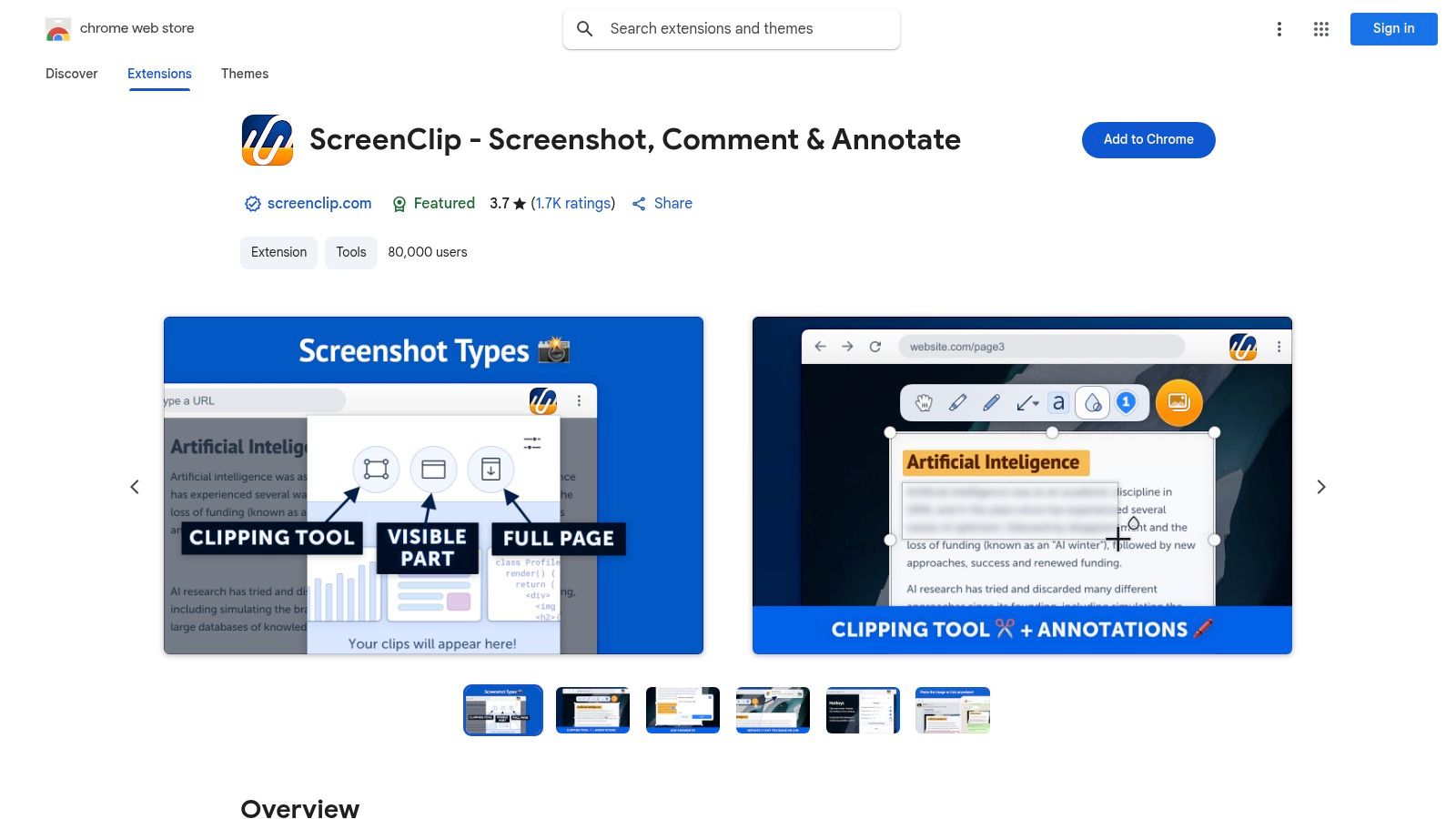
The extension provides a balanced suite of tools, offering both flexible capture options and essential annotation features. It is particularly well-suited for customer support teams providing visual instructions or developers pointing out UI bugs, where speed and clarity are paramount.
Key Features and Usage
ScreenClip is a free extension that emphasizes a fast, self-contained workflow without relying on cloud services for its primary functions.
- Multiple Capture Modes: Includes full-page, visible area, and a snipping tool for precise selections.
- Annotation Toolkit: Equip your screenshots with text, arrows, rectangles, and highlighters to add context.
- Auto-Copy to Clipboard: The standout feature automatically copies your final annotated image, ready to be pasted anywhere.
- Local Operation: Functions without requiring sign-ups or cloud storage, focusing on local capture and share.
Practical Tip: Use the snipping tool combined with the auto-copy feature for the fastest way to capture a specific element on a page and paste it directly into a Slack message or support ticket.
Website: ScreenClip Chrome Web Store
12. Full Page Screen Capture (Conceptboard)
Developed by Conceptboard, Full Page Screen Capture is a lightweight and efficient google chrome screenshot addon designed for one primary task: capturing an entire webpage. It excels in its simplicity, providing a no-fuss, single-click solution for users who need quick, full-length captures without the complexity of advanced editing suites or cloud storage integrations. The extension works by automatically scrolling down the page and stitching the result into a single image.
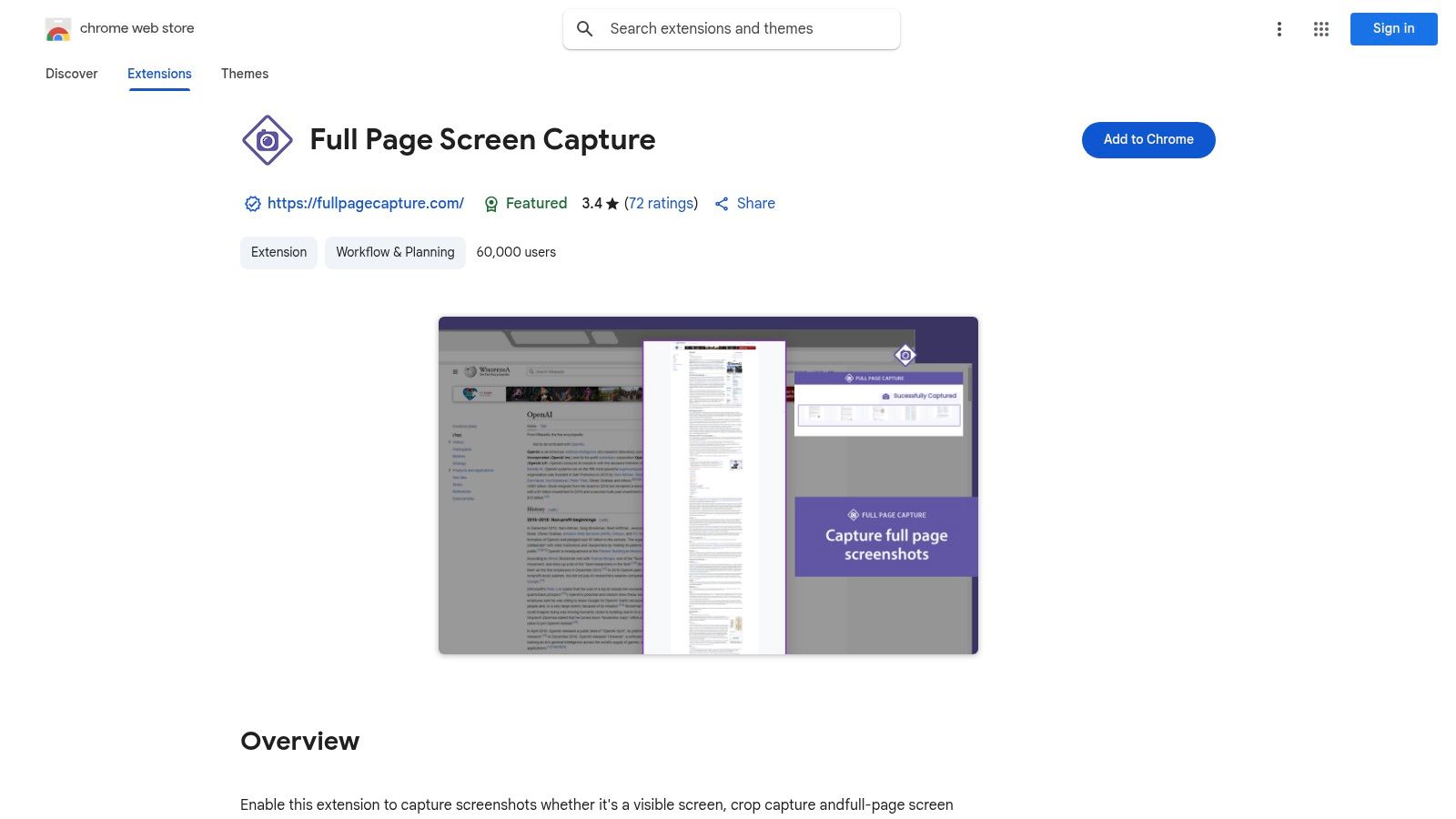
Its main advantage is its straightforward nature, making it a perfect tool for users who need a reliable capture function and nothing more. Technical writers archiving documentation or QA engineers capturing long user interface flows will find its speed and minimal resource usage highly beneficial. It avoids unnecessary features, focusing entirely on a stable capturing experience.
Key Features and Usage
This tool is completely free and prioritizes ease of use. Once the capture is complete, it opens in a new tab, allowing you to drag and drop it to your desktop or save it directly.
- Single-Purpose Functionality: Focuses solely on capturing full-page screenshots, including non-visible areas.
- Simple Export: Allows users to save captures easily as PNG or JPG files.
- Minimalist Interface: The extension requires just one click to initiate the screen capture process.
- Free to Use: Offers its core functionality without any cost, subscriptions, or sign-up requirements.
Practical Tip: Because this extension is so minimal, use your computer's built-in image editor or a separate application for any annotations, cropping, or edits needed after the capture is saved.
Website: Full Page Screen Capture Chrome Web Store
Top 12 Chrome Screenshot Addons Feature Comparison
| Tool | Core Features & Editing ✨ | User Experience & Quality ★★★★☆ | Value & Pricing 💰 | Target Audience 👥 | Unique Selling Points 🏆 |
|---|---|---|---|---|---|
| GoFullPage | One-click full-page capture, PNG/JPG/PDF export | 4.9/5 ★, reliable, privacy minimal permissions | Free + premium option 💰 | General users needing full pages | Privacy-focused, super reliable full-page capture ✨ |
| FireShot | Full/region capture, rich editor, batch capture | Powerful editing, offline use ★★★★☆ | Lifetime Pro license available 💰 | Power users, offline preference | Advanced editor, offline work, automation 🏆 |
| Awesome Screenshot & Recorder | Capture + screen recording, cloud storage | Frequent updates, wide features ★★★★☆ | Free + paid subscription 💰 | Creators, educators, professionals | Combined capture & recording, cloud sharing ✨ |
| Markup Hero | Scrolling capture, 20+ annotation tools, history | Strong editing, collaboration focused ★★★★ | Freemium; cloud-based 💰 | Teams, remote workers | Editable markups, team collaboration 🏆 |
| CocoShot | Full-page capture, editor with filters, shortcut | Fast, lightweight, privacy strong ★★★★ | Free | Privacy-conscious users | Lightweight with solid privacy ✨ |
| Explain and Send Screenshots | Partial/full capture, blur, Google Drive save | Simple, minimal permissions ★★★★ | Free | Security-focused, basic needs | Simple UI, Google Drive integration 🏆 |
| Lightshot | Region capture, inline editing, upload links | Very fast & easy ★★★★ | Free | Casual users | Speed and simplicity ✨ |
| Gyazo | Multi-capture modes, auto cloud save, preview | Fast sharing, cross-platform ★★★★ | Free + paid tiers 💰 | Users wanting instant sharing | Instant cloud upload & hover preview 🏆 |
| Loom | Screenshot + video, instant cloud share | Unlimited free screenshots ★★★ | Free tier available 💰 | Teams using Loom for video | Screenshot + video ecosystem integration ✨ |
| Droplr | Full/partial capture, annotation, cloud links | Business-grade, team tools ★★★★ | Subscription required 💰 | Businesses & teams | Governance, AI redaction, team management 🏆 |
| ScreenClip | Full-page & visible capture, annotations, clipboard | Fast clipboard integration ★★★ | Free | Users valuing speed & annotations | Clipboard auto-copy, balanced features ✨ |
| Full Page Screen Capture | Full-page capture, PNG/JPG save | Simple, lightweight ★★★ | Free | Basic users | Minimal interface, quick captures ✨ |
Choosing Your Perfect Screenshot Workflow
Navigating the crowded market of screenshot tools reveals a clear truth: the best Google Chrome screenshot addon isn't the one with the longest feature list, but the one that seamlessly integrates into your unique daily workflow. We've explored a dozen powerful contenders, each with distinct strengths tailored to specific professional needs. Your final choice hinges on identifying your primary use case and prioritizing features that eliminate friction, not add complexity.
From Simple Captures to Collaborative Powerhouses
For those who simply need a no-fuss, pixel-perfect capture of an entire webpage, the streamlined efficiency of tools like GoFullPage or the dependable FireShot is unmatched. They excel at one core function and perform it flawlessly, making them ideal for archival purposes or straightforward documentation where annotation is secondary.
When your workflow demands more than just a capture, a different class of tool emerges. For teams steeped in visual feedback and collaborative projects, extensions like Markup Hero and Droplr provide robust annotation suites, cloud storage, and sharing capabilities. These are built for interaction, turning static images into dynamic conversation starters perfect for QA engineers pinpointing bugs or customer support agents guiding a user. Similarly, tools like Loom and Awesome Screenshot bridge the gap between static images and video, offering screen recording for when a simple picture isn't enough to convey complex information.
Beyond Capture: The Final Mile of Presentation
However, a significant segment of professionals, particularly marketers, content creators, and social media managers, face a different challenge. Their goal isn't just to capture information but to present it in a visually compelling, professional, and secure manner. This is the "last mile" problem of screenshotting, where a raw capture must be transformed into a polished, share-worthy asset. This is precisely where a specialized tool like GrabShot.io distinguishes itself from the competition.
GrabShot.io isn't just another capture utility; it's a presentation and beautification engine. It directly addresses the time-consuming process of taking a screenshot into a separate design tool for styling. Its AI-powered features offer one-click professional backgrounds, browser mockups, and social media presets, transforming a plain capture into a polished graphic instantly. Furthermore, its automated OCR-based redaction tackles privacy and security concerns head-on, saving critical time for teams handling sensitive data.
Ultimately, your decision should be guided by a simple question: What happens after you click "capture"? If your process ends there, a simple tool will suffice. But if your process involves styling, branding, redacting, and sharing, then a more integrated solution is essential. Consider not only the features you need today but also the efficiency gains that will compound over time. The right Google Chrome screenshot addon will do more than just take a picture; it will enhance your communication, protect your data, and save you valuable time.
Ready to stop wasting time in design tools and start creating beautiful, secure screenshots in seconds? See how GrabShot.io transforms your workflow from a multi-step chore into a one-click delight. Visit GrabShot.io to experience the future of professional screen captures today.