

While macOS provides a capable built-in screenshot tool, your workflow likely demands more. For developers documenting bugs, marketers creating social media assets, or customer support teams providing visual guidance, the default Cmd+Shift+4 often falls short. The right application can transform a simple screen grab into a powerful communication and productivity asset, saving you valuable time and effort.
This comprehensive guide cuts through the noise to analyze the best screenshot apps for Mac. We move beyond generic feature lists to provide in-depth, practical reviews based on real-world use cases. You'll discover everything from lightweight, speedy utilities for quick captures to comprehensive suites offering advanced editing, cloud-based sharing, and robust team collaboration features.
Each entry includes a detailed breakdown of its strengths, weaknesses, and ideal user, complete with screenshots and direct links to get started. Our goal is to help you identify the specific tool that will not only capture your screen but also seamlessly integrate into and elevate your daily tasks. Let's find the perfect app to streamline your visual communication and boost your productivity.
1. CleanShot X
CleanShot X is a premium, Mac-native powerhouse that replaces multiple apps with one streamlined workflow. It's designed for professionals who need more than a simple capture tool, offering an all-in-one solution for screenshots, screen recording, annotation, and cloud sharing. Its interface feels deeply integrated with macOS, providing a fast and intuitive experience that stands out among the best screenshot apps for Mac. The app excels at creating clean, professional-looking captures by automatically hiding desktop icons or using custom backgrounds.
The annotation suite is where CleanShot X truly shines, offering pixel-perfect tools that are ideal for creating detailed tutorials or providing precise feedback. Unique features like built-in OCR allow you to extract text from any image, and the scrolling capture effortlessly snaps entire web pages. While its most advanced sharing features require a CleanShot Cloud Pro subscription, the base app is available as a one-time purchase, giving you permanent ownership.
Key Features & Assessment
| Feature | Assessment | Use Case Scenario |
|---|---|---|
| Annotation Suite | Excellent. Pixel-perfect tools for precise markups. | A QA engineer highlights a subtle UI bug for a developer ticket. |
| Scrolling Capture | Very Good. Reliable for capturing long web pages or code blocks. | A content creator captures an entire article for offline review. |
| CleanShot Cloud | Excellent. Fast, branded sharing with team management. | A marketing team shares branded mockups with a client. |
| OCR (Text Recognition) | Good. Accurately pulls text from screenshots. | A user extracts an error message from a dialog box to paste into a support chat. |
Website: https://cleanshot.com
2. TechSmith Snagit
TechSmith Snagit is an enterprise-grade fixture in the world of screen capture, widely regarded as a standard in many corporate and educational settings. It offers a mature, feature-rich platform designed for creating detailed documentation, training materials, and technical feedback. Rather than focusing on quick, single-use captures, Snagit excels at building structured visual guides with powerful templates, preset workflows, and a robust editor. This makes it one of the best screenshot apps for Mac users who need to produce professional, consistent-looking visuals for teams or clients.
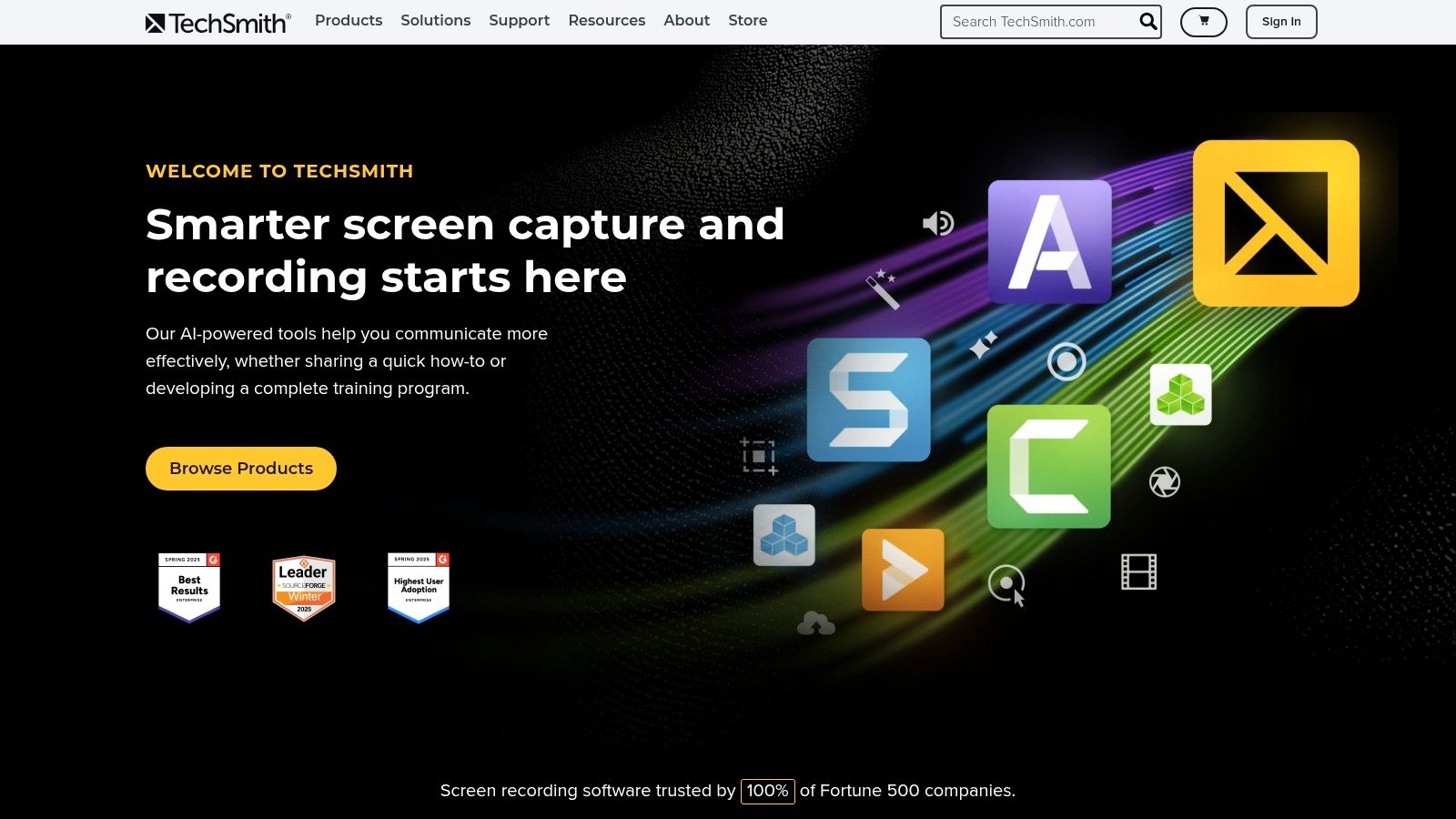
The platform's strength lies in its extensive editor, which includes a library of stamps, callouts, and step-by-step tools that go far beyond basic annotation. Its panoramic scrolling capture is highly effective for grabbing wide or long content, and the ability to turn a series of screenshots into a lightweight instructional video is a unique workflow advantage. While Snagit is transitioning to an annual subscription model for its latest versions and is a more significant investment, its extensive support, training resources, and business-friendly licensing make it a dependable choice for organizations.
Key Features & Assessment
| Feature | Assessment | Use Case Scenario |
|---|---|---|
| Templates & Workflows | Excellent. Streamlines creation of consistent training guides. | An HR manager creates a standardized onboarding document for new software. |
| Panoramic Capture | Excellent. Seamlessly stitches together long or wide captures. | A UX designer captures an entire horizontal user flow on a large monitor. |
| Editor & Stamps | Very Good. Extensive library for detailed, professional markups. | A support agent uses numbered steps and callouts to explain a complex fix. |
| Create Video from Images | Good. A unique feature for creating simple instructional GIFs or videos. | A teacher turns screenshots into a short video explaining a math problem. |
Website: https://www.techsmith.com
3. Shottr
Shottr is a lightweight and blazing-fast screenshot tool designed with pixel-perfect precision in mind, making it a favorite among designers and developers. As one of the best screenshot apps for Mac, it distinguishes itself with incredible speed and a focus on essential measurement tools. The app is highly optimized for Apple Silicon, launching instantly and feeling incredibly responsive. It provides a no-fuss workflow for users who need to capture, measure, and annotate quickly without the overhead of a larger application.
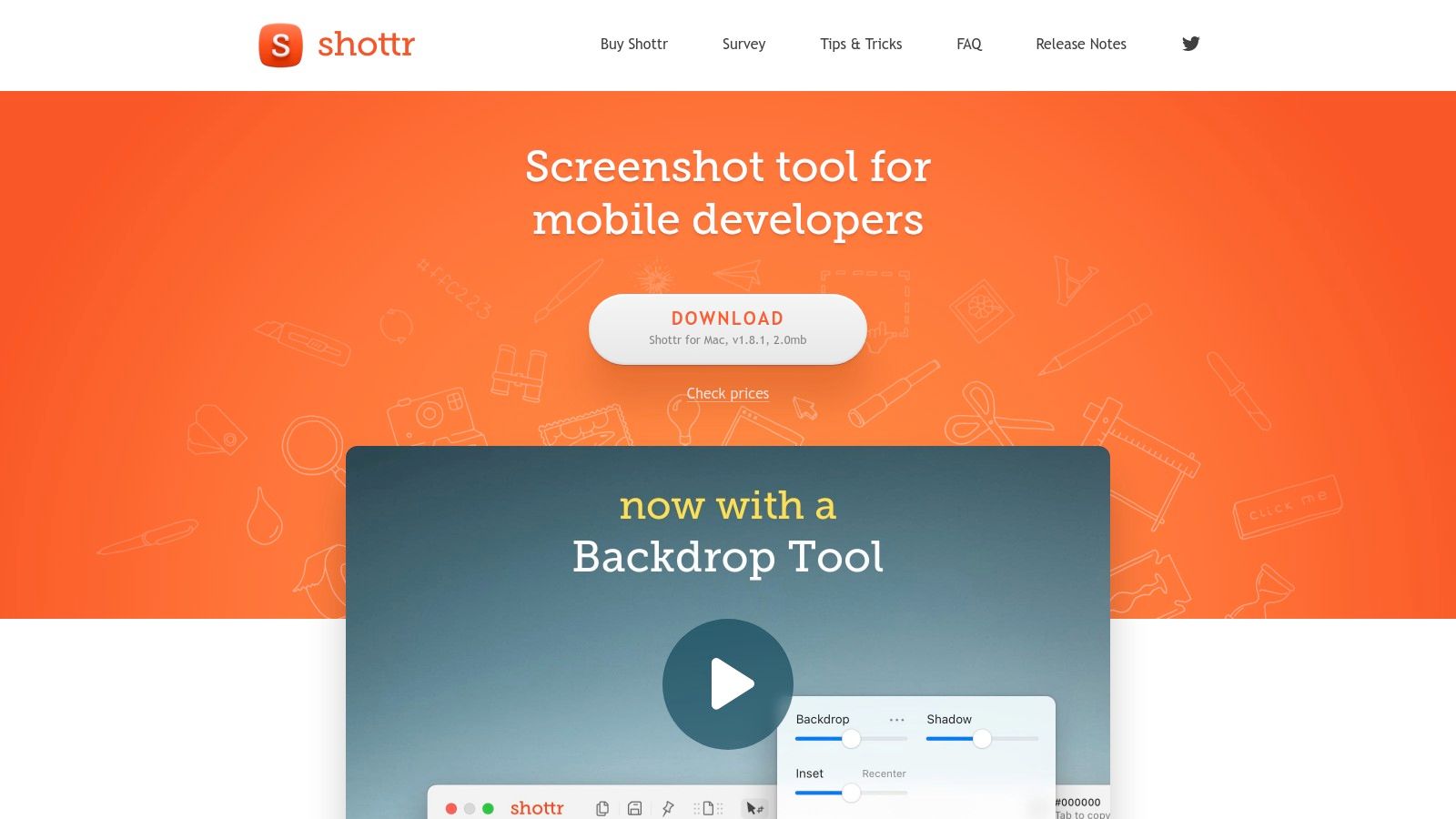
Its standout features are the integrated ruler, color picker, and magnifier, which allow for immediate analysis of any captured element on the screen. Shottr also includes reliable scrolling capture, OCR for text extraction, and the ability to pin screenshots so they float above other windows. While developed by a solo founder, the app offers a remarkably generous free tier for personal use, with an affordable one-time purchase unlocking commercial use and supporting future development.
Key Features & Assessment
| Feature | Assessment | Use Case Scenario |
|---|---|---|
| Pixel-Precision Tools | Excellent. The ruler, magnifier, and color picker are fast and accurate. | A UI designer measures the padding between elements in a web layout. |
| Performance | Excellent. Incredibly fast, with near-instant captures and a small footprint. | A developer quickly captures an error state without interrupting their coding flow. |
| Scrolling Capture | Very Good. Reliably captures long content from browsers and apps. | A user saves a long chat conversation for documentation. |
| OCR & Pinning | Good. Effective text recognition and a useful floating screenshot feature. | A support agent pins a customer's issue while typing a response. |
Website: https://shottr.cc
4. Monosnap
Monosnap is a versatile, cross-platform capture tool that offers a flexible solution for screenshots, annotations, and screen recording. It’s well-suited for users who need a solid, no-frills app with optional cloud storage integration for quick sharing. Unlike some Mac-exclusive tools, Monosnap provides a consistent experience across different operating systems, making it a practical choice for teams with diverse tech stacks. The app covers all the essential capture needs, including image, GIF, and video recording, paired with basic but effective annotation tools.
Its biggest draw is its flexible pricing, which includes a free plan for personal use and affordable commercial tiers with team management features. Users get access to Monosnap's own cloud storage for hosting captures, simplifying the process of generating short links for sharing. However, potential users should note there can be feature differences between the version purchased directly from their website and the one on the Mac App Store. It’s a reliable tool, but businesses should verify that the current plan offerings meet their specific collaboration and security needs.
Key Features & Assessment
| Feature | Assessment | Use Case Scenario |
|---|---|---|
| Cloud Storage | Good. Optional, integrated hosting with short links. | A support agent quickly shares a screenshot with a customer via a generated link. |
| Annotation Tools | Good. Covers all the basics like arrows, text, and blur. | A project manager adds brief notes to a mockup before sending it to the team. |
| Cross-Platform Support | Excellent. Works on both Mac and Windows. | A remote team with mixed hardware shares instructional GIFs seamlessly. |
| Team Management | Good. Available on commercial plans for centralized control. | An IT admin manages team accounts and storage quotas for a small company. |
Website: https://monosnap.com
5. Zight (formerly CloudApp)
Zight, formerly known as CloudApp, is an enterprise-focused visual communication platform built around rapid cloud sharing. It excels in team environments where speed and integration are paramount, instantly uploading screenshots, GIFs, and screen recordings to the cloud and placing a shareable link on your clipboard. This makes it one of the best screenshot apps for Mac for asynchronous communication, allowing users to quickly share bug reports, feedback, or process walkthroughs without disrupting their workflow.
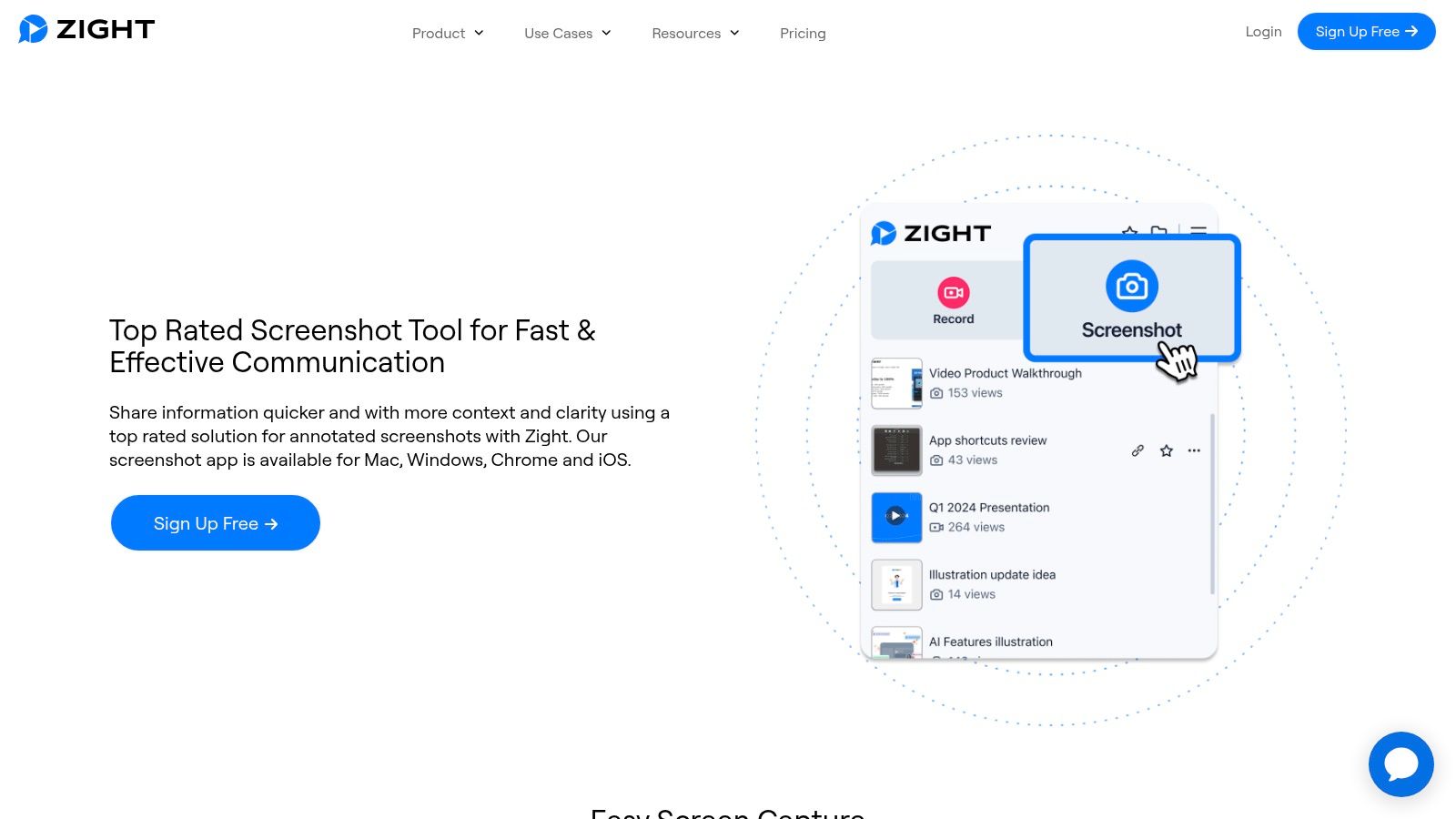
The platform is designed to plug directly into existing business tools, offering deep integrations with apps like Slack, Jira, and Microsoft Teams. While its annotation tools are functional, the core strength lies in its ecosystem of cross-platform apps and browser extensions that unify the capture experience everywhere. Zight is ideal for support teams and distributed companies, but its cloud-centric model may not be suitable for those with strict on-premises data policies or users who prefer local file management.
Key Features & Assessment
| Feature | Assessment | Use Case Scenario |
|---|---|---|
| Instant Cloud Sharing | Excellent. Captures are auto-uploaded with a link copied. | A support agent sends a customer a visual guide in a live chat. |
| GIF & Video Recording | Very Good. Simple tools for creating quick animated GIFs or recordings. | A project manager records a quick feature demo for the team's Slack channel. |
| Enterprise Integrations | Excellent. Seamlessly connects with Jira, Slack, Trello, and more. | A QA tester creates a Zight capture and attaches it directly to a new Jira ticket. |
| Cross-Platform Sync | Good. Offers apps for Mac, Windows, and Chrome for a unified workflow. | A user captures an issue on their Mac and accesses the link from their Windows PC. |
Website: https://zight.com/screenshot-app/
6. Droplr
Droplr is a cloud-first screenshot and screen recording service built for team collaboration and enterprise environments. It streamlines the process of capturing, annotating, and sharing visual information by instantly uploading every capture to the cloud and providing a short link. This makes it one of the best screenshot apps for Mac if your workflow is heavily reliant on quick, remote communication and you need robust sharing capabilities, such as custom domains and detailed analytics on who views your files. The app excels in a professional setting where security and team management are priorities.
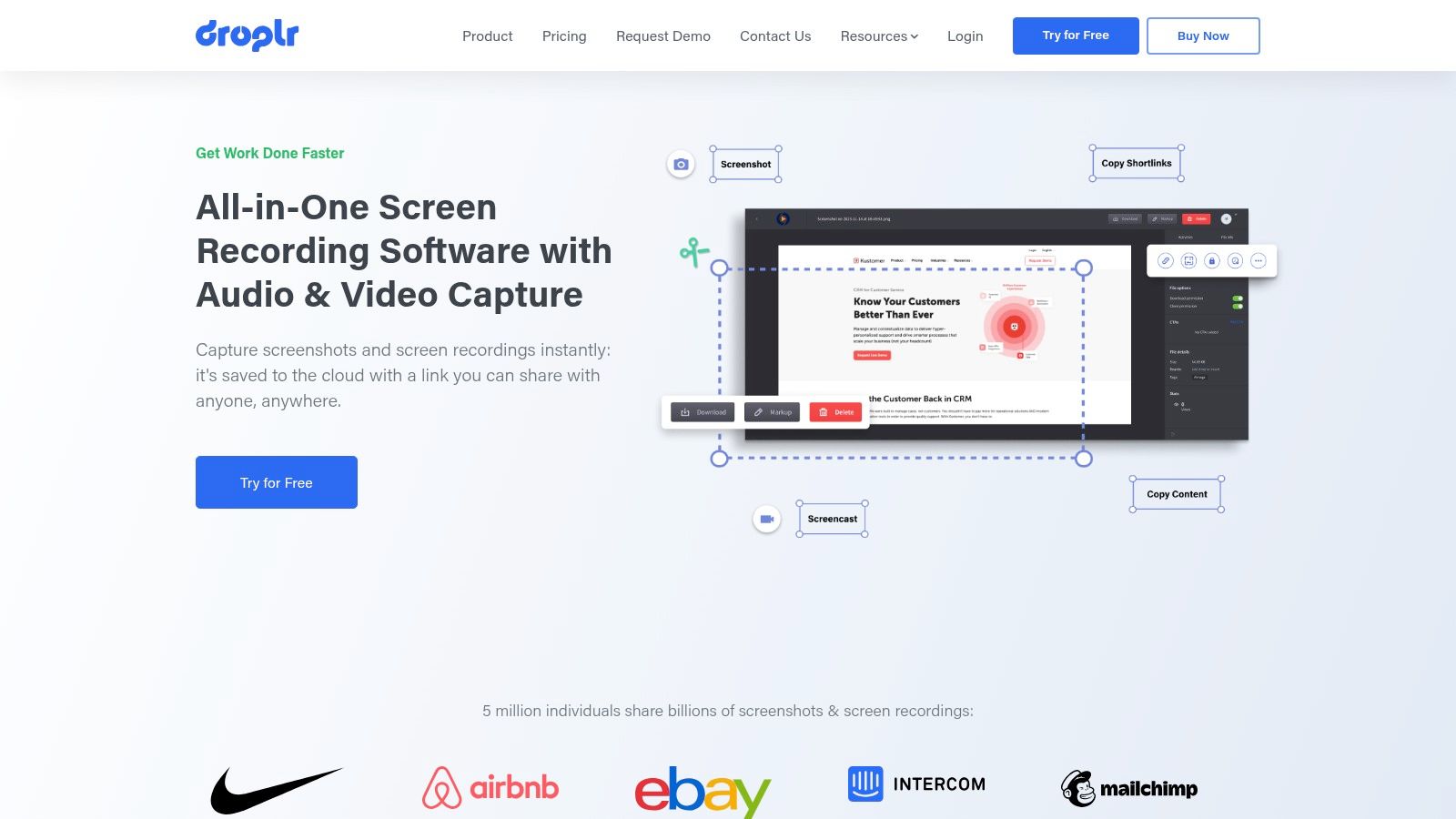
While its annotation tools cover the essentials like arrows, text, and blurring, Droplr’s main strength lies in its enterprise-grade features. Paid plans offer unlimited HD/4K recording, team administration controls, and SSO integration, positioning it as a powerful tool for large organizations. The platform's heavily cloud-centric model means it’s less suited for users who prefer to manage files locally, but it's an excellent solution for teams that need to distribute visual feedback efficiently and securely across the company.
Key Features & Assessment
| Feature | Assessment | Use Case Scenario |
|---|---|---|
| Cloud Sharing & Links | Excellent. Instant cloud uploads with short links for fast sharing. | A support agent sends a customer a quick screen recording of a solution. |
| Team & Enterprise Features | Very Good. Includes custom branding, analytics, and SSO. | An IT department manages screenshot sharing policies for the entire organization. |
| HD/4K Screen Recording | Very Good. Unlimited recording duration on paid plans. | A product manager records a detailed walkthrough of a new feature for the sales team. |
| Annotation Tools | Good. Covers all the essential markup needs effectively. | A designer adds notes and highlights to a website mockup for a developer. |
Website: https://droplr.com
7. Capto (Global Delight)
Capto is a Mac-only screen capture and video recording tool designed for educators, content creators, and professionals who need an all-in-one solution for creating instructional content. It combines robust screen capture, video recording, and a surprisingly capable video editor into a single application. Its standout feature is the powerful organizational library, which allows users to manage a large volume of media using folders, smart collections, and tags, making it one of the best screenshot apps for Mac for those who build tutorials or courses.
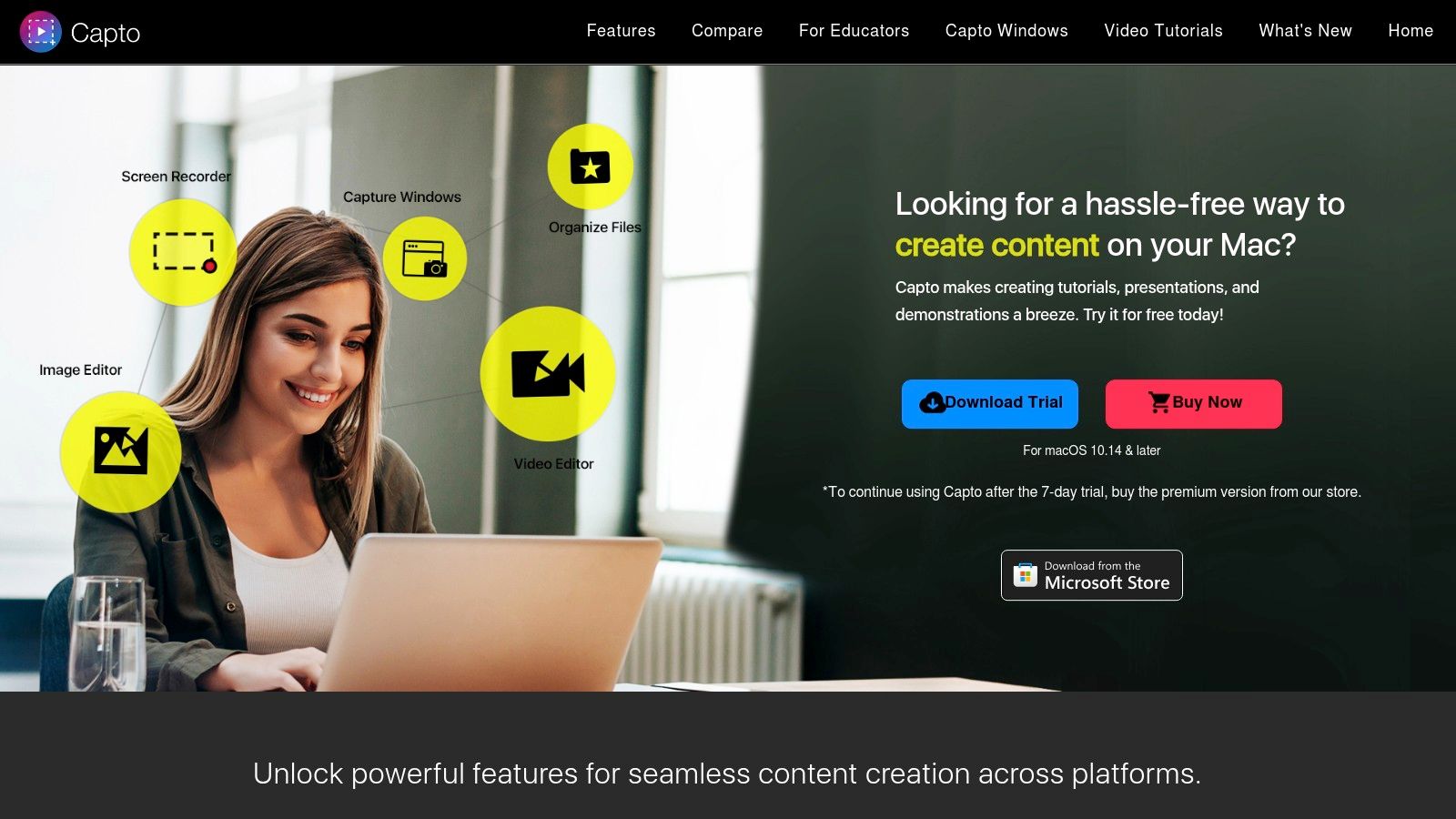
Unlike many apps focused solely on static captures, Capto provides a comprehensive post-production workflow, including video editing features like trimming, cropping, and adding annotations directly to video clips. This makes it an excellent choice for users who frequently need to create short, polished video guides or product demos without switching to a dedicated video editor. The app is available as a one-time purchase directly from the developer, on the Mac App Store, or as part of the Setapp subscription service, offering flexible access.
Key Features & Assessment
| Feature | Assessment | Use Case Scenario |
|---|---|---|
| Video Capture & Editor | Very Good. Basic but highly functional video editing tools. | A teacher records a software tutorial and adds callouts to guide students. |
| Image & Web Capture | Good. Reliable tools for full-screen, area, and webpage captures. | A blogger captures an entire webpage to archive its layout and content. |
| Media Library | Excellent. Powerful organization with folders and smart collections. | A content creator organizes all media assets for a multi-part video series. |
| Sharing Options | Good. Integrates with popular platforms like YouTube and Dropbox. | A support agent creates and uploads a quick video guide to YouTube for a customer. |
Website: https://www.globaldelight.com/capto
8. Xnip
Xnip is a lightweight and accessible screenshot app available directly from the Mac App Store. It focuses on core functionalities like scrolling captures and quick annotations, making it a solid choice for users who don't need the extensive feature sets of premium tools. Its main strength lies in its simplicity and reliable scrolling screenshot capability, which can capture long web pages or chat conversations with ease. The app also includes a handy feature for pinning screenshots as floating windows, keeping them visible on top of other applications for easy reference.
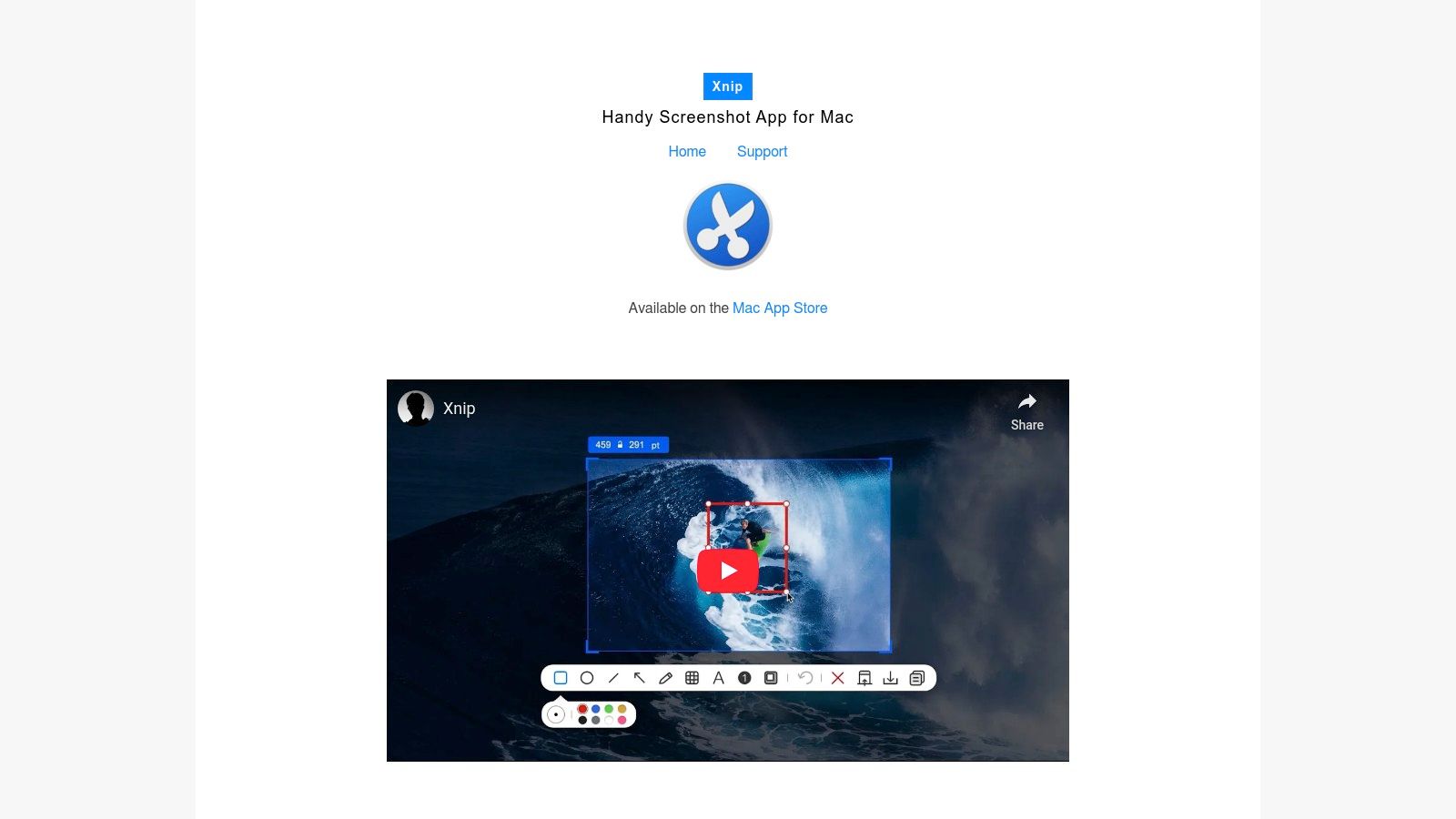
While its annotation tools are more basic than competitors like CleanShot X, they cover essential needs like adding arrows, text, and shapes. Xnip's straightforward approach makes it one of the best screenshot apps for Mac users who prioritize speed and efficiency for everyday tasks. As a Mac App Store product, updates are simple to manage, though pricing and feature availability can sometimes vary by region. It's an excellent free-to-start option for those looking to upgrade from the native macOS tool without a significant investment.
Key Features & Assessment
| Feature | Assessment | Use Case Scenario |
|---|---|---|
| Scrolling Capture | Very Good. Reliably captures long content, including web pages and chats. | A user captures an entire lengthy Slack thread to archive for project documentation. |
| Annotation Tools | Good. Covers the basic needs for quick markups without overwhelming options. | A support agent quickly adds an arrow and text to a screenshot to guide a customer. |
| Pinned Screenshots | Very Good. Pins captures as floating windows for easy reference. | A developer pins a screenshot of a design mockup to reference while coding in their IDE. |
| Multi-Window Capture | Good. Can capture multiple windows at once. | A writer captures several open research windows simultaneously for a project outline. |
Website: https://xnipapp.com
9. Greenshot for Mac
Greenshot is a name many Windows users will recognize for its long-standing reputation as a free, open-source screenshot utility. On macOS, it arrives as a lightweight and highly affordable proprietary app available on the App Store. It’s designed for users who need a simple, no-frills tool that prioritizes quick captures, basic edits, and efficient exports without a steep learning curve or a high price tag, making it a solid contender among the best screenshot apps for Mac if simplicity is your goal.
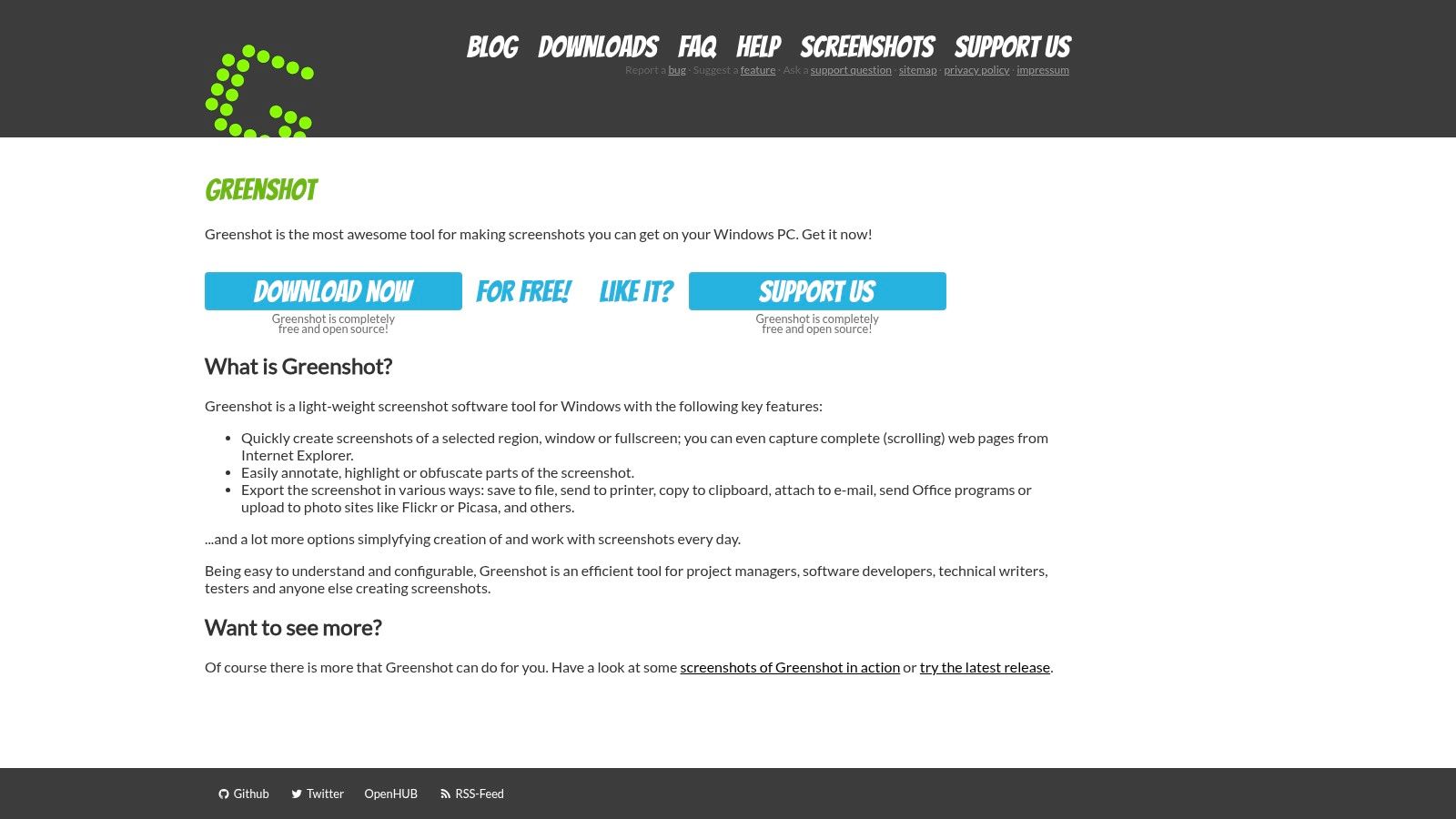
The app sticks to the essentials: region, window, and fullscreen capture modes paired with a straightforward editor. The editor's strength lies in its simplicity, offering tools for highlighting, annotating, and, most notably, obfuscating or blurring sensitive information quickly. While the macOS version is less feature-rich than its Windows counterpart and has seen slower updates, its minimal design and very low one-time cost make it an excellent choice for users seeking a direct replacement for the native macOS tool with just a few extra editing capabilities.
Key Features & Assessment
| Feature | Assessment | Use Case Scenario |
|---|---|---|
| Lightweight Editor | Good. Covers essential annotation and obfuscation needs effectively. | A support agent quickly blurs out a customer's personal details before sharing a screenshot. |
| Capture Modes | Good. Standard region, window, and fullscreen captures are reliable. | A user captures a specific application window to include in a work presentation. |
| Workflow Simplicity | Excellent. Extremely easy to learn and use for basic tasks. | A student takes a quick screenshot of a lecture slide for their notes. |
| Export Options | Good. Easily save to file, copy to clipboard, or open in another app. | A writer captures an image and immediately copies it to the clipboard to paste into a blog post. |
Website: https://getgreenshot.org
10. Gyazo
Gyazo is built around a single, powerful idea: instant sharing. This app streamlines the capture-to-link workflow, automatically uploading every screenshot and GIF you take to its cloud service and placing a shareable link on your clipboard. Its core strength lies in its speed and simplicity, making it an ideal choice for users who need to share visual information with others as quickly as possible without intermediate steps. It's one of the best screenshot apps for Mac if your primary goal is rapid, cloud-based collaboration.
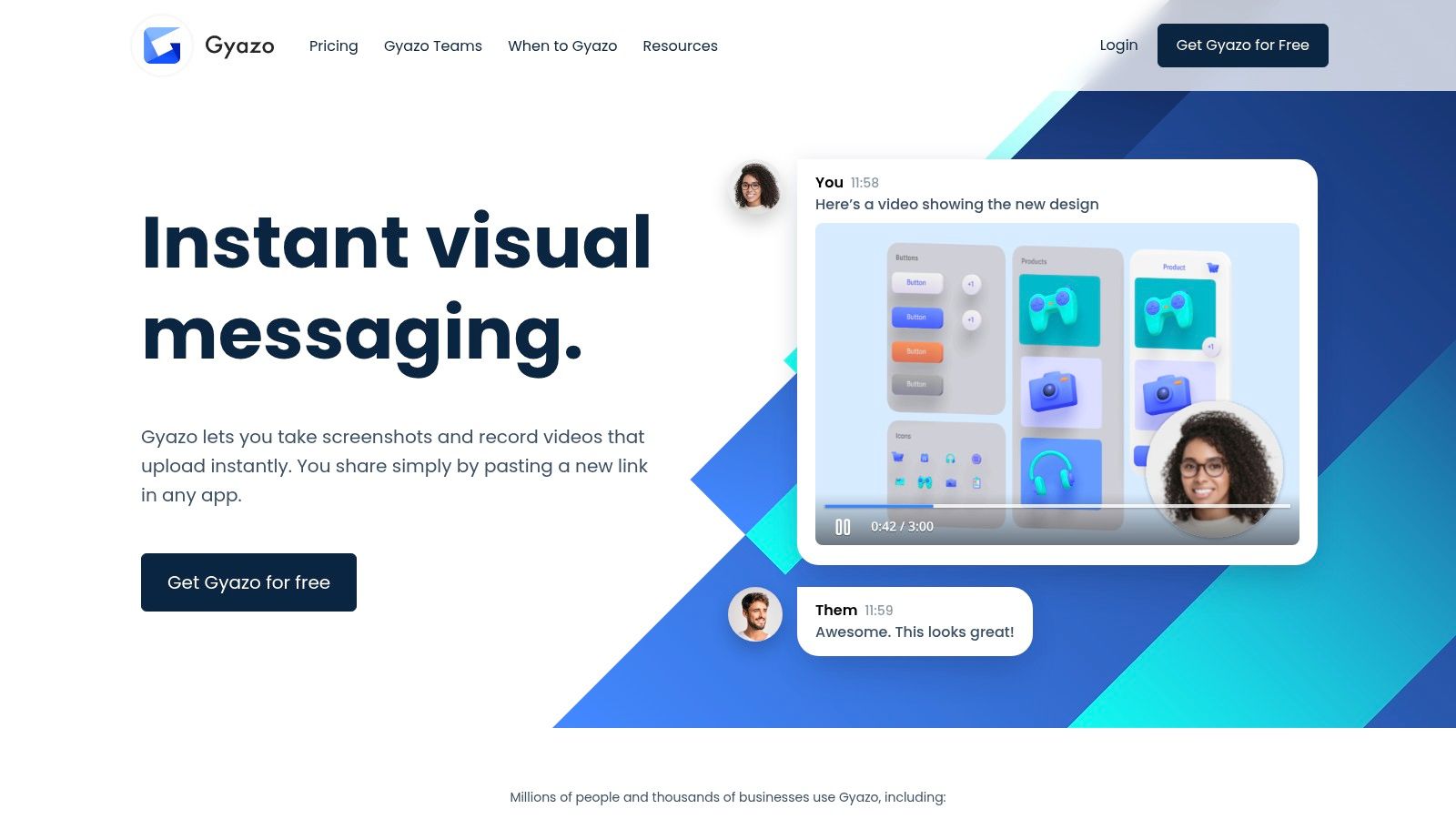
While the free version is effective, the platform truly expands with its Pro and Teams plans. Upgrading unlocks powerful features like unlimited history, ad-free viewing, and most notably, an OCR-powered search engine that lets you find past captures based on the text within them. Its cloud-first model might not appeal to users who prefer local file management, and the free tier's limited history can be a drawback. However, for teams and individuals prioritizing a frictionless sharing experience, Gyazo's workflow is exceptionally efficient.
Key Features & Assessment
| Feature | Assessment | Use Case Scenario |
|---|---|---|
| Instant Link Sharing | Excellent. The fastest way to get a capture from screen to shared link. | A support agent instantly shares a screenshot of a settings page with a customer. |
| GIF & Video Capture | Good. Simple and effective for capturing short screen animations. | A developer creates a quick GIF to demonstrate a new feature in a pull request. |
| Cloud-Based History | Good. Offers cross-device access but has limitations on the free plan. | A user accesses a screenshot taken on their work Mac from their personal laptop. |
| OCR Search (Pro) | Very Good. A powerful tool for finding specific information in past captures. | A designer searches for an old mockup by remembering a specific line of copy in the image. |
Website: https://gyazo.com
11. Setapp
Setapp isn't a single screenshot app but a subscription service that provides access to a curated library of over 260 premium Mac applications, including some of the best screenshot apps for Mac. Instead of buying tools like CleanShot X or Capto individually, Setapp offers them all under one monthly fee. This model is ideal for users who want to experiment with different high-end capture and annotation tools without committing to multiple one-time purchases. It positions itself as a "Netflix for Mac apps," ensuring every included tool is notarized, secure, and always up-to-date.
The platform’s real value lies in its cost-effectiveness and discovery potential. If you need more than just a screenshot tool-perhaps a project manager, a code editor, and a menu bar organizer-the subscription quickly pays for itself. For those focused on screenshots, it allows you to try powerful options like CleanShot X to see if its advanced workflow fits your needs before considering a separate license. The main drawback is the subscription model; if you cancel, you lose access to all the apps.
Key Features & Assessment
| Feature | Assessment | Use Case Scenario |
|---|---|---|
| App Curation | Excellent. Access to top-tier screenshot tools like CleanShot X. | A user tries both CleanShot X and Capto for a week to decide which one best fits their workflow. |
| Cost-Effectiveness | Very Good. High value if you use three or more included apps. | A marketing manager uses CleanShot X, a mind-mapping tool, and a video editor, all for one fee. |
| Subscription Model | Good. Offers flexibility but requires an ongoing payment. | A freelancer subscribes for a 3-month project needing multiple premium tools, then cancels. |
| Discovery & Updates | Excellent. Find new tools and get automatic updates. | A developer discovers a useful screen recording app in the Setapp catalog they hadn't heard of. |
Website: https://setapp.com
12. Mac App Store (web)
While not an app itself, the Mac App Store is an essential starting point for discovering some of the best screenshot apps for Mac in a secure, centralized marketplace. It serves as Apple’s official, vetted storefront, where you can browse, read user reviews, and safely install powerful tools like Greenshot and Xnip. The platform’s main advantage is its seamless integration with the Apple ecosystem, simplifying license management and updates across all your devices tied to a single Apple ID.
Exploring the App Store is a great way to find hidden gems through curated lists and user ratings, ensuring any app you download meets Apple's stringent security and quality standards. Features like Family Sharing allow you to share purchased apps with others, offering great value. However, it's important to note that some top-tier developers, like the creators of CleanShot X, opt to sell directly from their own websites, so not every option will be available here.
Key Features & Assessment
| Feature | Assessment | Use Case Scenario |
|---|---|---|
| Trusted Distribution | Excellent. All apps are vetted by Apple for security and quality. | A user confidently installs a new screenshot utility without worrying about malware. |
| License Management | Very Good. Purchases are tied to your Apple ID for easy installation. | A developer sets up a new Mac and quickly reinstalls all their purchased apps. |
| Discovery & Reviews | Good. User ratings and editorial picks help identify quality tools. | A content creator compares user reviews for several annotation apps before choosing one. |
| App Availability | Fair. Many great apps are present, but some key players are missing. | A project manager looking for CleanShot X must go to the developer's site directly. |
Website: https://apps.apple.com
Top 12 Mac Screenshot Apps — Feature Comparison
| Tool | ✨ Core features | ★ UX / Quality | 💰 Value & Pricing | 👥 Target audience | 🏆 Unique selling point |
|---|---|---|---|---|---|
| CleanShot X | Scrolling capture, OCR, polished annotation, Cloud sharing | Mac-native, smooth ★★★★☆ | One-time license + Cloud Pro 💰 | Mac pros, designers, teams 👥 | Pixel‑perfect annotations & branded Cloud |
| TechSmith Snagit | Templates, panoramic/scrolling capture, robust editor | Mature, enterprise-ready ★★★★☆ | Perpetual → subscription options 💰 | Business, education, support teams 👥 | Rich editor workflows & org templates |
| Shottr | 17ms capture, ruler, magnifier, OCR & pinning | Ultra-fast, lightweight ★★★★☆ | Generous free tier; affordable one-time 💰 | Designers, devs, individual power users 👥 | Millisecond captures & precision tools |
| Monosnap | Image/GIF/video capture, blur/annotate, short links | Cross-platform, flexible ★★★☆☆ | Free personal + affordable commercial plans 💰 | Teams needing simple cloud + pricing flexibility 👥 | Optional storage quotas & team plans |
| Zight (CloudApp) | Screenshot/GIF/video, auto-upload, integrations | Fast sharing, collaboration-friendly ★★★★☆ | Cloud subscription; team tiers 💰 | Async teams, support, Slack/Teams workflows 👥 | Deep integrations & instant cloud links |
| Droplr | Annotations, blurring, HD/4K recording, sharing | Enterprise-oriented, polished ★★★★☆ | Paid plans for unlimited recording & analytics 💰 | Enterprises needing analytics & SSO 👥 | Analytics, custom domains & unlimited recs |
| Capto (Global Delight) | Region/window/webpage capture, basic video editor, library | Simple editor, organized library ★★★☆☆ | One-time license; Setapp availability 💰 | Teachers, content creators, educators 👥 | Built-in library + basic video editing |
| Xnip | Scrolling capture, multi-window, floating pin windows | Lightweight App Store app ★★★☆☆ | App Store pricing (region variations) 💰 | Mac users needing long-page captures 👥 | Effective long-page/scroll captures |
| Greenshot for Mac | Region/window/full capture, lightweight editor, obfuscate | Minimal, no-frills ★★☆☆☆ | Very affordable on macOS 💰 | Budget-conscious Mac users 👥 | Simple, low-cost capture tool |
| Gyazo | Auto-upload links, short video/GIF, OCR on Pro | Extremely fast sharing ★★★☆☆ | Free with limited history; Pro adds OCR/history 💰 | Fast sharers, cross-device users 👥 | Instant link sharing & cross-device sync |
| Setapp | One subscription unlocks many Mac apps, discovery | Curated, easy updates ★★★★☆ | Monthly subscription; cost-effective if many apps 💰 | Power Mac users who want multiple apps 👥 | Bundled access to premium capture apps |
| Mac App Store (web) | Marketplace, reviews, Family Sharing, updates | Trusted Apple ecosystem ★★★★☆ | App-based pricing; Apple-managed purchases 💰 | General Mac users wanting vetted apps 👥 | Vetted distribution & seamless license mgmt |
Choosing the Right Tool for the Job
Navigating the landscape of the best screenshot apps for Mac reveals a diverse ecosystem of tools, each tailored to a specific set of needs and workflows. Your final choice doesn't depend on finding a single "perfect" application, but rather on identifying the one that best aligns with your daily tasks, collaboration style, and professional requirements. We've explored a wide spectrum, from comprehensive powerhouses to lightweight, precision-focused utilities.
The key takeaway is that the ideal tool is an extension of your workflow. For users who need an all-in-one command center for screen captures, annotations, and screen recording, robust solutions like CleanShot X and TechSmith Snagit remain top contenders. Their extensive feature sets justify their premium status for power users who live inside these applications.
Matching the Tool to Your Role
Making the right selection requires a clear understanding of your primary use case. Consider these common scenarios:
- For the Power User & Content Creator: If you need a comprehensive suite with advanced annotations, scrolling capture, and video recording, CleanShot X or Snagit are your best bets. They handle virtually any capture-related task you can throw at them.
- For the Developer & QA Engineer: When speed, pixel-perfect measurements, and lightweight performance are critical, Shottr stands out. Its minimalist design and developer-centric features like the ruler and color picker make it an indispensable utility for technical work.
- For the Collaborative Team: If your workflow is built around instant sharing, feedback loops, and cloud-based link management, platforms like Zight (formerly CloudApp) and Droplr are specifically designed for this purpose. They excel at bridging the communication gap within teams.
The Emerging Need: Polished, Presentation-Ready Visuals
Beyond pure capture and annotation, a crucial final step is often overlooked: the presentation. A raw screenshot, even one with annotations, might not be suitable for a marketing deck, a public-facing tutorial, or a social media post. This is where a new class of tools comes into play.
While traditional apps focus on the act of capturing, browser-based tools like GrabShot.io are designed to perfect the result. It complements your existing capture workflow by focusing exclusively on transforming a basic screenshot into a beautifully framed, aesthetically pleasing, and professional-looking graphic. With AI-powered enhancements, background gradients, and instant redaction, it addresses the "last mile" of visual communication, ensuring your captures make a powerful impact. The right choice may even involve using a combination of tools, a powerful desktop app for capturing and a specialized web tool for polishing. Ultimately, the best screenshot app for your Mac is the one that removes friction from your work and helps you communicate more effectively.
Ready to elevate your screenshots from simple captures to polished, professional visuals? Stop sharing bland, raw images. Try GrabShot.io today and see how our AI-powered editor can instantly transform your screenshots into presentation-ready graphics perfect for marketing, documentation, and social media. Visit GrabShot.io to get started for free.